
Warehouse Details and Users
When you open a warehouse record, you can manage its stock summary, locations, related movements, and authorized users from one page.
Actions on a warehouse detail page
- User Management: Add or remove users who can access the warehouse.
- Edit: Update the warehouse name, address, and operational definitions.
- Create Stock Movement: Start a quick or detailed movement for the selected warehouse.
- Bulk Stock Entry: Record many stock rows in a single operation.
- Location Management: Manage rack and bin definitions when location tracking is active.
Add a user to a warehouse
- Open the relevant warehouse row from Warehouses.
- Open User Management in the page header.
- Search for the user and add them to grant warehouse access.
- Confirm that the user also has the required module permissions to perform warehouse operations.
Changing the user list only affects access to the selected warehouse; it does not change general application permissions.
Warehouse detail page
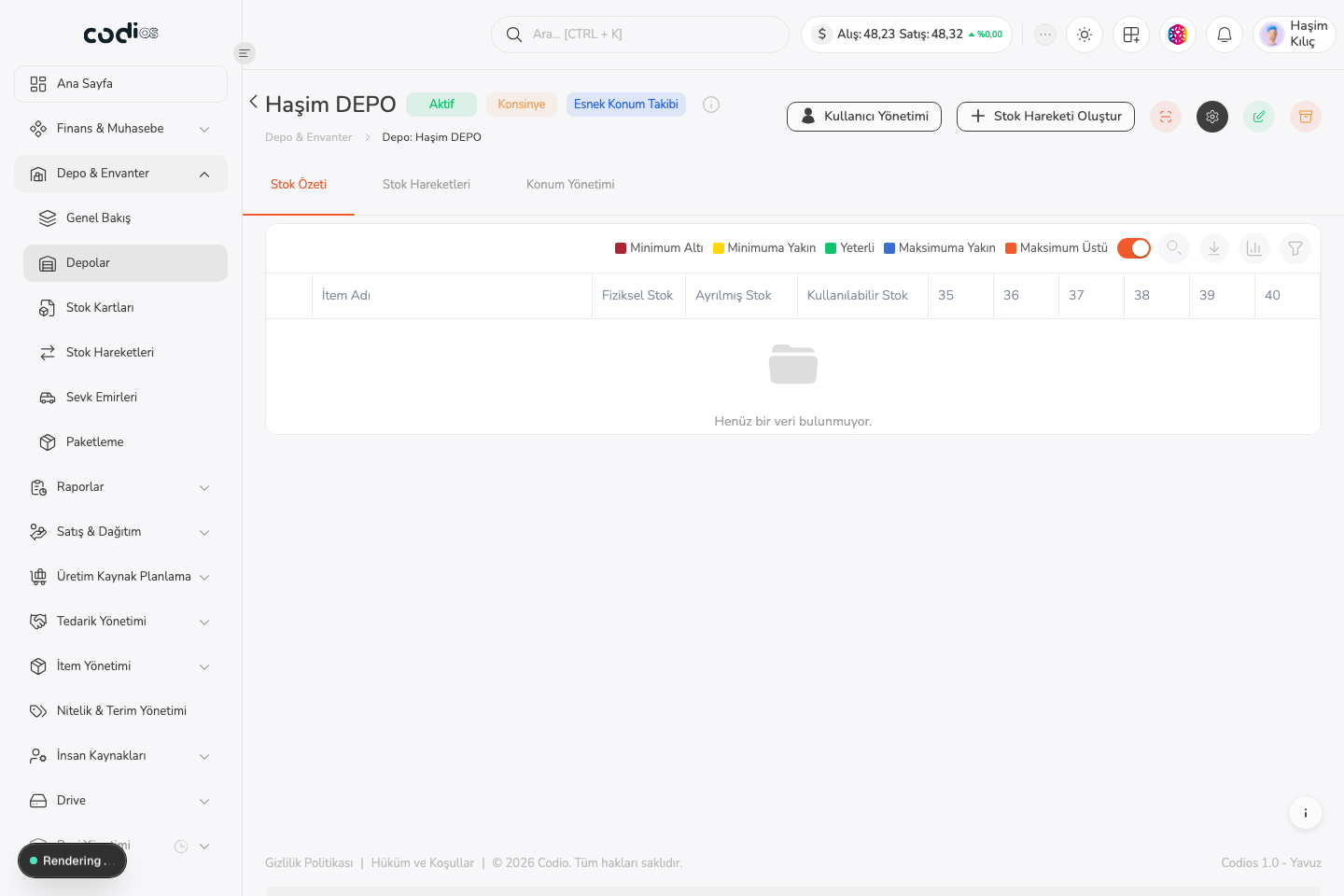 123
123- 1. Manage users who can access the warehouse from User Management.
- 2. Create Stock Movement starts an operation for the selected warehouse.
- 3. Select Stock Summary, Item Movements, or Location Management as the active workspace.
User Management panel
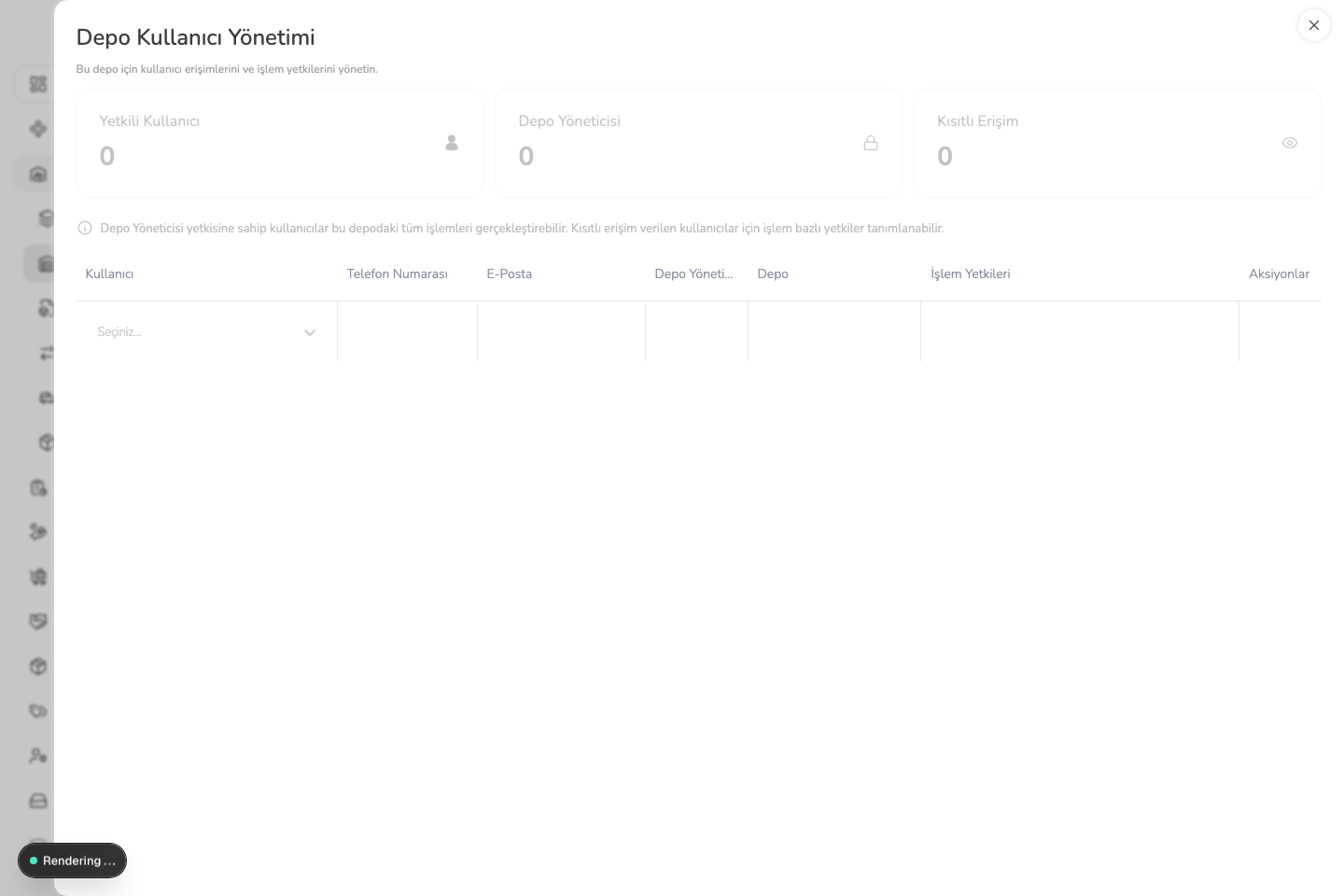 123
123- 1. The summary shows the number of authorized users, warehouse managers, and restricted users.
- 2. Select the person to add from the User field.
- 3. Limit the operations that the user can perform with action permissions.
Edit and archive
When a warehouse is no longer physically used, consider archiving it before starting further movements. Archived records remain available for historical traceability.
Back to top