

Customer Based Order Report
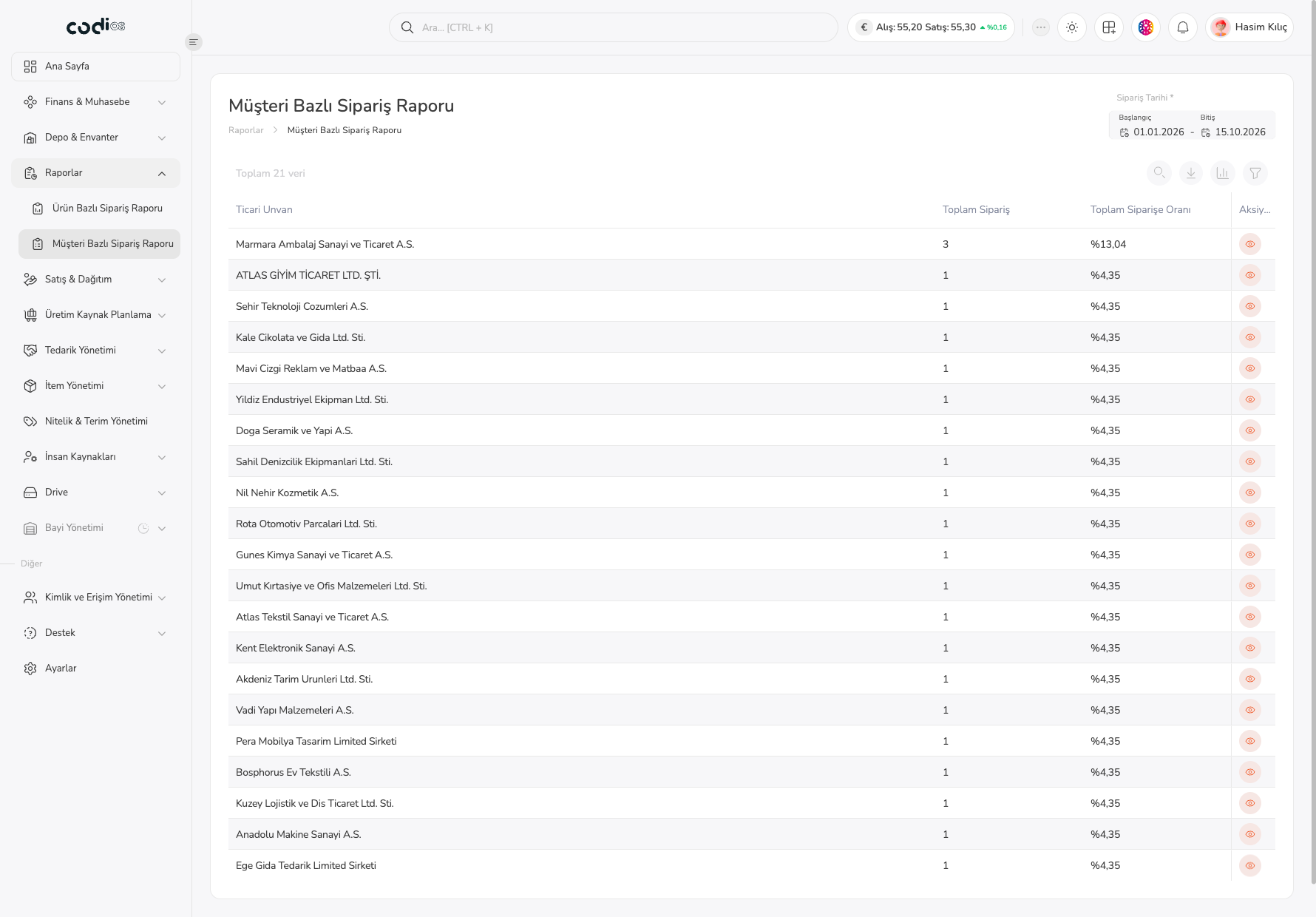
The Müşteri Bazlı Sipariş Raporu screen lists the customers who placed orders in the selected date range with their order counts and share of all orders. Use it to see how much each customer ordered and to drill down to the customer’s order lines.
Open and review the report
- Open Raporlar > Müşteri Bazlı Sipariş Raporu from the left menu.
- Check or change the Başlangıç and Bitiş dates in Sipariş Tarihi.
- Check Toplam … veri above the list to see how many customers are listed.
- Read the Ticari Unvan, Toplam Sipariş, and Toplam Siparişe Oranı columns together.
 123456
- 1. The Sipariş Tarihi field shows the start and end dates of the report.
- 2. The toolbar holds the search, export, column management, and filter controls.
- 3. The Ticari Unvan column shows the customer.
- 4. The Toplam Sipariş column shows the customer’s number of orders in the selected range.
- 5. The Toplam Siparişe Oranı column shows the customer’s share of all orders.
- 6. The eye icon in the Aksiyonlar column opens the customer’s order detail in a new tab.
The search, filter, export, and column management tools work the same way as on the Item Based Order Report screen.
Drill down to a customer
- In the customer’s row, select the eye icon.
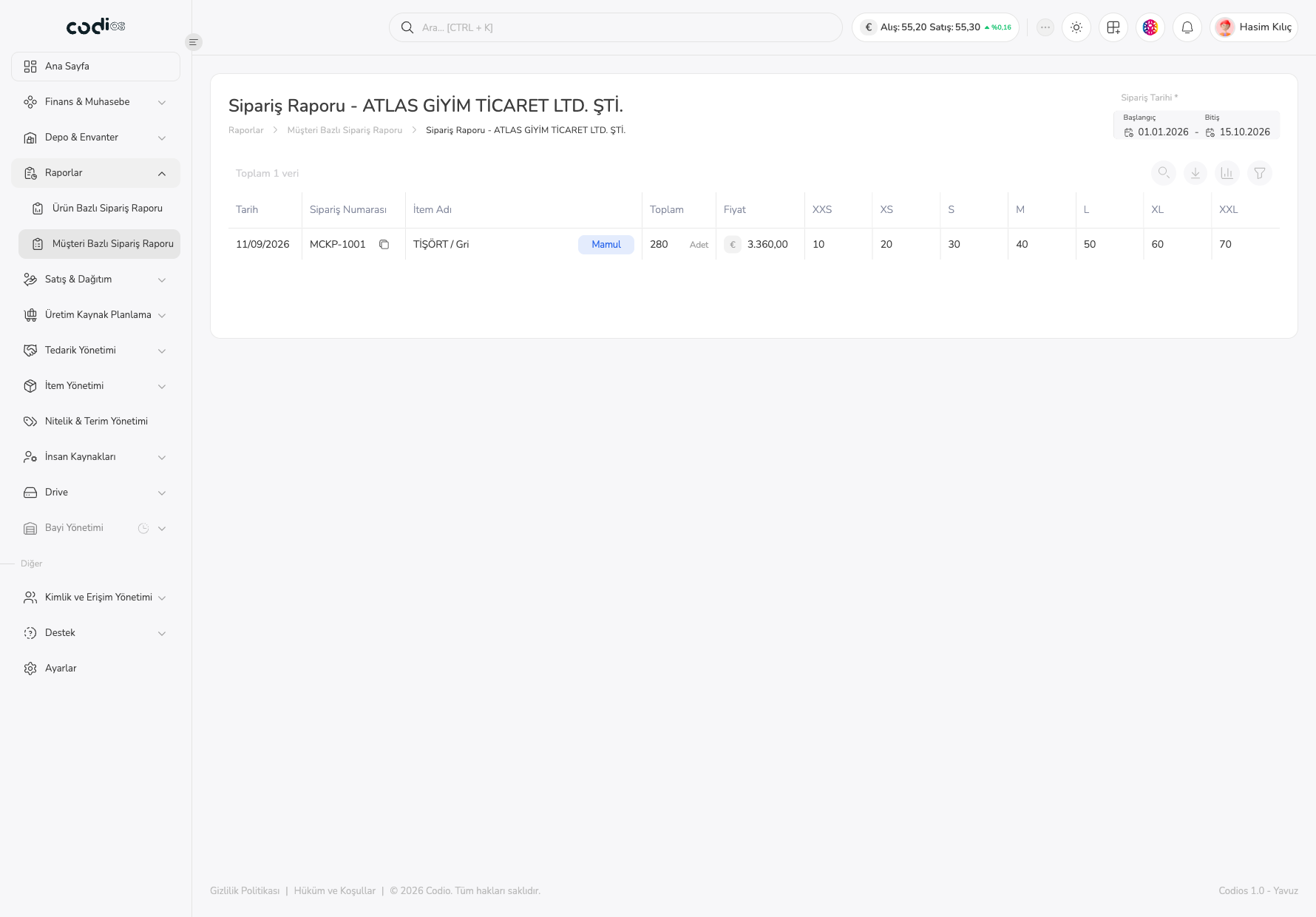
- In the Sipariş Raporu tab that opens, see the customer’s orders with their date and order number.
- Check the item in İtem Adı and the quantity and amount in Toplam, Fiyat, and the size columns.
- Use the Müşteri Bazlı Sipariş Raporu link in the breadcrumb to return to the list.
 123456
- 1. The Müşteri Bazlı Sipariş Raporu breadcrumb link returns to the list.
- 2. The Sipariş Tarihi range determines which orders the detail lists.
- 3. The Tarih and Sipariş Numarası columns identify the order.
- 4. The İtem Adı column shows the item on the order.
- 5. The Toplam and Fiyat columns show the quantity and amount.
- 6. The size columns (XXS–XXL) show the size distribution.
If no records appear for the customer, widen the Sipariş Tarihi range.
Back to top