
Stock Cards
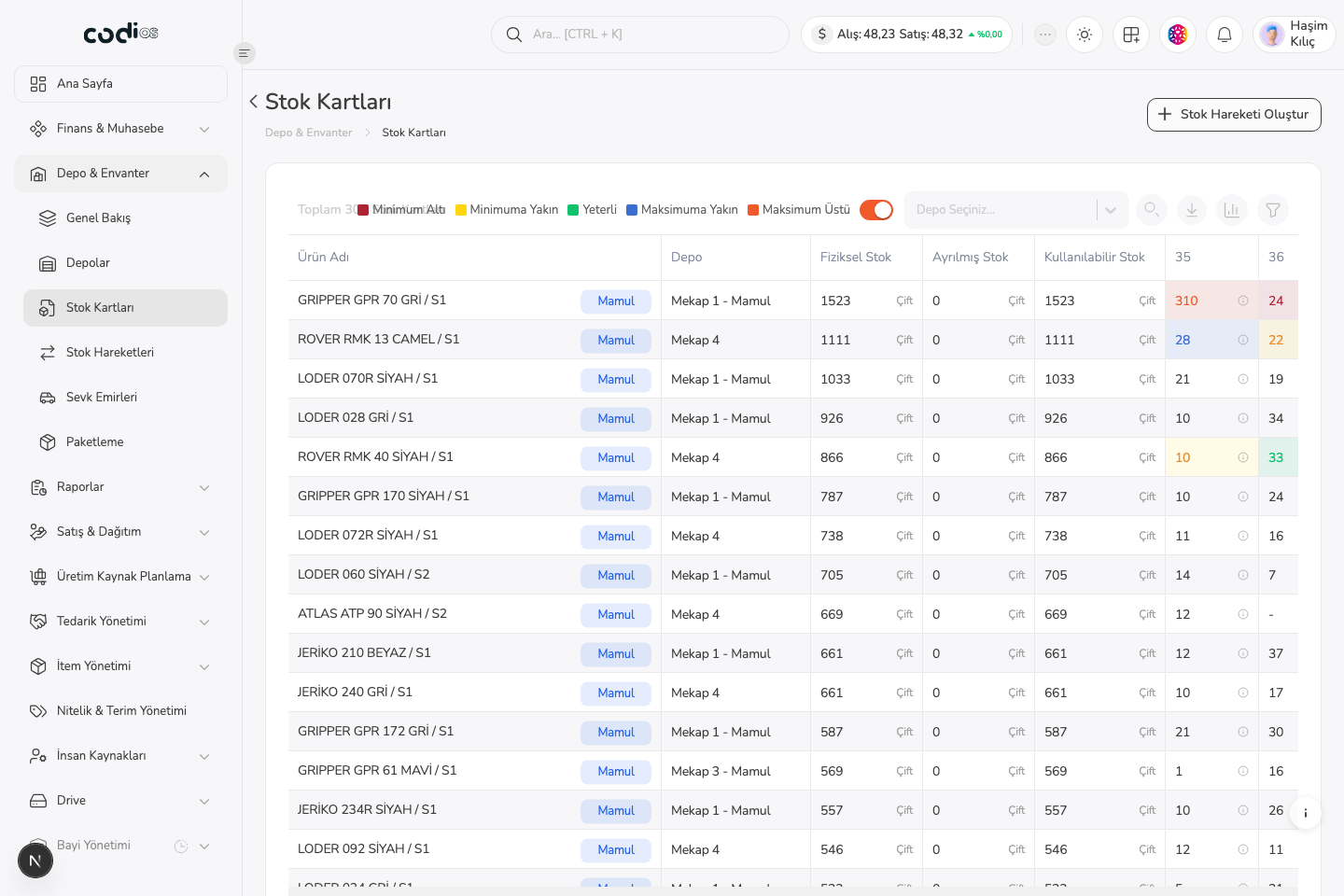
The Stock Cards page lets you monitor product quantities and available stock by warehouse.
Use the list
- Search by product name.
- Select the warehouse you are working in to narrow the results.
- Compare physical stock with the available quantity.
- Review stock-status indicators to identify products at critical levels.
Interpret quantities
Physical stock is the total quantity in the warehouse. Available stock is the quantity that can be used after pending operations or reserved quantities are considered.
Check a difference
- Confirm the product and warehouse.
- Compare the expected quantity with the physical quantity on the card.
- If there is a difference, find the relevant record on Item Movements.
- When the operation is still in progress, also check the transfer order or package record.
Stock Cards page
 123
123- 1. Use Create Stock Movement to start a new stock operation.
- 2. Narrow the results to the warehouse you are working in with the warehouse selector.
- 3. Review physical, reserved, and available stock columns together.
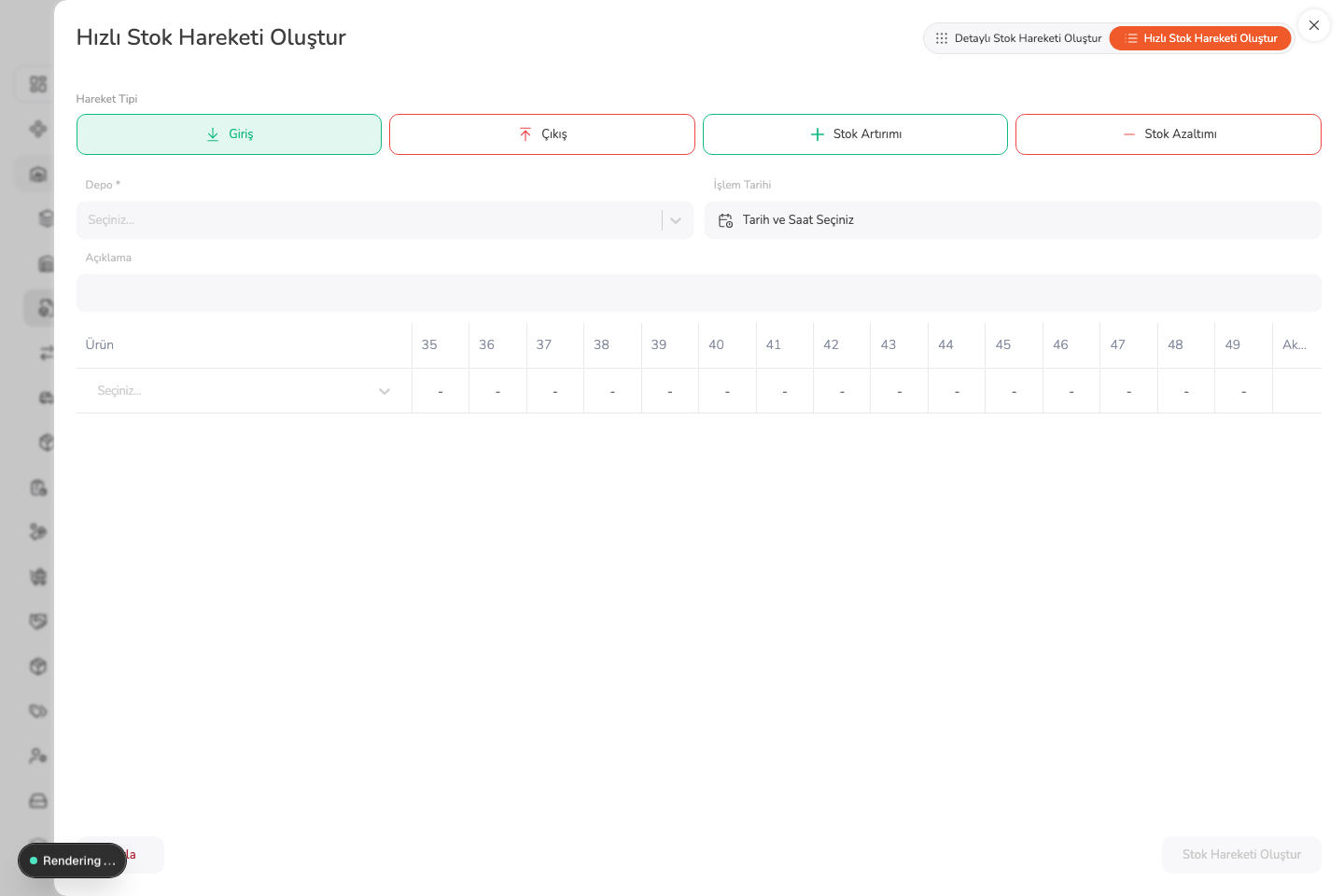
Quick stock movement panel
 123
123- 1. Select inbound, outbound, stock increase, or stock decrease as the movement type.
- 2. Set the warehouse and operation date for the movement.
- 3. Select the product, complete the quantity fields, and create the movement.