

Vendor Orders
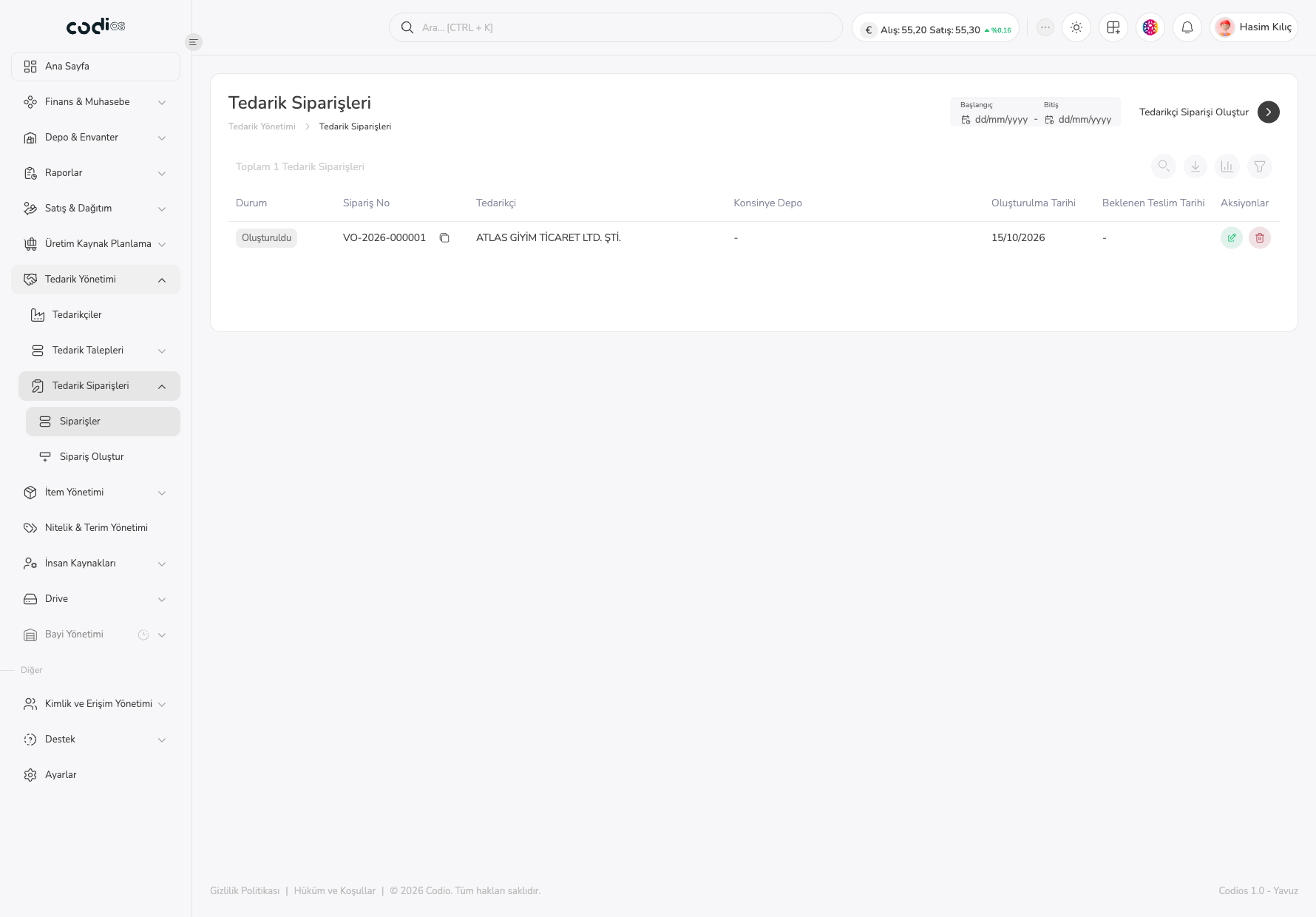
The Tedarik Siparişleri screen lets you list the orders placed with vendors, follow their status, and print, edit, notify the vendor about, or cancel an order from its detail. Orders are created in two ways: by approving lines on the Procurement Requests screen, or directly on the Create Order screen.
Review the order list
- Open Tedarik Yönetimi > Tedarik Siparişleri > Siparişler from the left menu.
- To see a specific period, choose the Başlangıç and Bitiş dates at the top right.
- Check the Durum, Sipariş No, Tedarikçi, Konsinye Depo, Oluşturulma Tarihi, and Beklenen Teslim Tarihi columns together.
- Select the order number to open the order detail.
 1234
- 1. The Tedarikçi Siparişi Oluştur button opens the new order form.
- 2. The Başlangıç and Bitiş fields narrow the list by date range.
- 3. The column headings show the order’s status, number, vendor, consignment warehouse, and dates. The search, export, column management, and filter tools work as on the report screens.
- 4. In the Aksiyonlar column, the green icon is for editing the order and the red icon for cancelling it.
An order status can be Oluşturuldu, Tedarikçiye Bildirildi, Malzeme Sevk Edildi, Kısmen Teslim Alındı, Teslim Alındı, Kapatıldı, İptal Edildi, or İade Edildi. New orders start as Oluşturuldu.
Read the order detail
- Select the order number in the list.
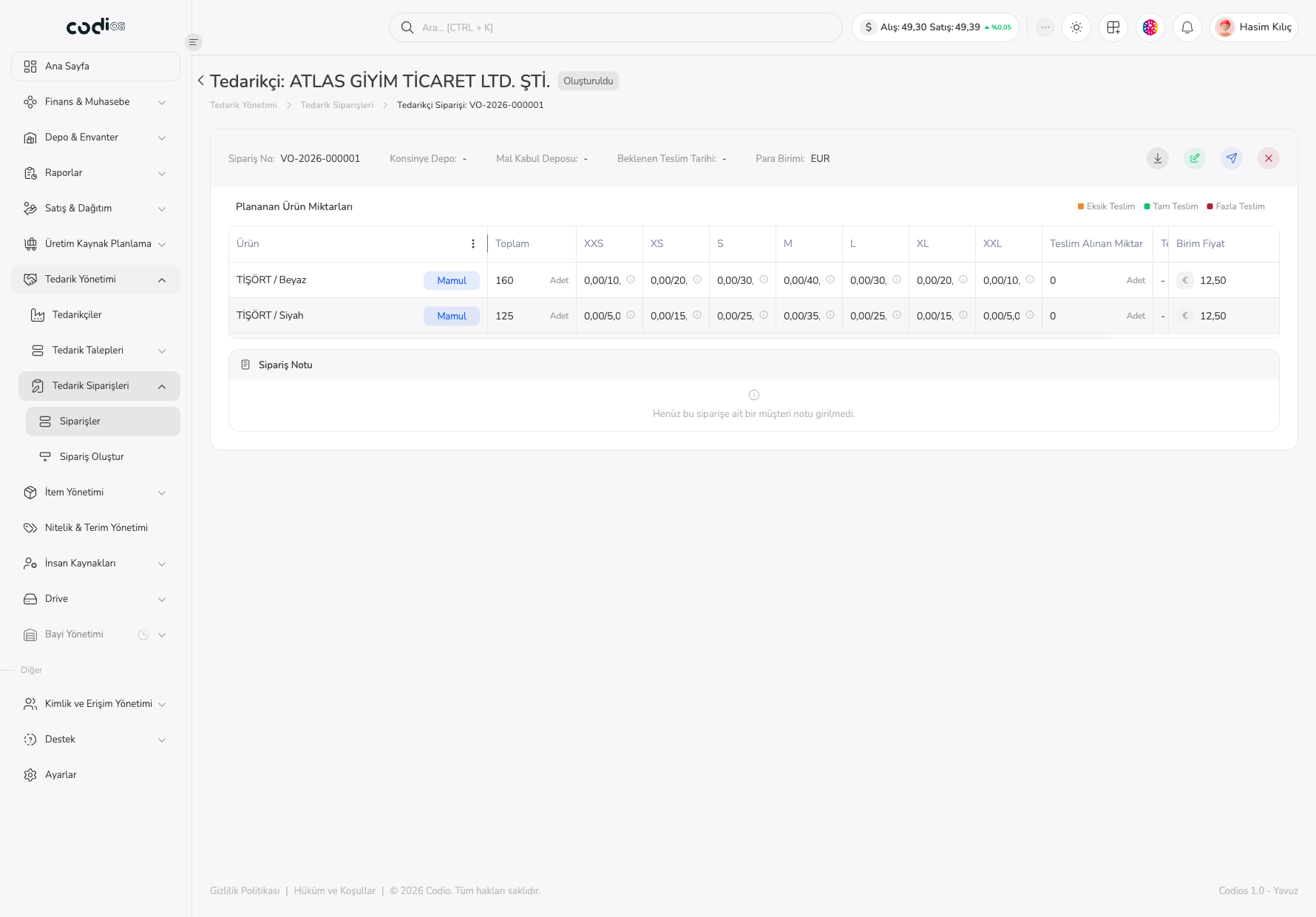
- See the vendor name and order status in the header.
- In the information strip, check Sipariş No, Konsinye Depo, Mal Kabul Deposu, Beklenen Teslim Tarihi, and Para Birimi.
- In the Planlanan Ürün Miktarları table, read the total, the received/planned quantity per size, Teslim Alınan Miktar, and Birim Fiyat for each item. The Eksik Teslim, Tam Teslim, and Fazla Teslim indicators above the table mark the delivery state by color.
- See the note entered for the order in Sipariş Notu.
 12345678
- 1. The badge in the header shows the order status.
- 2. The information strip shows the order number, warehouses, expected delivery date, and currency.
- 3. The Yazdır icon prepares the order printout.
- 4. The Düzenle icon opens the order for editing.
- 5. The Tedarikçiye Bildir icon notifies the vendor about the order.
- 6. The İptal Et icon cancels the order.
- 7. The Planlanan Ürün Miktarları table shows the items, quantities per size, received quantity, and unit price.
- 8. The Sipariş Notu section shows the note entered for the order; an information message appears when there is none.
Notify the vendor about the order
- While the order is in Oluşturuldu status, select the Tedarikçiye Bildir icon in the detail.
- In the confirmation box that opens, check the vendor name and confirm.
- Confirm that the order status is updated to Tedarikçiye Bildirildi.
An order cannot be edited after it is confirmed; check quantities and unit prices before notifying the vendor.
Cancel the order
- Select the İptal Et icon in the detail.
- In the confirmation box, check the order’s vendor and confirm the cancellation.
Cancellation cannot be undone. Do not cancel without checking the order number and vendor.
Back to top