

Add Item
Start a new product record from the quick form, or open Detaylı İtem Ekle for additional fields.
Quick entry
- Open Hızlı İtem Ekle from the Items screen.
- Complete the required İtem Adı, İtem Tipi, and Benzersiz Link Yolu fields.
- Check the unit and status.
- Create the record with Ekle.
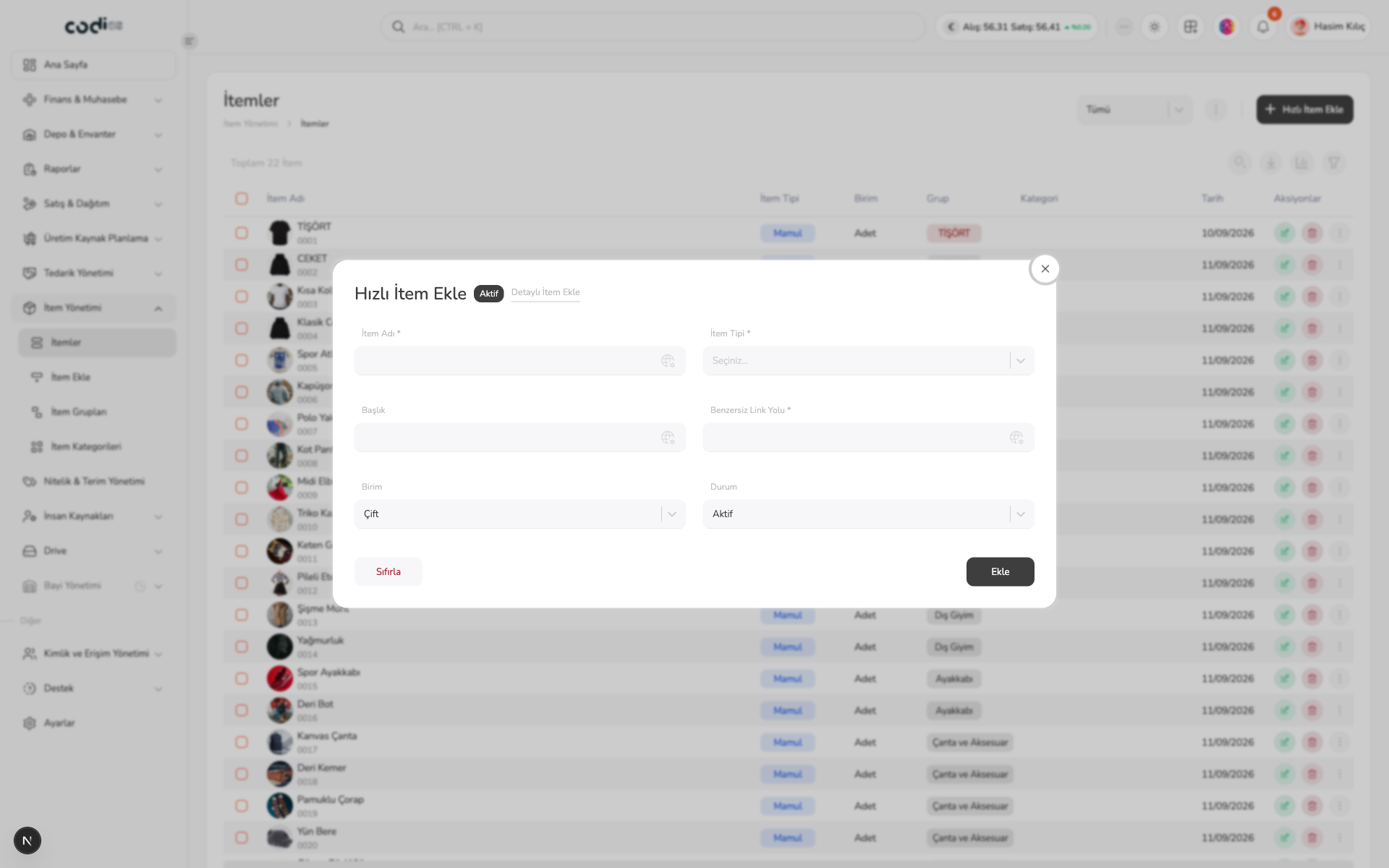 123
- 1. Enter the item name.
- 2. Select the item type.
- 3. Complete the record with Ekle.
Add an item with the detailed form
Use the İtem Ekle screen when the item must be saved with more than the quick-entry fields. Unlike quick entry, this form collects the item code, title, description, attributes, dynamic fields, and gallery information together.
- Complete the required İtem Adı, Birim, Benzersiz Link Yolu, and İtem Tipi fields.
- Add the İtem Kodu, Başlık, Açıklama, Durum, İtem Grubu, and İtem Kategorileri values.
- In Nitelikler, add attribute names and terms to prepare the variant structure.
- Add additional values in Dinamik Alanlar when needed.
- Add product images in İtem Galerisi. The first uploaded image is used as the main item image.
- Review the form and save with Ekle; use Sıfırla to clear the form.
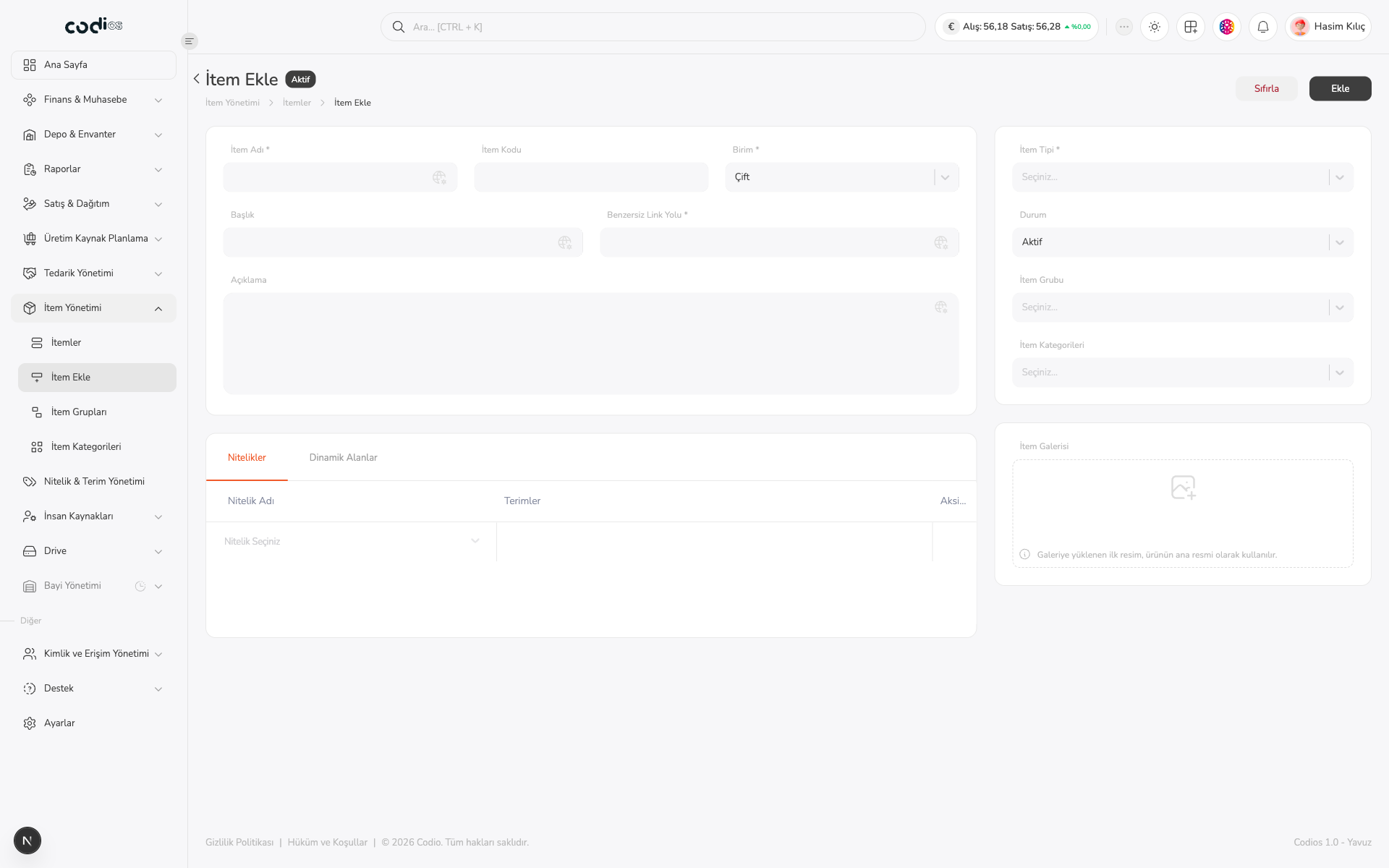 12345
- 1. Enter the item name, code, unit, and unique link path in the basic fields.
- 2. Complete the item type, status, group, and category selections.
- 3. Fill in attributes, terms, and dynamic fields for the item structure.
- 4. Add product images to the gallery and check the main image.
- 5. Save the form with Ekle.
Build the attribute and variant structure
Variant setup has two stages: first add an attribute, such as Beden, then select the terms belonging to it, such as XXS and XS. When the attribute is marked for variants, its selected terms can be used in the item’s variant combinations.
1. Add the attribute
In the Nitelikler tab, select the item’s variant dimension from Nitelik Seçiniz. In this example, Beden is added to define the item’s size options.
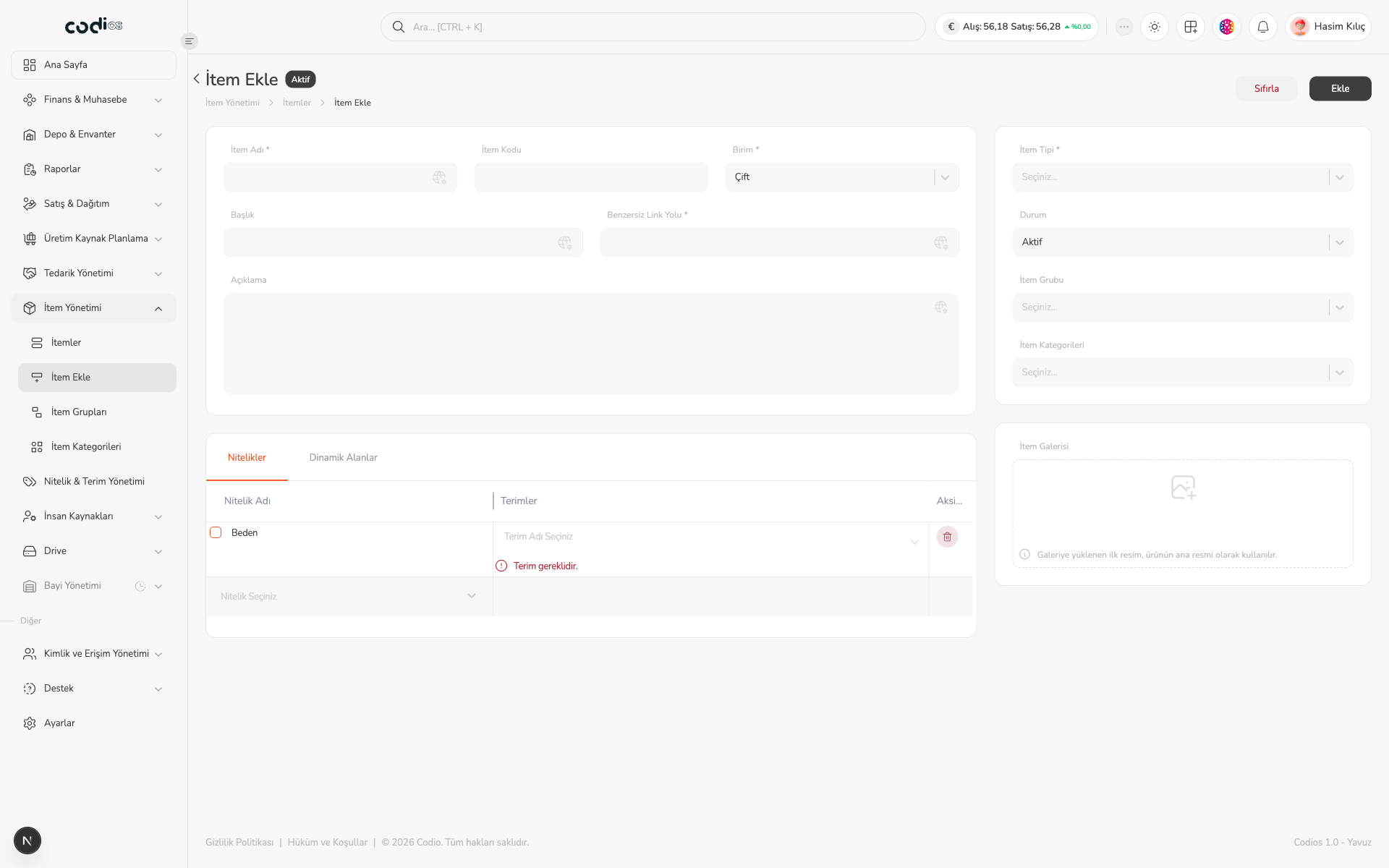 12
- 1. Check the selected attribute, such as Beden.
- 2. Open Terim Adı Seçiniz to add terms belonging to the attribute.
2. Select attribute terms
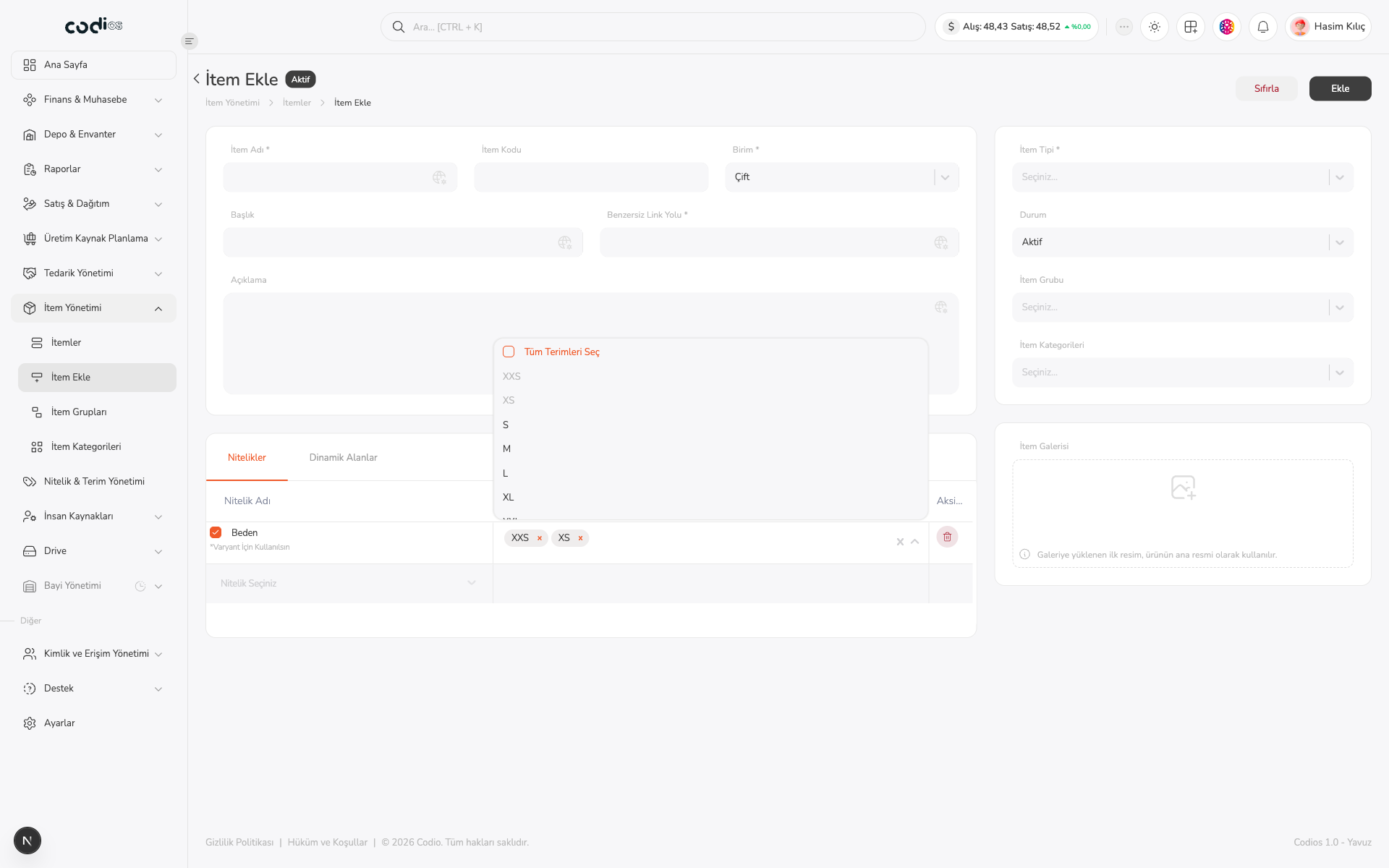
Select the values that are available for the item. You can add more than one term to an attribute; each term becomes a separate option in the variant structure.
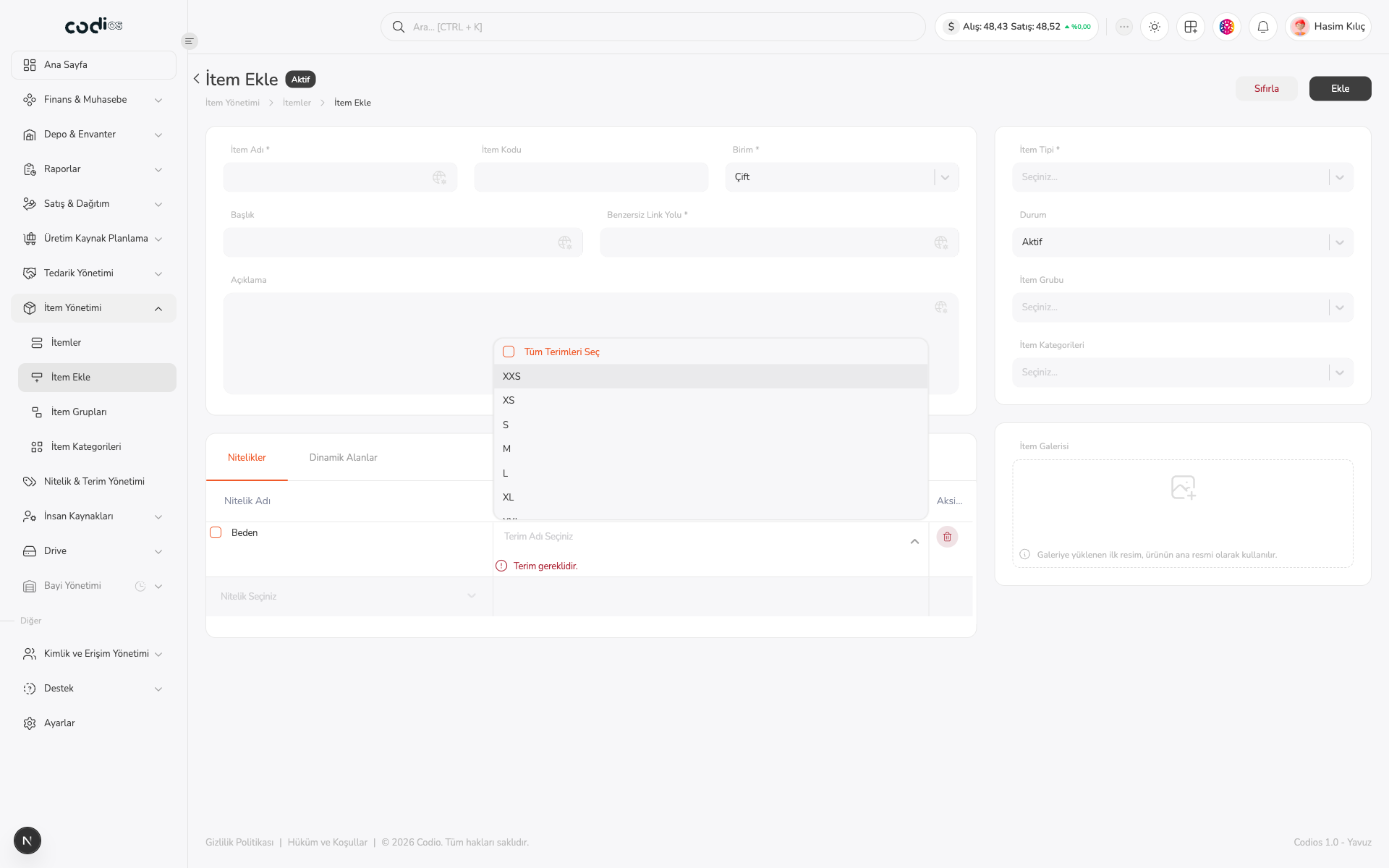 123
- 1. Use Tüm Terimleri Seç to select all listed values when appropriate.
- 2. Select individual values so only the sizes available for the item are added.
- 3. The selected terms appear in the Terimler cell.
3. Use the attribute for variants
After selecting the terms, mark the checkbox next to the attribute. Varyant İçin Kullanılsın means that the attribute’s values participate in the variant combinations. When it is not marked, the attribute remains descriptive item information and is not used as a variant option.
 123
- 1. Mark the checkbox to include the attribute in the variant structure.
- 2. Check the terms that will be available for the variants.
- 3. When the mark is visible, the attribute is ready to provide variant values.
If the item uses both size and color variants, repeat the same steps for the Renk attribute. For example, two sizes and three colors are carried into the variant structure as combinations of those values. Before saving, check the required fields and selected terms.
Back to top