

Item Based Order Report
The Ürün Bazlı Sipariş Raporu screen lists the items that appear on orders together with their total quantity and size distribution. Use it to see how much of each item was ordered and to drill down to the customers behind those orders.
Open and review the report
- Open Raporlar > Ürün Bazlı Sipariş Raporu from the left menu.
- In Sipariş Tarihi, choose the Başlangıç and Bitiş dates.
- Check Toplam … veri above the list to see how many items are listed.
- Read the total and size-based order quantities from the İtem Adı, Toplam, and size columns.
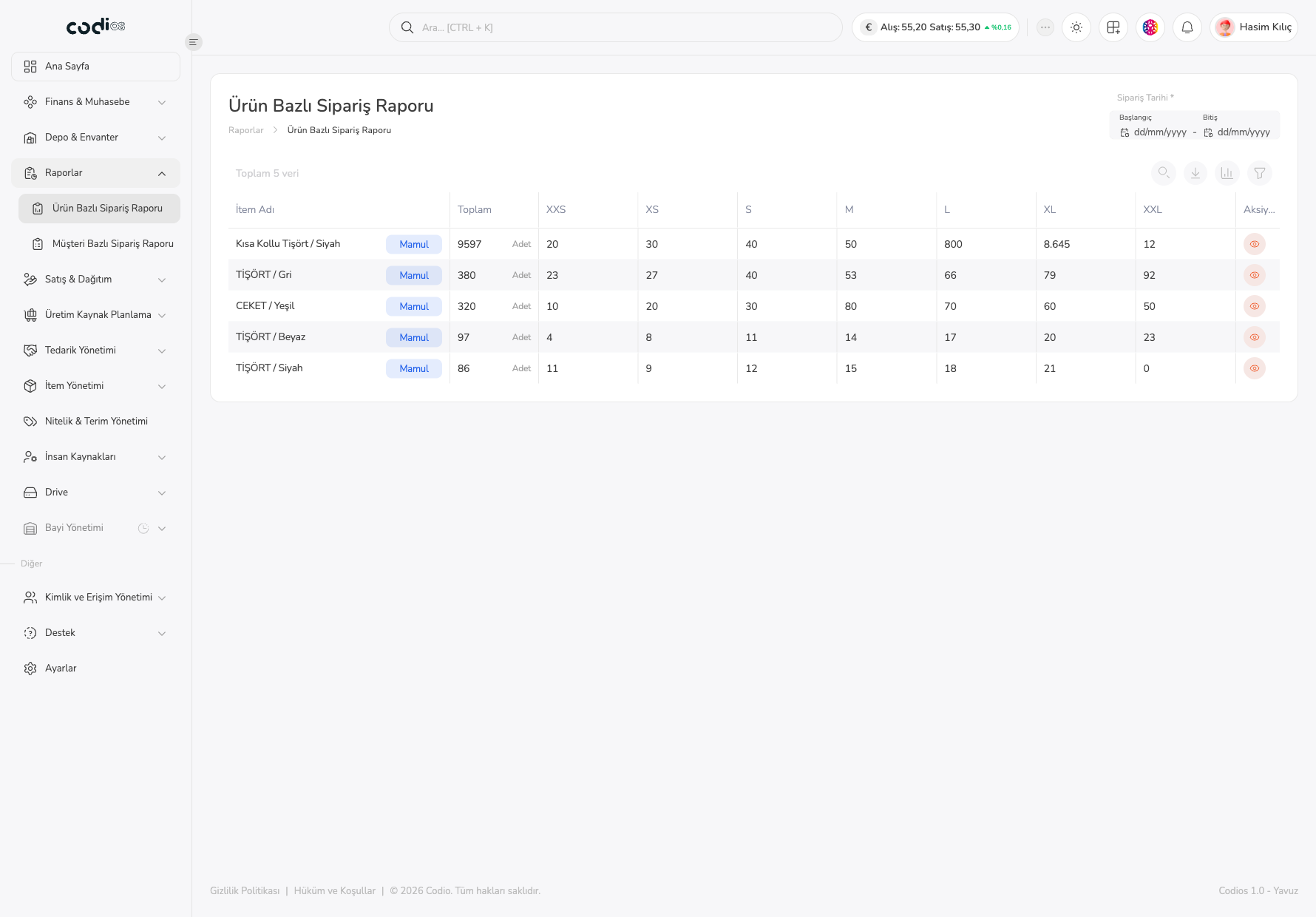 12345
- 1. The Sipariş Tarihi field sets the start and end dates of the report.
- 2. The toolbar holds the search, export, column management, and filter controls for the table.
- 3. The İtem Adı and Toplam columns show the item and its total ordered quantity.
- 4. The columns from XXS to XXL show the size distribution.
- 5. The eye icon in the Aksiyonlar column opens the item’s order detail in a new tab.
Drill down to an item
- In the item’s row, select the eye icon in the Aksiyonlar column.
- In the Sipariş Raporu tab that opens, see the orders that contain the item with their date and order number.
- Check the customer in Cari Adı and the item quantity in Toplam and the size columns.
- Use the Ürün Bazlı Sipariş Raporu link in the breadcrumb to return to the list.
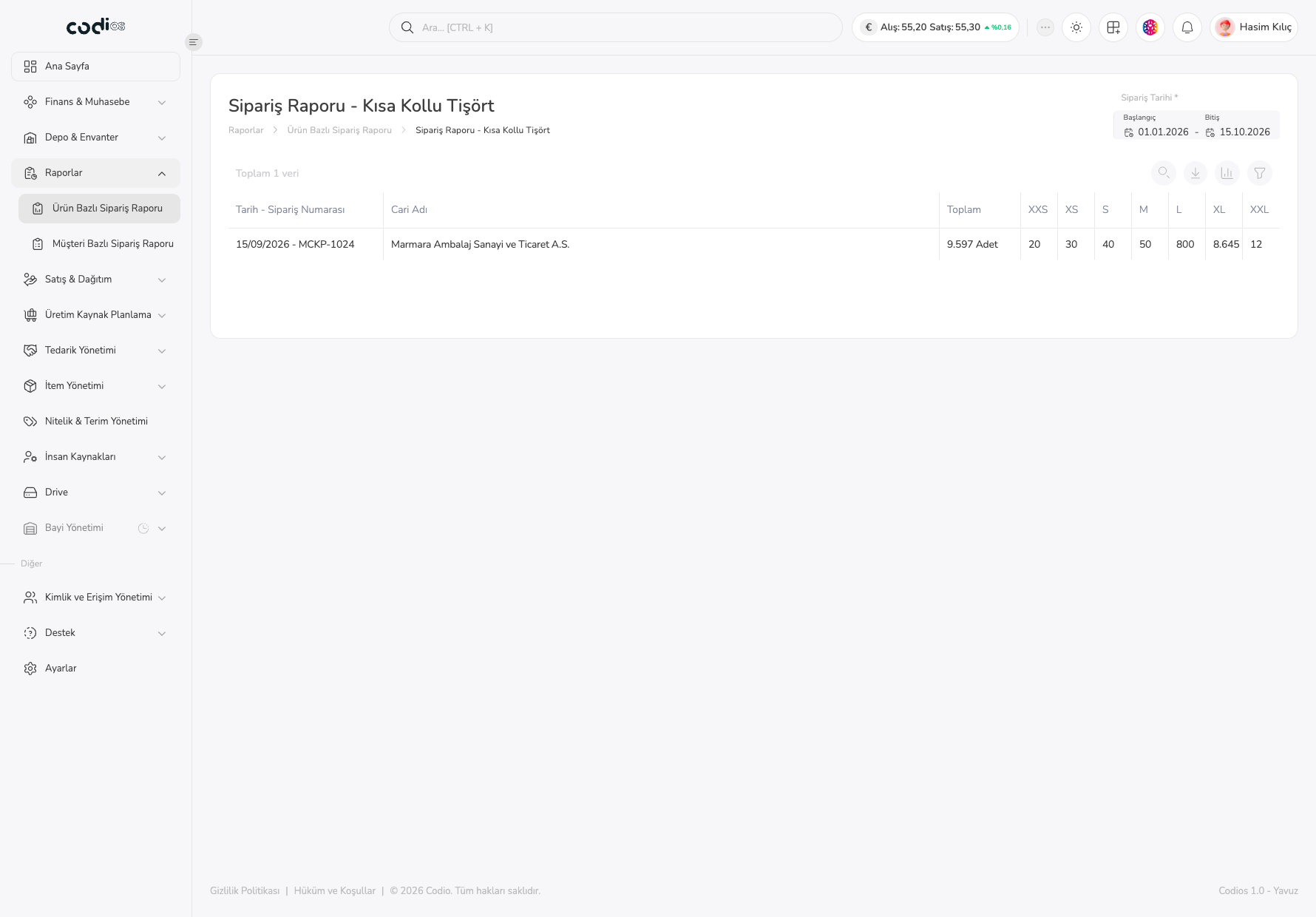 12345
- 1. The Ürün Bazlı Sipariş Raporu breadcrumb link returns to the list.
- 2. The Sipariş Tarihi range determines which orders the detail lists.
- 3. The Tarih - Sipariş Numarası column identifies the order with its date.
- 4. The Cari Adı column shows the customer of the order.
- 5. The Toplam and size columns show the item quantity in this order.
If the detail shows no records, widen the Sipariş Tarihi range; the detail report lists only orders inside the selected date range.
Filter the table
- Select the funnel icon in the toolbar.
- Choose the column to filter in Sütunlar and the comparison type in Operatör.
- Type the text to look for in Değer.
- Use Filtre Ekle when you need more than one condition.
- Select Hepsini Kaldır to clear all conditions.
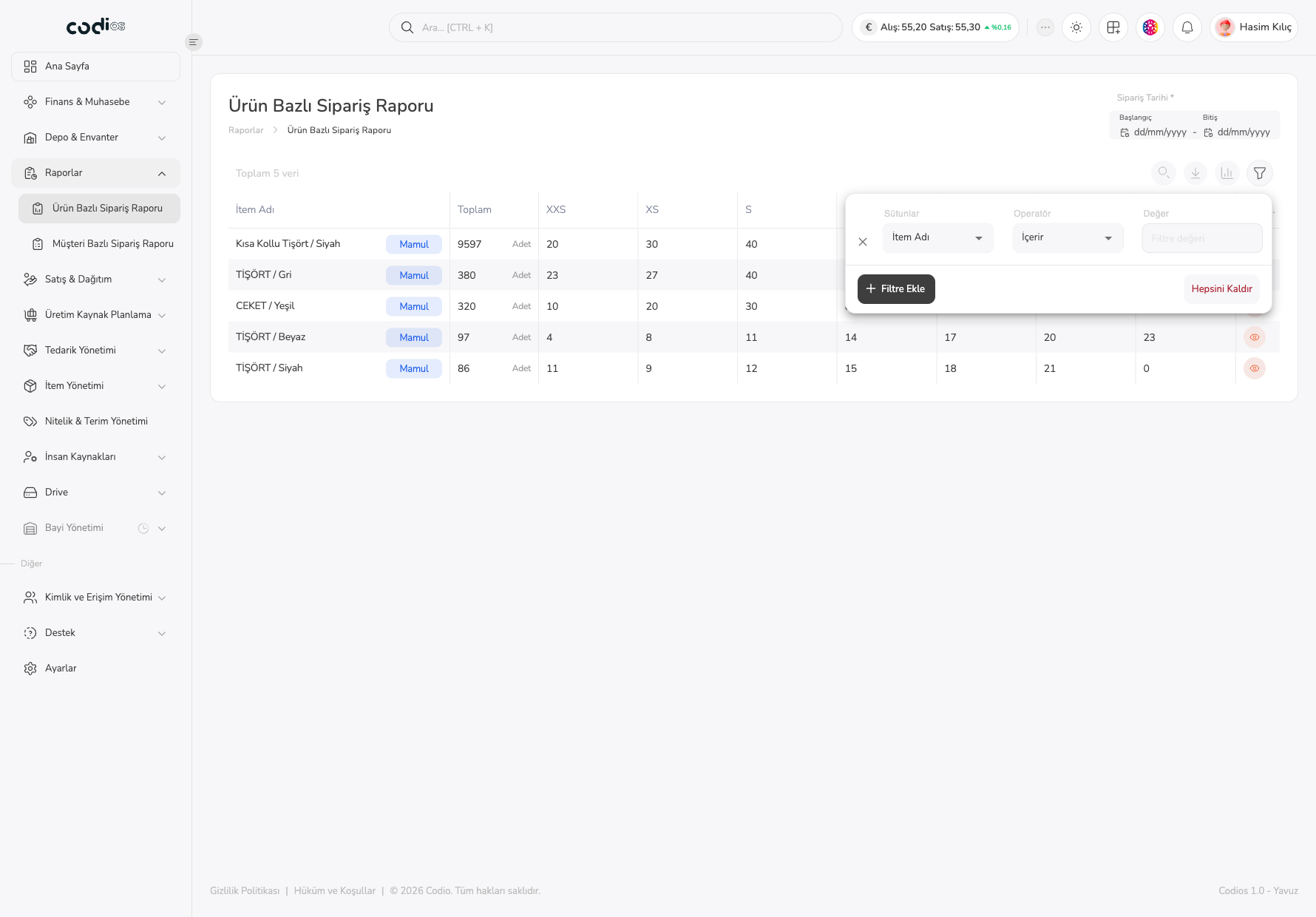 12345
- 1. The Sütunlar field selects the column the filter applies to.
- 2. The Operatör field sets the comparison type; the default is İçerir.
- 3. The Değer field takes the text to search for.
- 4. The Filtre Ekle button adds a new condition row.
- 5. Hepsini Kaldır clears all filter conditions.
Export or print the report
- Select the download icon in the toolbar.
- Use CSV olarak indir or Excel olarak indir to get the report as a file.
- Select Yazdır for a paper copy.
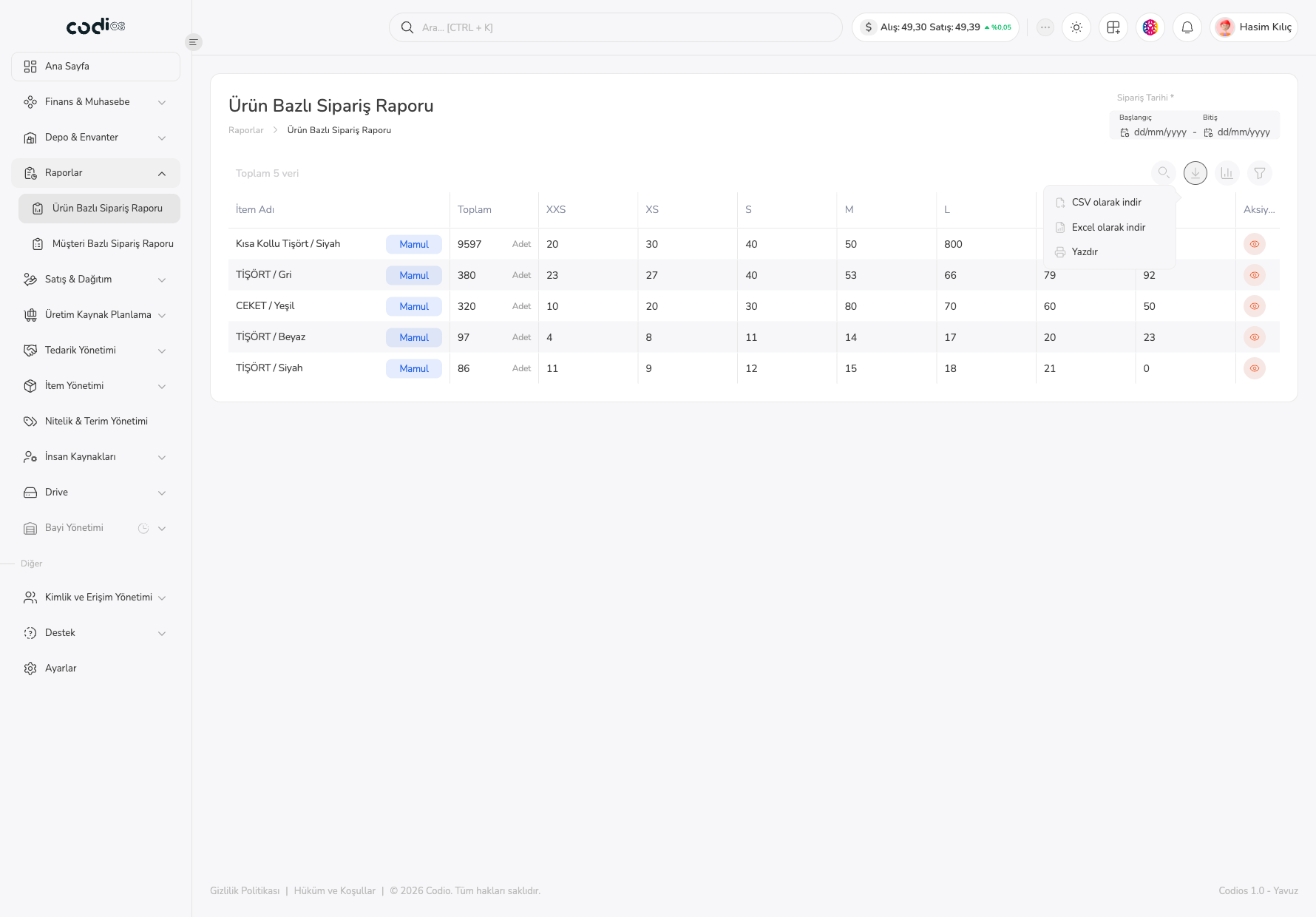 1234
- 1. The download icon opens the export menu.
- 2. CSV olarak indir downloads the report as a CSV file.
- 3. Excel olarak indir downloads the report as an Excel file.
- 4. Yazdır opens the report in print view.
Manage visible columns
- Select the column icon in the toolbar.
- Type a column name in Ara… to find it.
- Select or clear a column’s checkbox to show or hide it.
- Use Tümünü Göster/Gizle to manage all columns at once and Sıfırla to return to the default view.
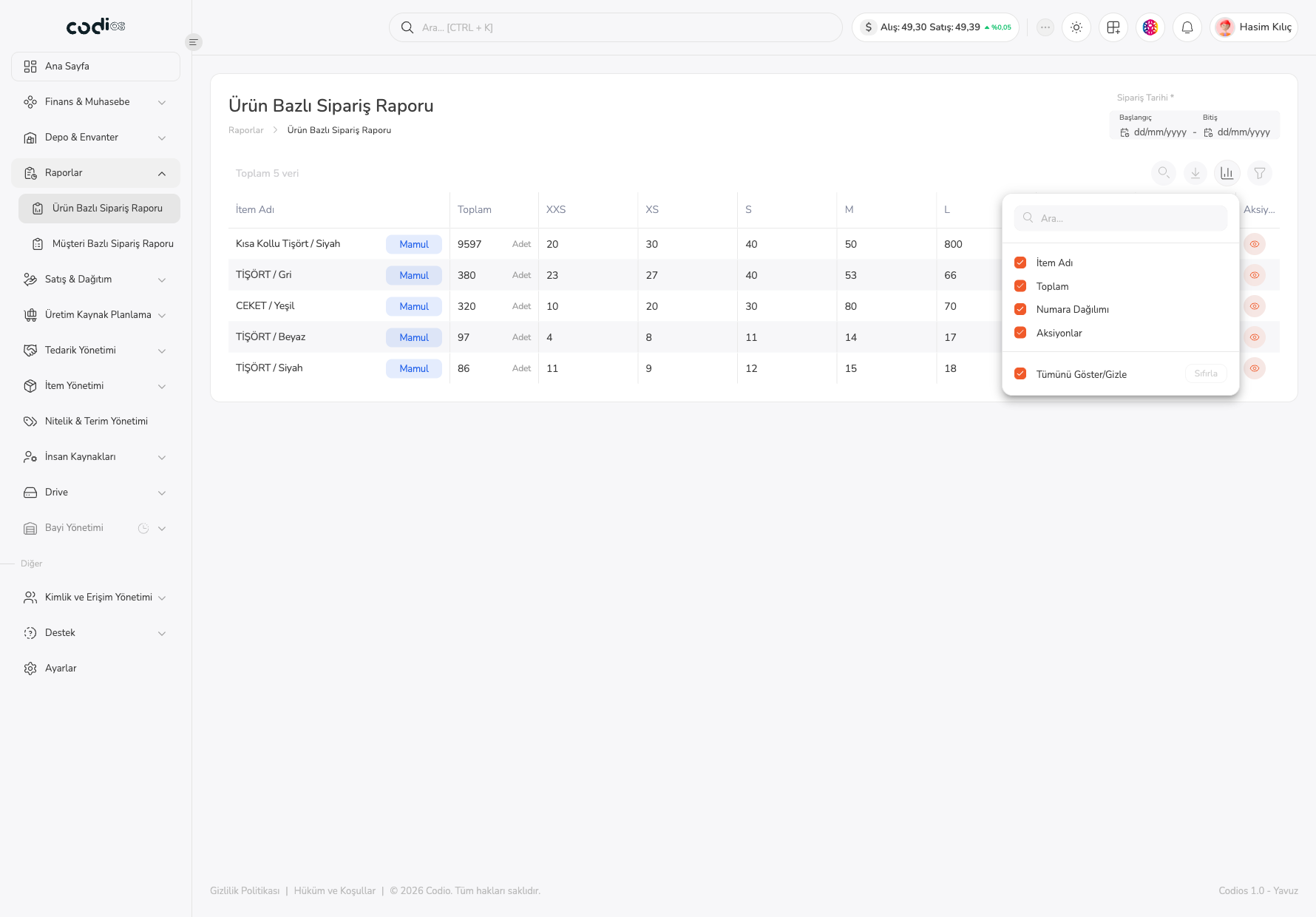 12345
- 1. The column icon opens the column management menu.
- 2. The Ara… field helps you find a column in the list.
- 3. The column checkboxes (İtem Adı, Toplam, Numara Dağılımı, Aksiyonlar) control visibility in the table.
- 4. Tümünü Göster/Gizle shows or hides all columns together.
- 5. Sıfırla returns the column view to the default.
The report is view-only; you cannot change order data from this screen.
Back to top