

File Management
File Management lets you organize folders and files. Build a folder structure to separate files by their related operation or workspace.
File actions
- Use the add button beside Klasörler to prepare a workspace.
- Select the add button beside Tüm Dosyalar to add a file, then choose it in the operating system file picker.
- Search by file name with Dosya ara… and arrange the list with the sort option.
- When the list is empty, check the state showing that no records are available yet.
File Management page
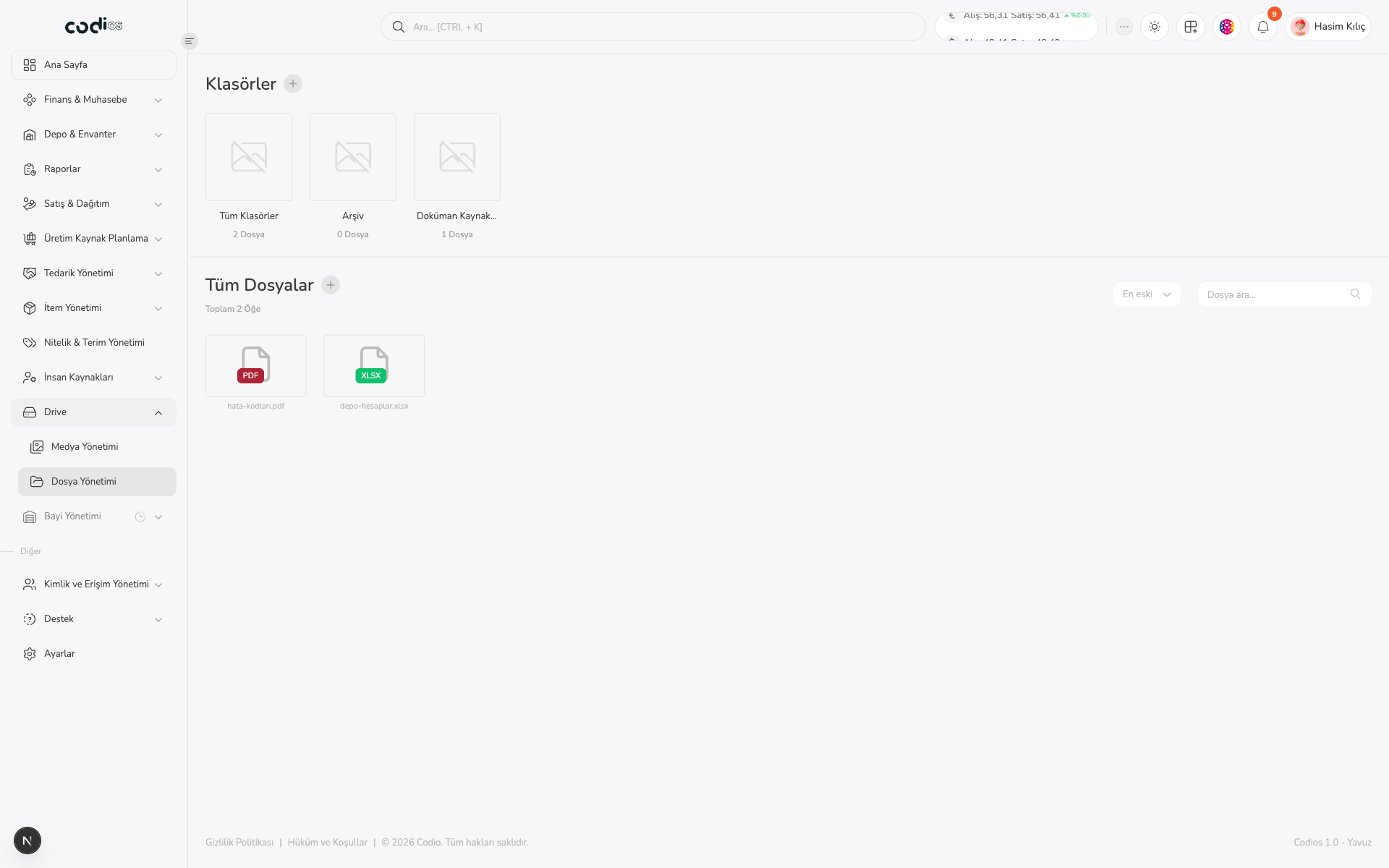 123456
- 1. The add button beside Klasörler opens the Klasör Ekle panel.
- 2. Select the folder you will work in from its card.
- 3. The add button beside Tüm Dosyalar opens the file-upload panel.
- 4. The sort option changes the display order of the file list.
- 5. Search by file name with Dosya ara….
- 6. The file area shows records in the selected folder or the empty-state message.
Upload a file
Select the add button beside Tüm Dosyalar. Drag a file into the panel or use Dosya Seç to choose it from your device, then review the selection and continue with Yükle.
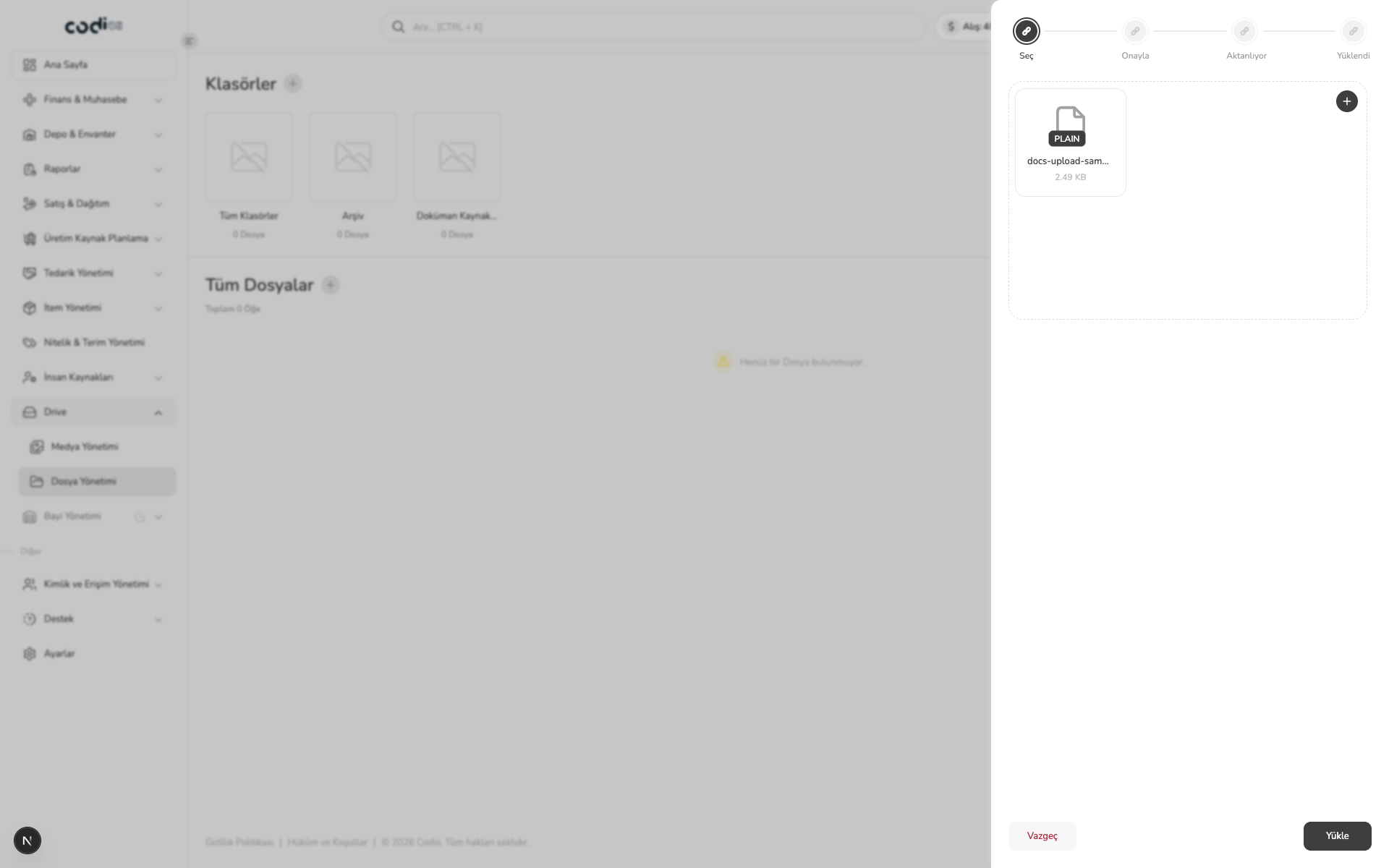 1234
- 1. Dosya Seç opens the file picker on your device.
- 2. Review the selected file name and size in the panel.
- 3. Vazgeç closes the panel without uploading.
- 4. Yükle confirms the selection and starts the transfer.
Create folder panel
Enter a name in Klasör Adı. Use Ekle to complete the action or Vazgeç to close the panel without creating a record.
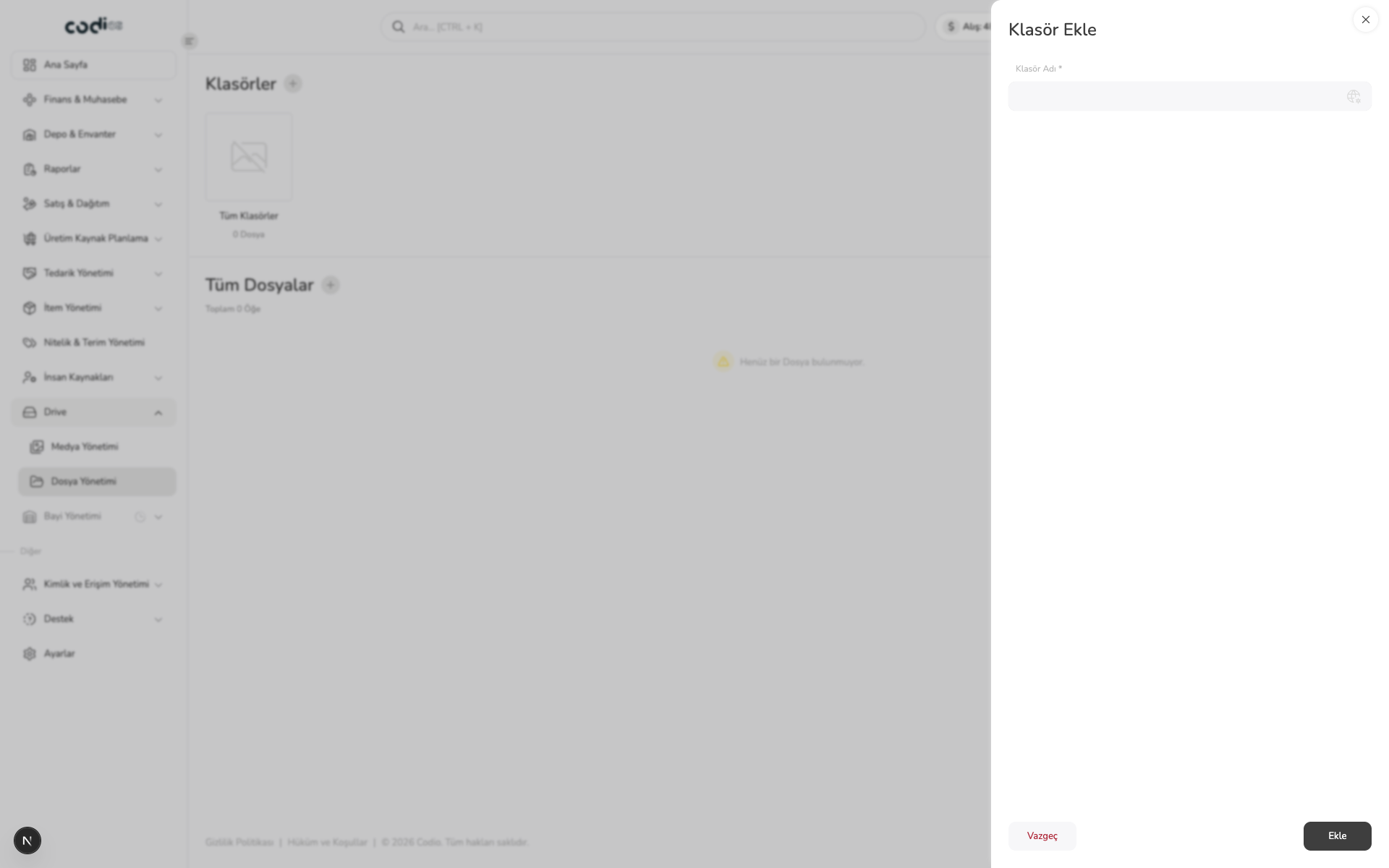 123
- 1. Klasör Adı is required.
- 2. Use Vazgeç to close without saving.
- 3. Use Ekle to create the folder.
File actions menu
Right-click a file card. Klasöre Taşı lets you select a destination for the file; check your selection before using Klasörden Kaldır or Seçilenleri Sil, as they can initiate a permanent action.
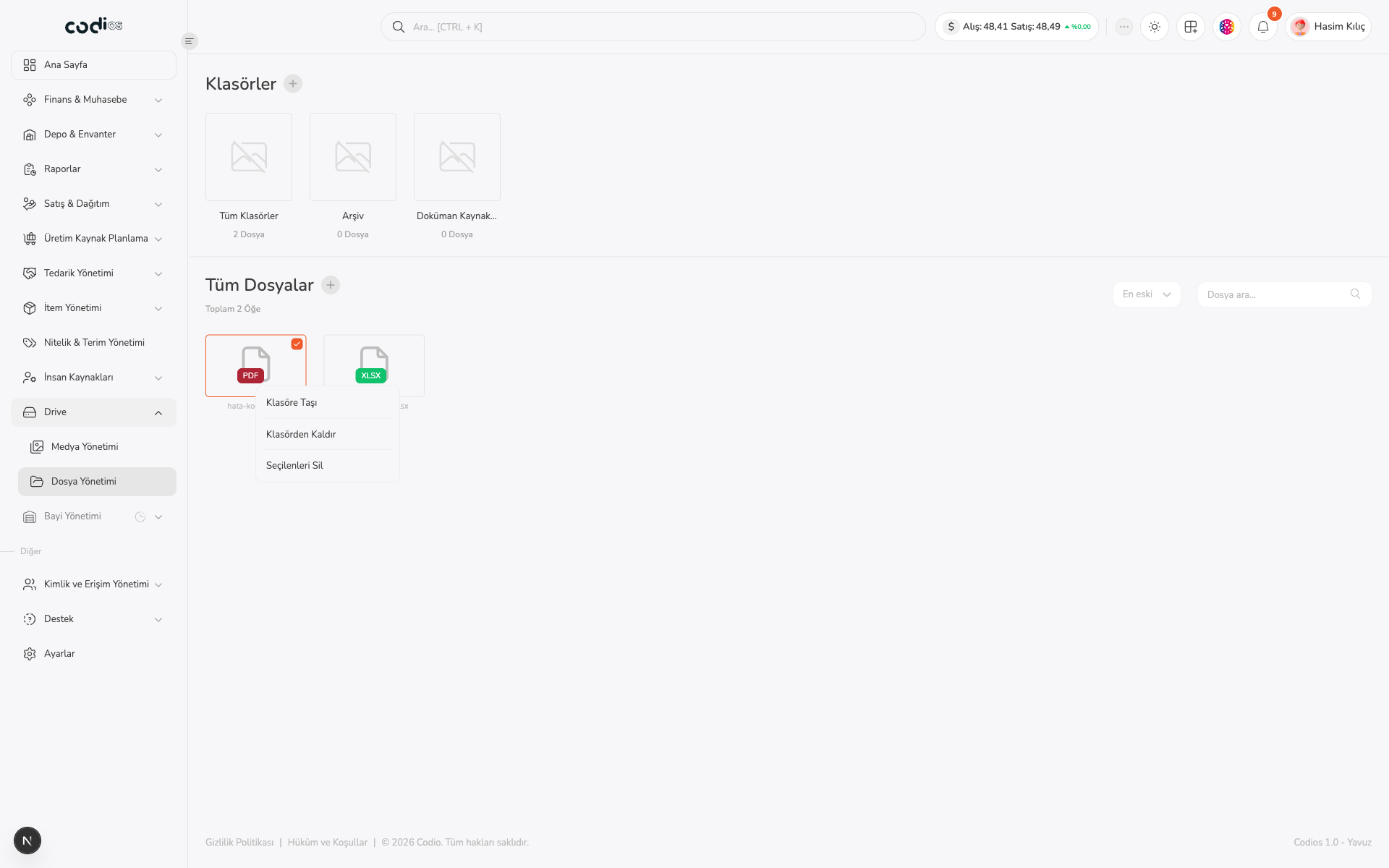 123
- 1. Klasöre Taşı opens the panel for moving the file to another folder.
- 2. Klasörden Kaldır is the entry point for removing the file from its current folder.
- 3. Seçilenleri Sil is the entry point for deleting selected files.
Move a file to a folder
Open Klasöre Taşı, select a destination folder, then confirm with Taşı. Use Vazgeç to cancel the operation.
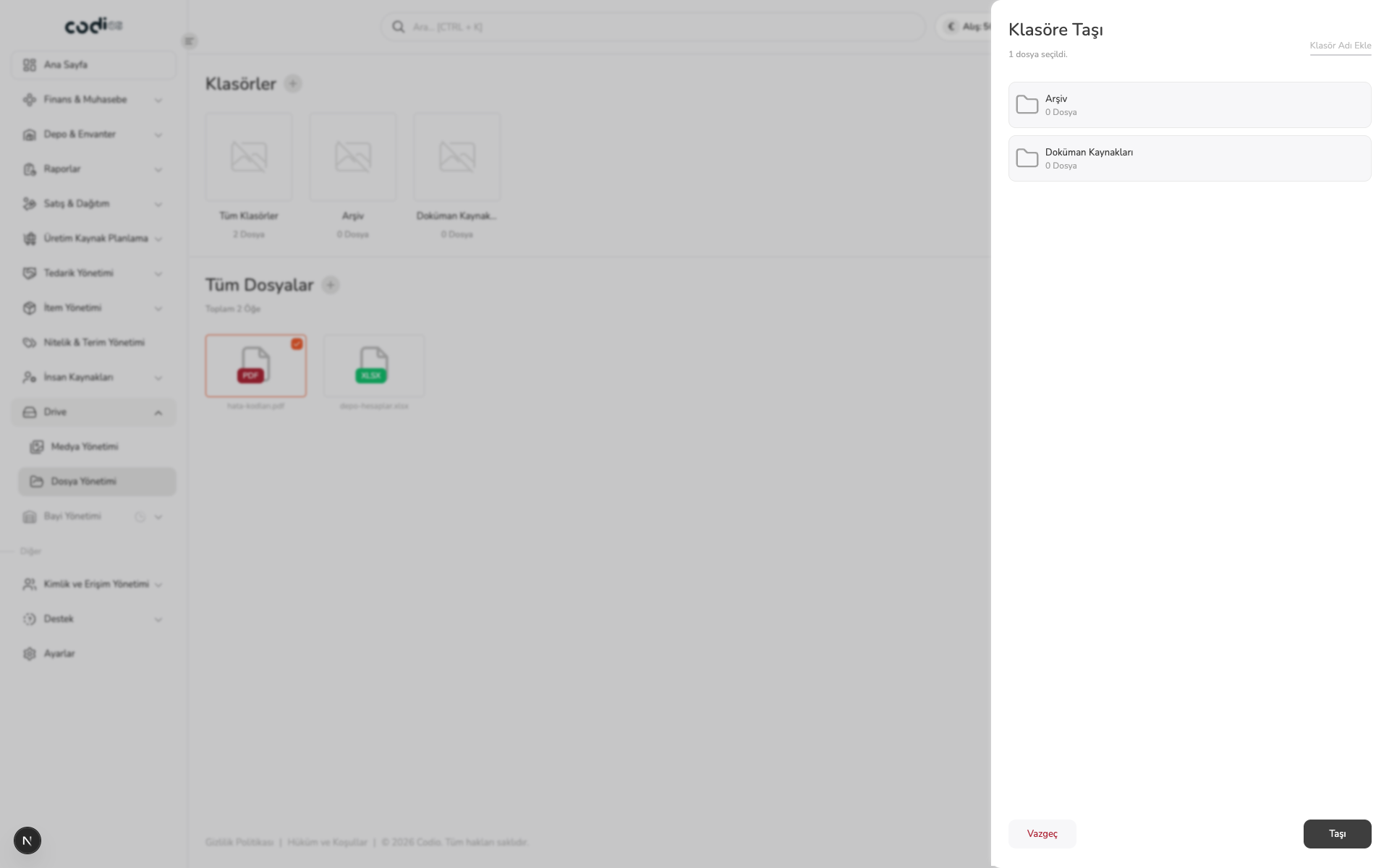 1234
- 1. The panel shows the number of selected files to move.
- 2. Select the destination folder for the file.
- 3. Vazgeç closes the panel without moving the file.
- 4. Taşı transfers the file to the selected folder.