

Codios ERP
User Guide
Step-by-step operational guidance for completing everyday processes in Codios ERP.
Available module
Available modules
What can you do on the home page?
Review the dashboard, change the chart view, export the displayed data, and follow recent orders.
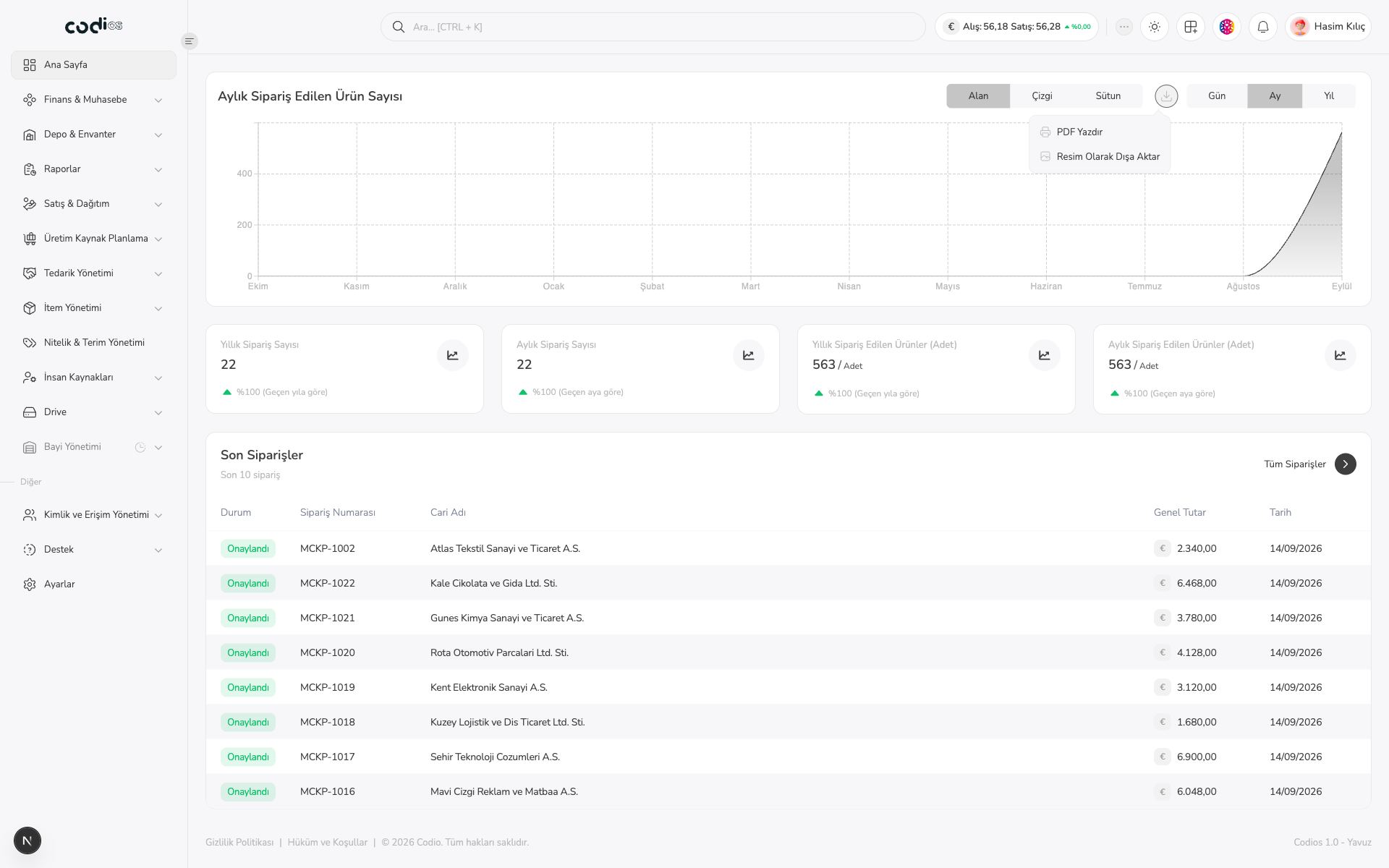 1234
Track the monthly ordered product count and compare the trend across the displayed periods.
Open the download control next to the chart type buttons to print the chart as PDF or export it as an image.
Switch between Day, Month, and Year to change the time scale shown on the chart.
Check the last 10 orders, their status, order number, current account, total amount, and date. Open All Orders for the full list.
- 1. Track the monthly ordered product count and compare the trend across the displayed periods.
- 2. Open the download control next to the chart type buttons to print the chart as PDF or export it as an image.
- 3. Switch between Day, Month, and Year to change the time scale shown on the chart.
- 4. Check the last 10 orders, their status, order number, current account, total amount, and date. Open All Orders for the full list.
What can you do in the header?
Use the tools in the top bar to reach common actions without leaving your current screen.
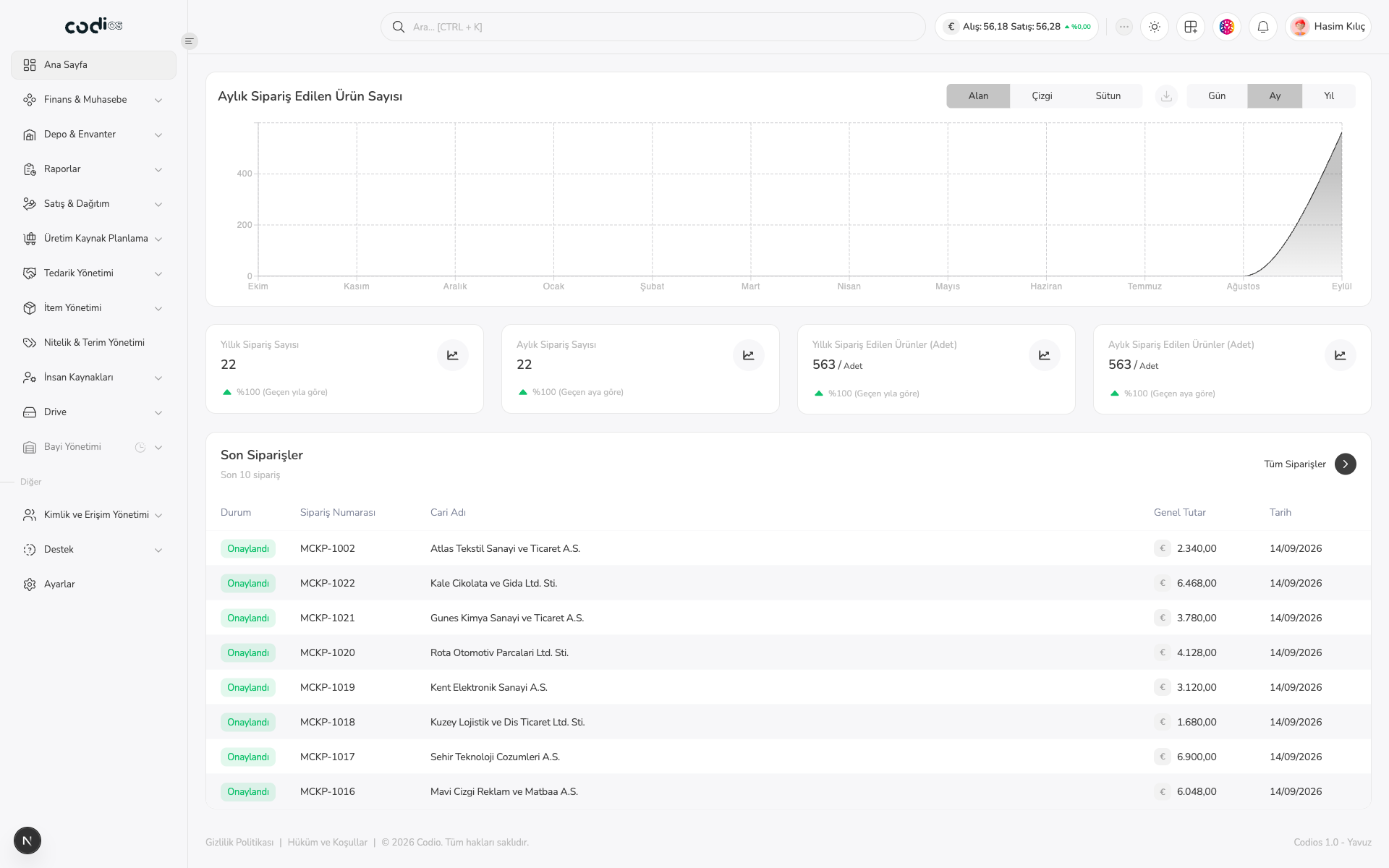 12345
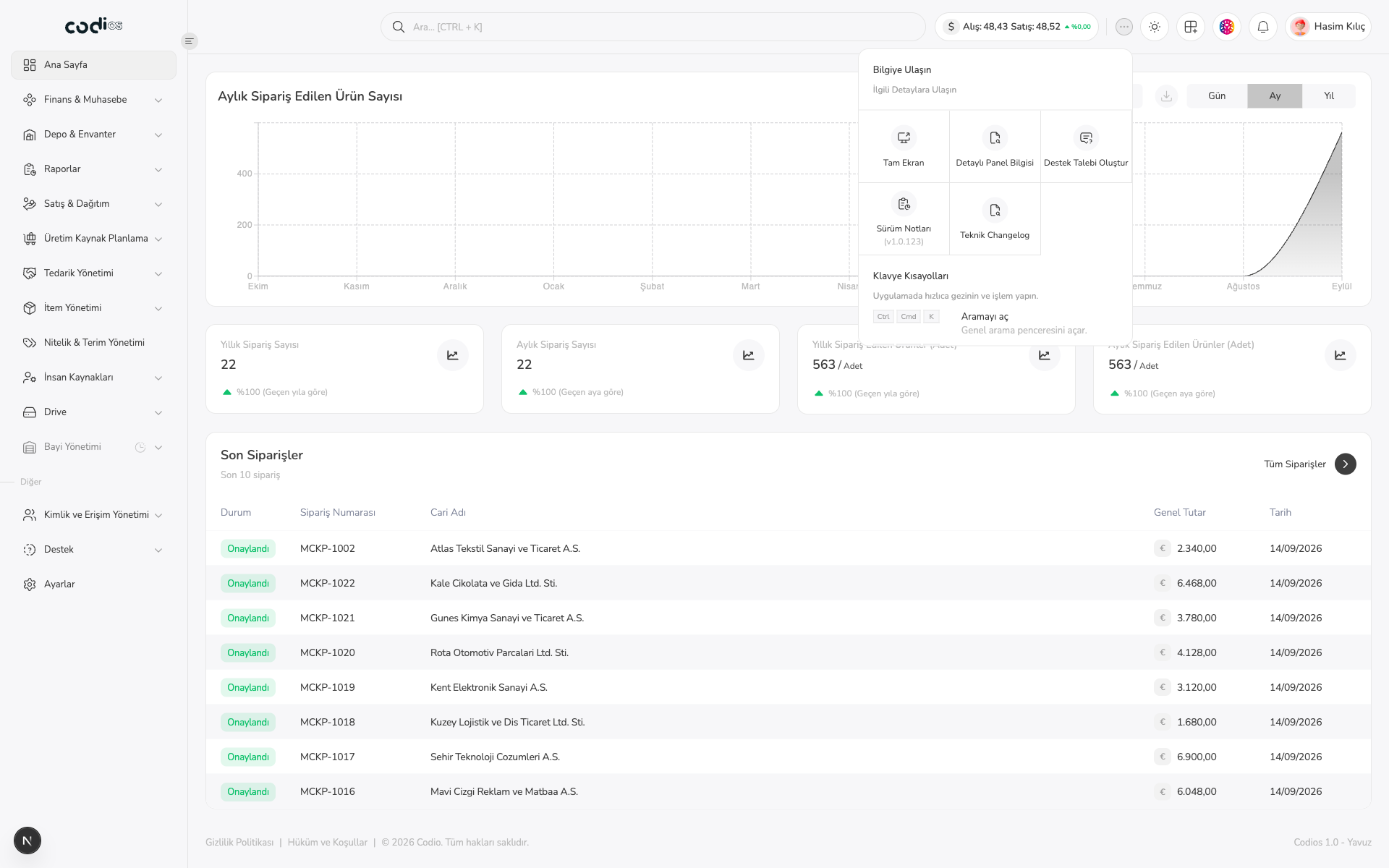 1
Open the More menu to reach shortcuts such as full screen and other quick actions.
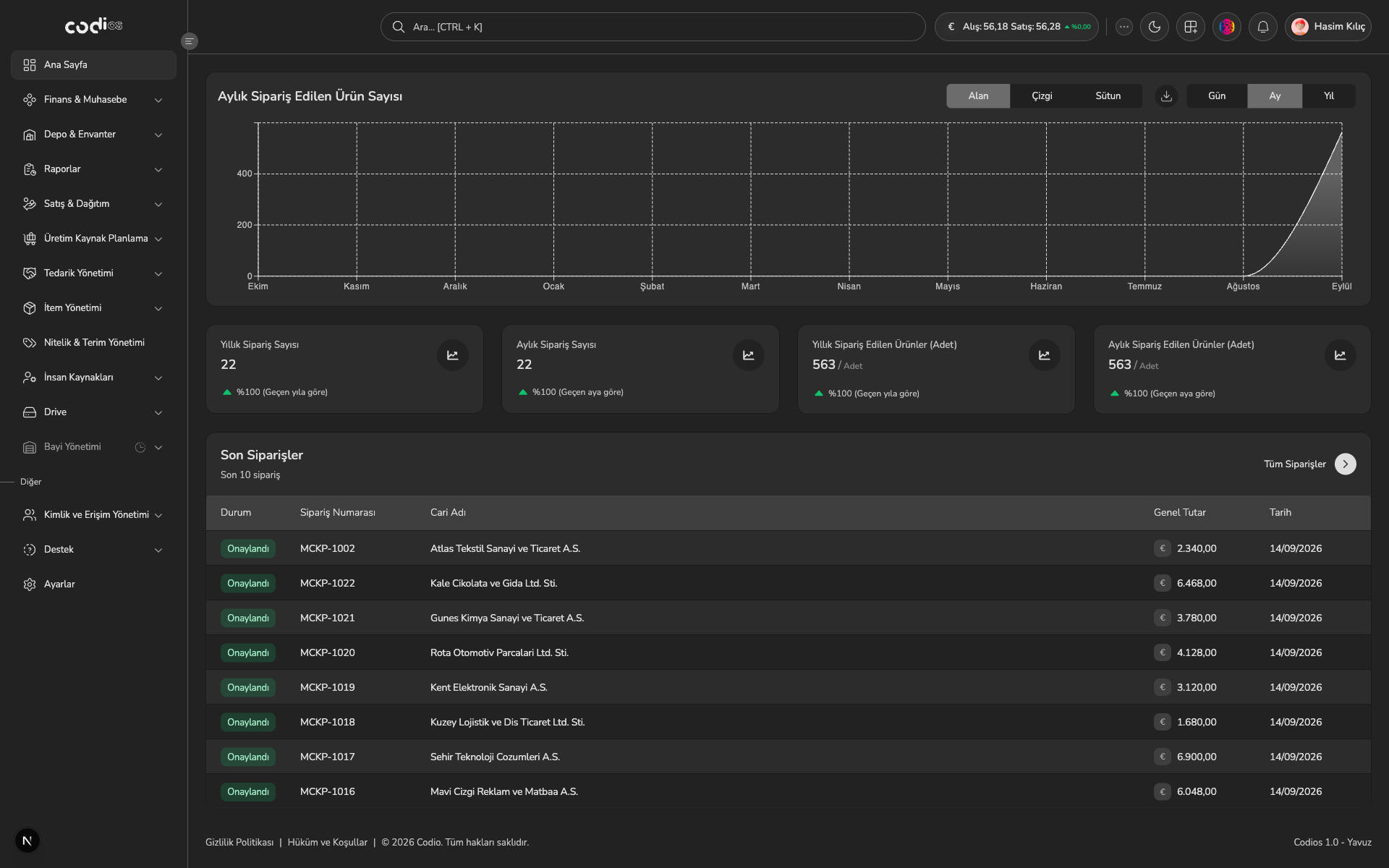 2
Switch the interface theme while keeping the same page and workflow open.
 3
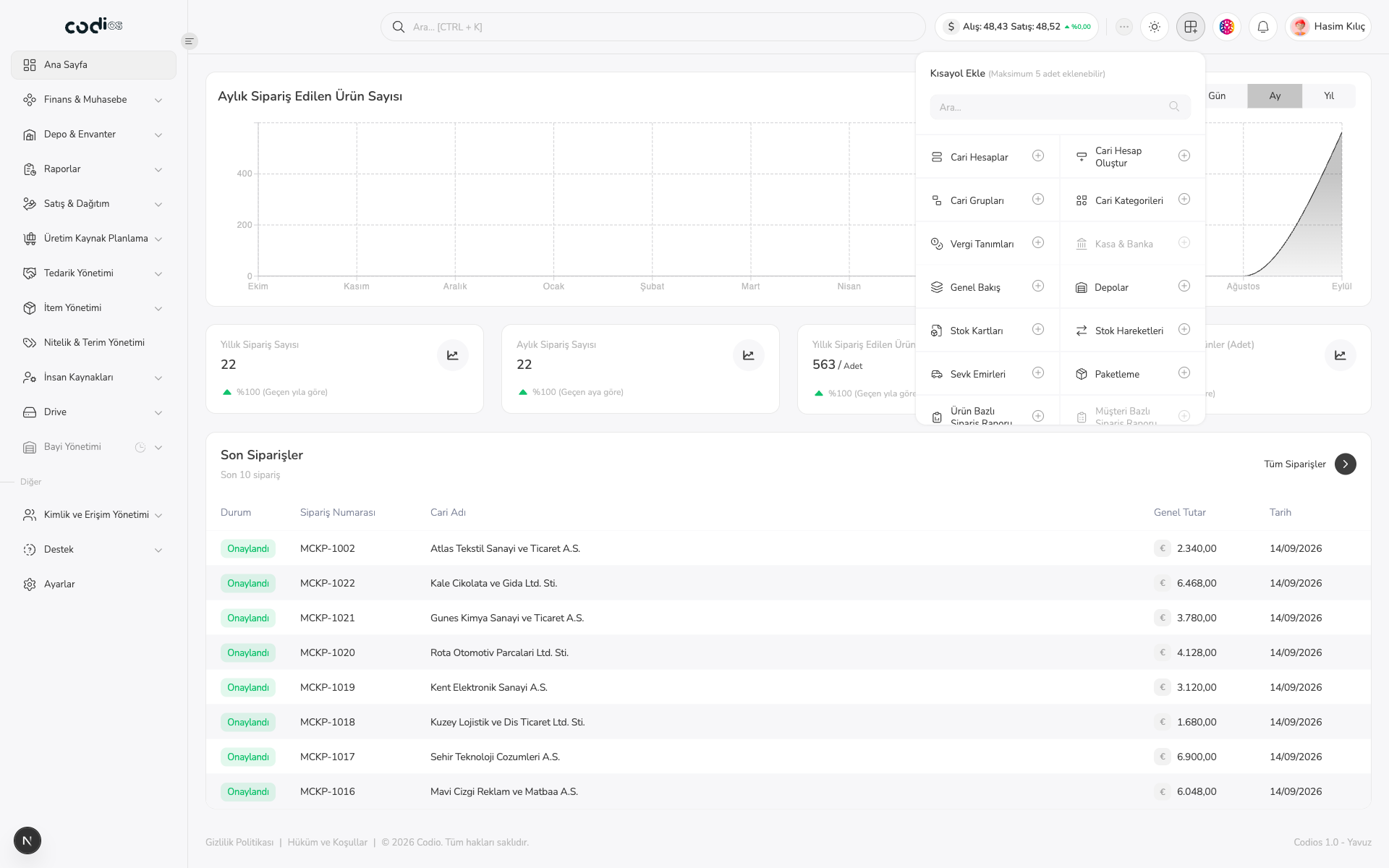
Add frequently used screens to the dock from the top-left shortcut control and open them quickly later.
 4
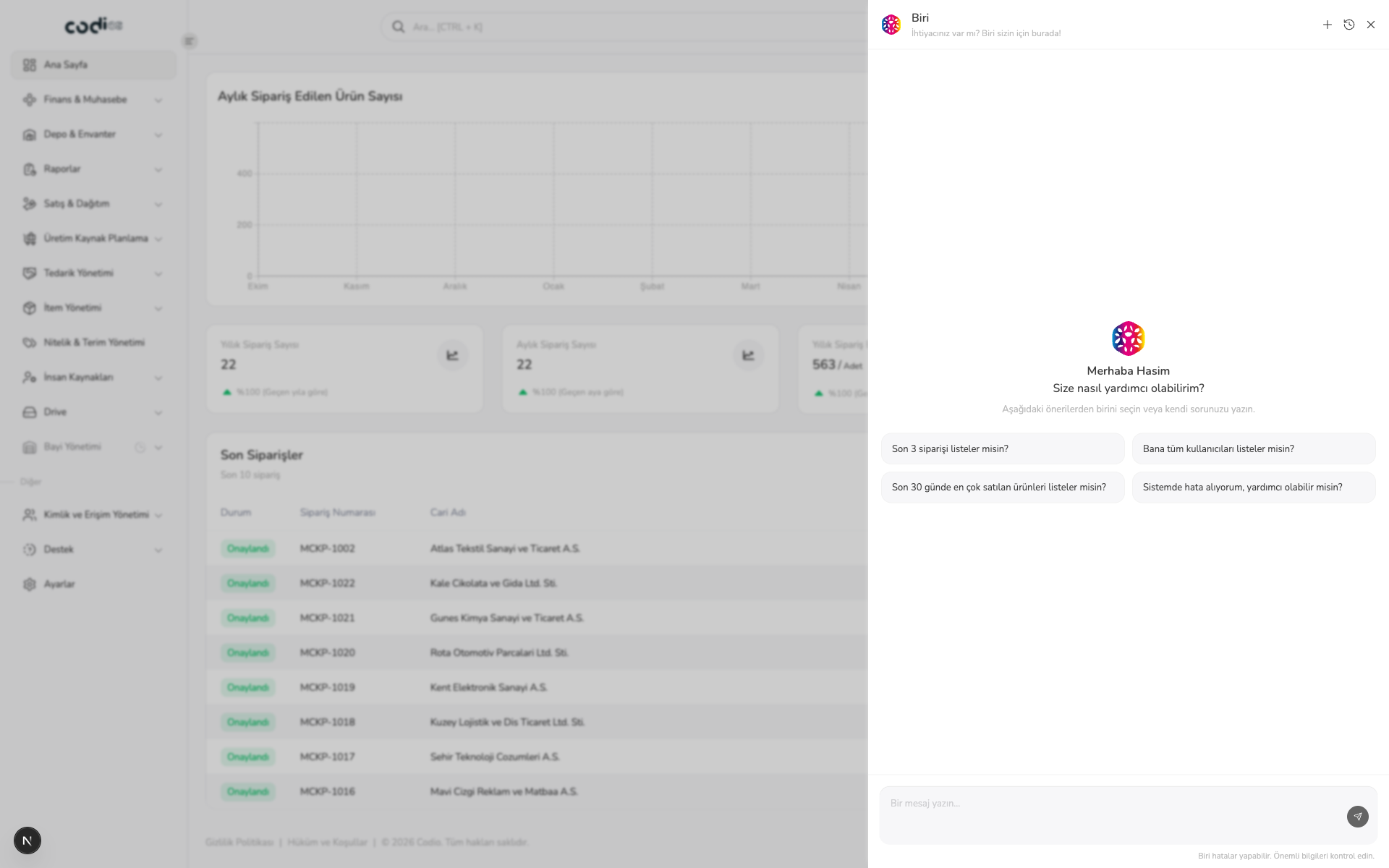
Open the Biri AI chat area to ask questions and request help while working.
 5
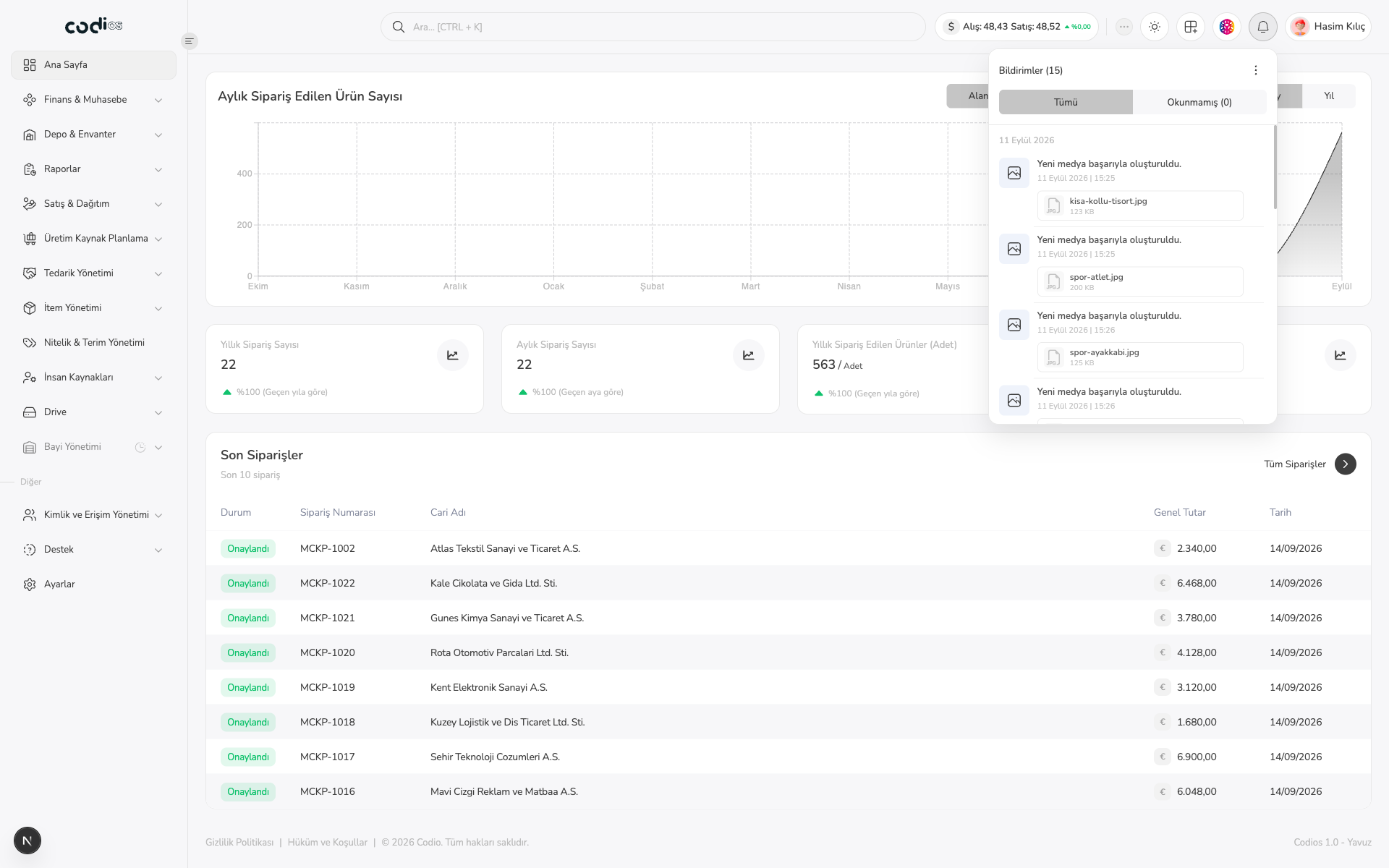
Review new activity and system notifications from the bell area.
- 1. Open the More menu to reach shortcuts such as full screen and other quick actions.
- 2. Switch the interface theme while keeping the same page and workflow open.
- 3. Add frequently used screens to the dock from the top-left shortcut control and open them quickly later.
- 4. Open the Biri AI chat area to ask questions and request help while working.
- 5. Review new activity and system notifications from the bell area.
How to use this guide
Each guide covers the access required, the actions to take, and what to check when the process is complete.