

Create Order
Use this page to create an order for a current account and enter its product variants and quantities.
Prerequisites
- The current account must already be defined.
- The required products and variants must be available in Item Management.
- Have the unit price, currency, and VAT rate ready.
Create an order with the detailed table
- Open Sales & Distribution > Order Management > Create Order.
- Select the account in Current Account. If no default delivery address is available, the invoice address is used.
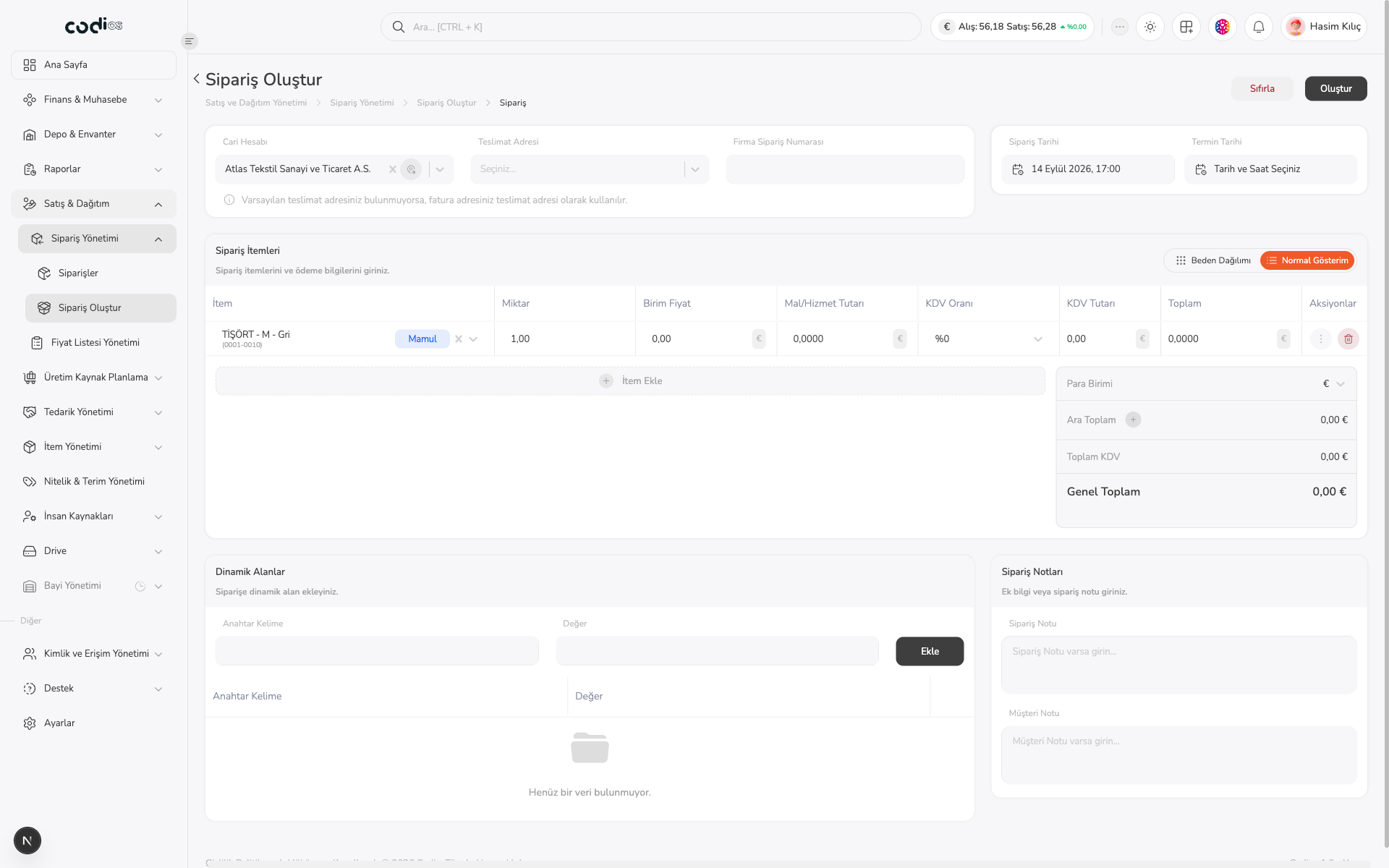
- Select Normal View instead of Size Distribution.
- Add a product variant with Add Item.
- Check the quantity, unit price, and VAT rate on each row.
- Confirm the currency and order date, then select Create.
 1234
- 1. Select the current account and, when needed, the delivery address.
- 2. Enter the variant, quantity, and unit price for each row.
- 3. Check the VAT rate; the subtotal and grand total are calculated in the summary on the right.
- 4. When the data is complete, save the order with Create.
Quick entry with Size Distribution
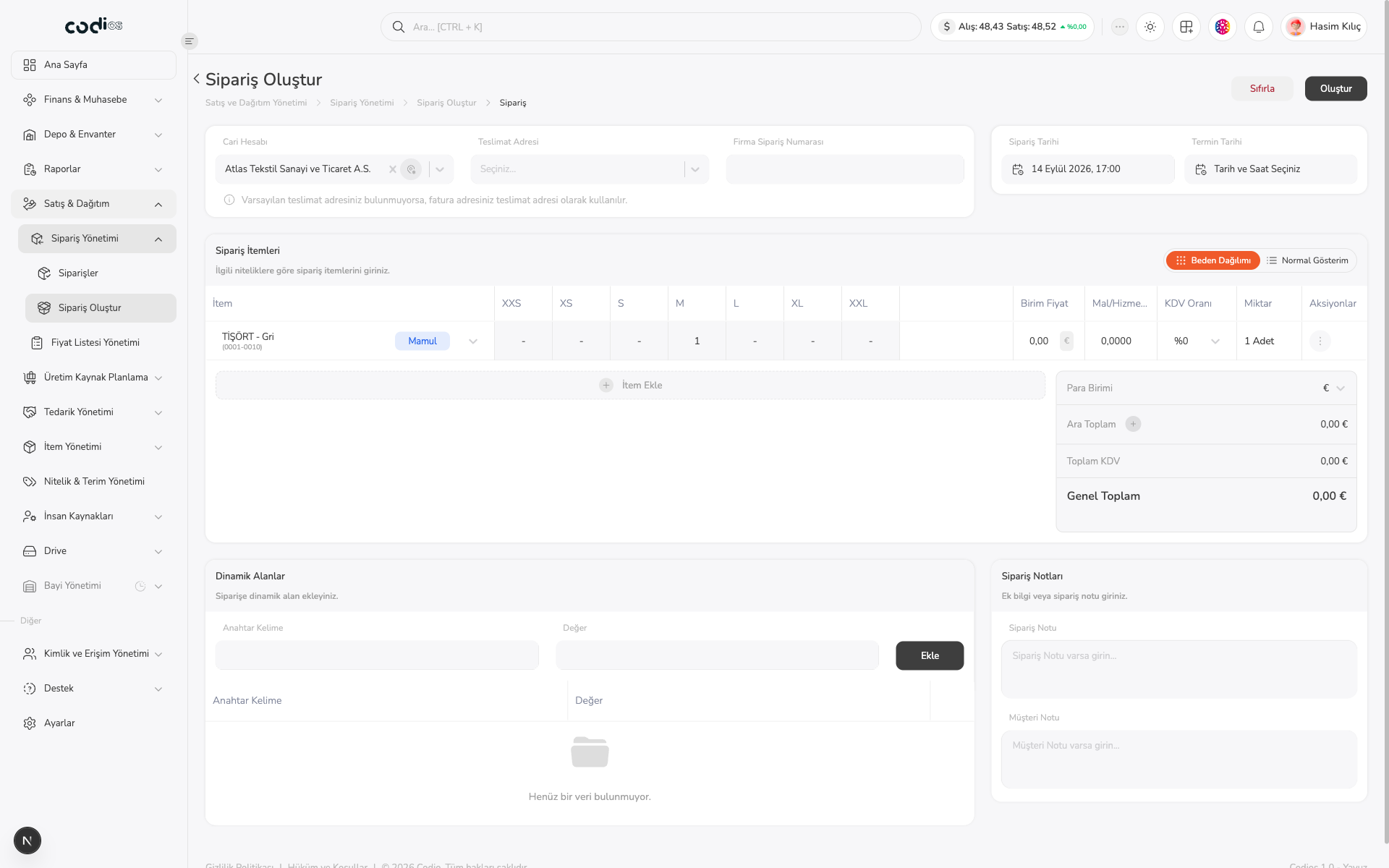
Use Size Distribution when you need to enter quantities for multiple sizes of the same product quickly. Select the product once, then enter quantities in the XXS, XS, S, M, L, XL, and XXL columns.
 123
- 1. Select the product group or variant.
- 2. Enter quantities in the relevant size columns. The row’s Quantity field shows the total.
- 3. Check the unit price and VAT; switch to Normal View when you need row-level detail.
Completion check
After saving, return to the Orders page. Confirm the current account, order number, grand total, and Confirmed status on the new row.
Back to top