

Create Order
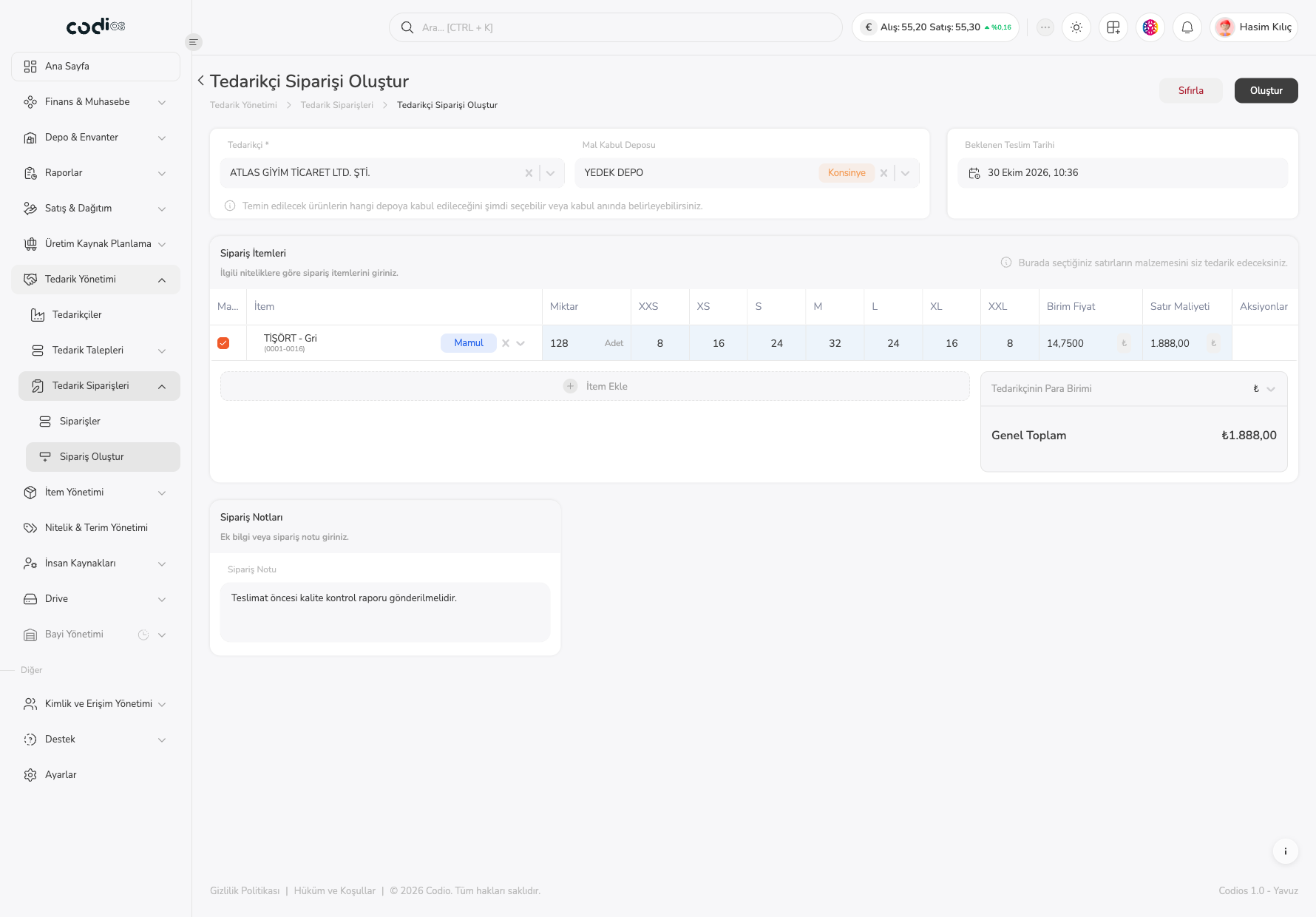
The Tedarikçi Siparişi Oluştur screen lets you create an order for a vendor directly, with items, quantities per size, and unit prices. You do not need this screen for orders that come from the request flow; see Procurement Requests.
Prerequisites
- The vendor you will order from must be registered in the system.
- The items you will add to the order must be defined in Item Management.
Create an order
- Open Tedarik Yönetimi > Tedarik Siparişleri > Sipariş Oluştur from the left menu. You can also use the Tedarikçi Siparişi Oluştur button on the list.
- Choose the vendor in the required **Tedarikçi *** field.
- Optionally choose the warehouse the items will be received into in Mal Kabul Deposu; you can also decide the warehouse at goods receipt.
- Choose the date and time in Beklenen Teslim Tarihi.
- In the Sipariş İtemleri table, type at least 3 characters of the item name in İtem and choose the item.
- Enter the quantities in the size cells and the price in Birim Fiyat. Miktar and Satır Maliyeti are calculated automatically.
- Use İtem Ekle to add another item.
- Check Tedarikçinin Para Birimi and Genel Toplam.
- If needed, write a note in Sipariş Notları.
- Select Oluştur to save the order, or Sıfırla to clear the form.
 1234567891011
- 1. The required Tedarikçi * field lets you choose the vendor the order goes to.
- 2. The Mal Kabul Deposu field lets you choose the warehouse that receives the items; a Konsinye label appears when the vendor’s consignment warehouse is selected.
- 3. The Beklenen Teslim Tarihi field lets you choose the delivery date and time.
- 4. The box in the Ma… column indicates that you will supply the material for the row.
- 5. The İtem field lets you search for and choose the item to add to the order.
- 6. The XXS–XXL cells take the order quantity for each size; the Miktar column shows the total.
- 7. The Birim Fiyat field takes the price; Satır Maliyeti is calculated from quantity and price.
- 8. The İtem Ekle button adds a new row to the table.
- 9. Tedarikçinin Para Birimi and Genel Toplam show the order currency and total amount.
- 10. The Sipariş Notu field takes additional information for the order.
- 11. Oluştur saves the order; Sıfırla next to it clears the form.
Verify the record
After the order is created, check that the new order with a VO- number appears in the Vendor Orders list in Oluşturuldu status and that the quantities in its detail match what you entered.
Points to watch
- **Tedarikçi *** is required; the order cannot be saved without a vendor.
- The order must contain at least one line.
- An order cannot be edited after the vendor is notified; check prices and quantities before saving.
- The first time the form opens, a step-by-step tour is shown; you can use the Bitir button to finish it.