

Media Management
Media Management lets you view and find images used in products and operations under albums.
Find media
- Select the relevant album to narrow the view.
- Search the file name with Medya ara….
- Select a media card to open its image.
Media Management page
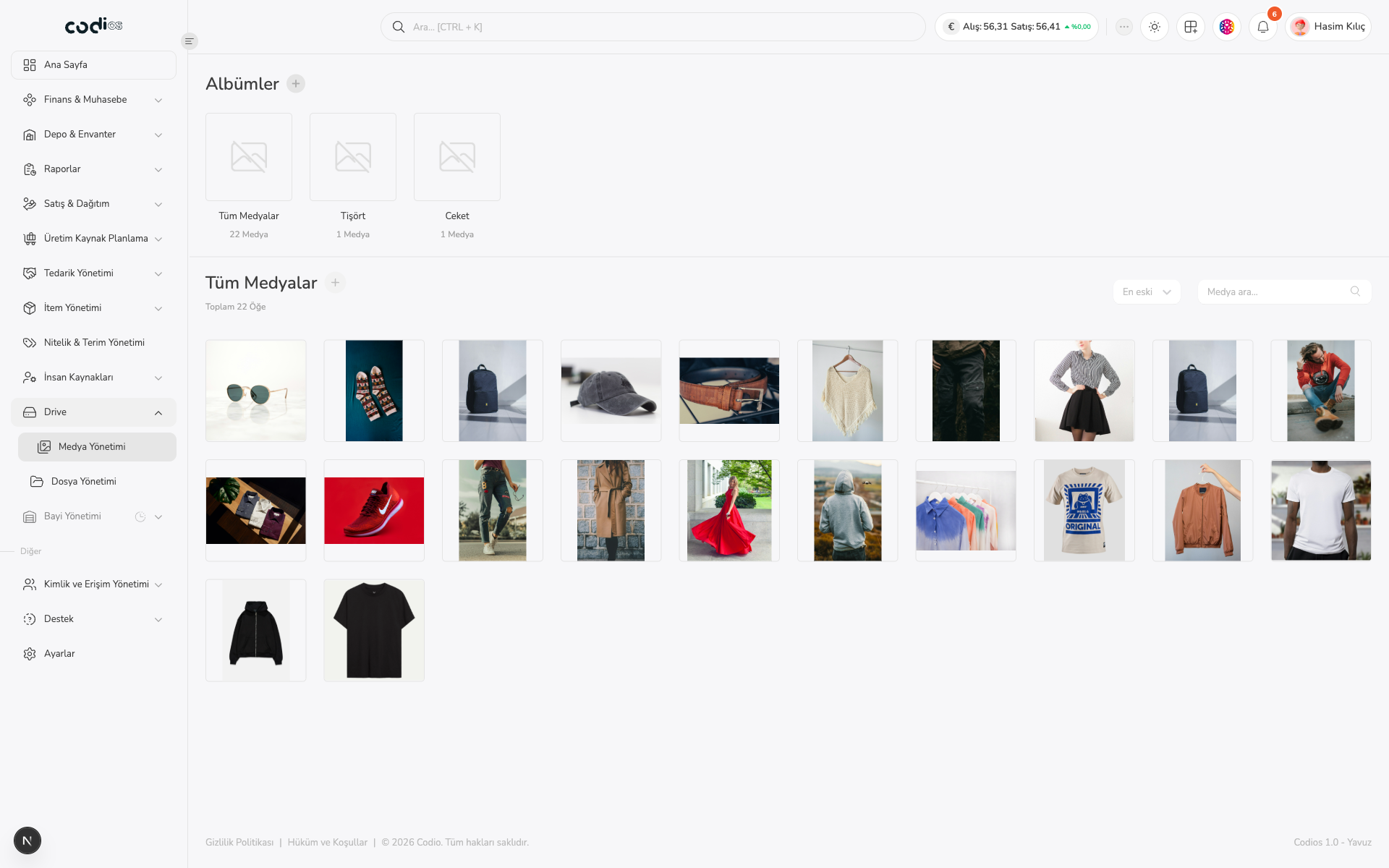 1234
- 1. Select Tüm Medyalar or the relevant product album.
- 2. Search by file name with Medya ara….
- 3. Media cards show images in the album with their file names.
- 4. The add button beside Tüm Medyalar opens the file picker to start adding media.
Media actions
Select one or more media cards and right-click a card. From the context menu, you can move the selected media to an album, remove it from the album, or delete it.
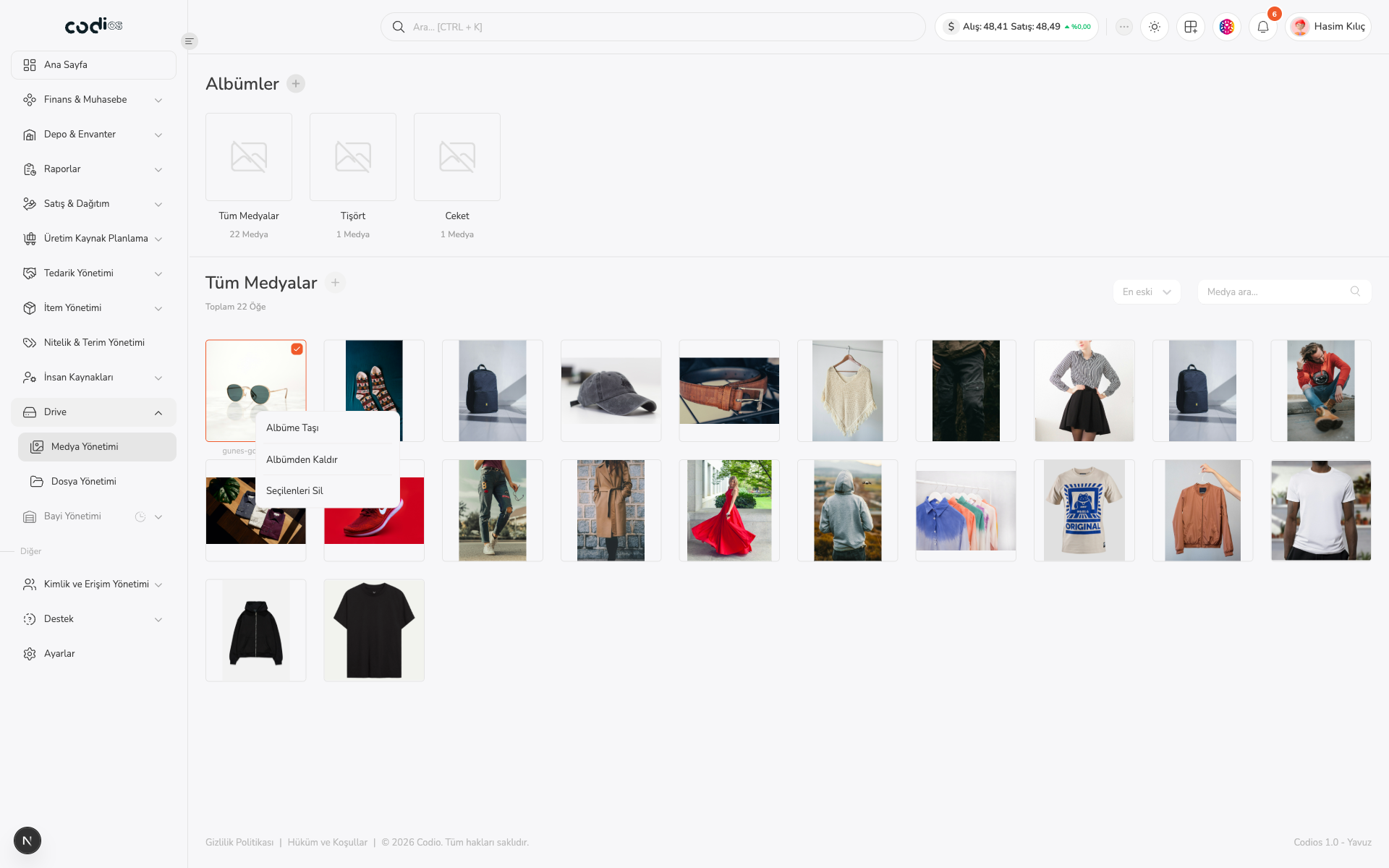 1234
- 1. Select the media card you want to work with first.
- 2. Albüme Taşı sends the selected media to another album.
- 3. Albümden Kaldır removes the media only from the open album.
- 4. Seçilenleri Sil deletes selected media records; confirm the selection before applying this action.
Move media to an album
Use Albüme Taşı from the context menu, select the destination album, and complete the action with Taşı.
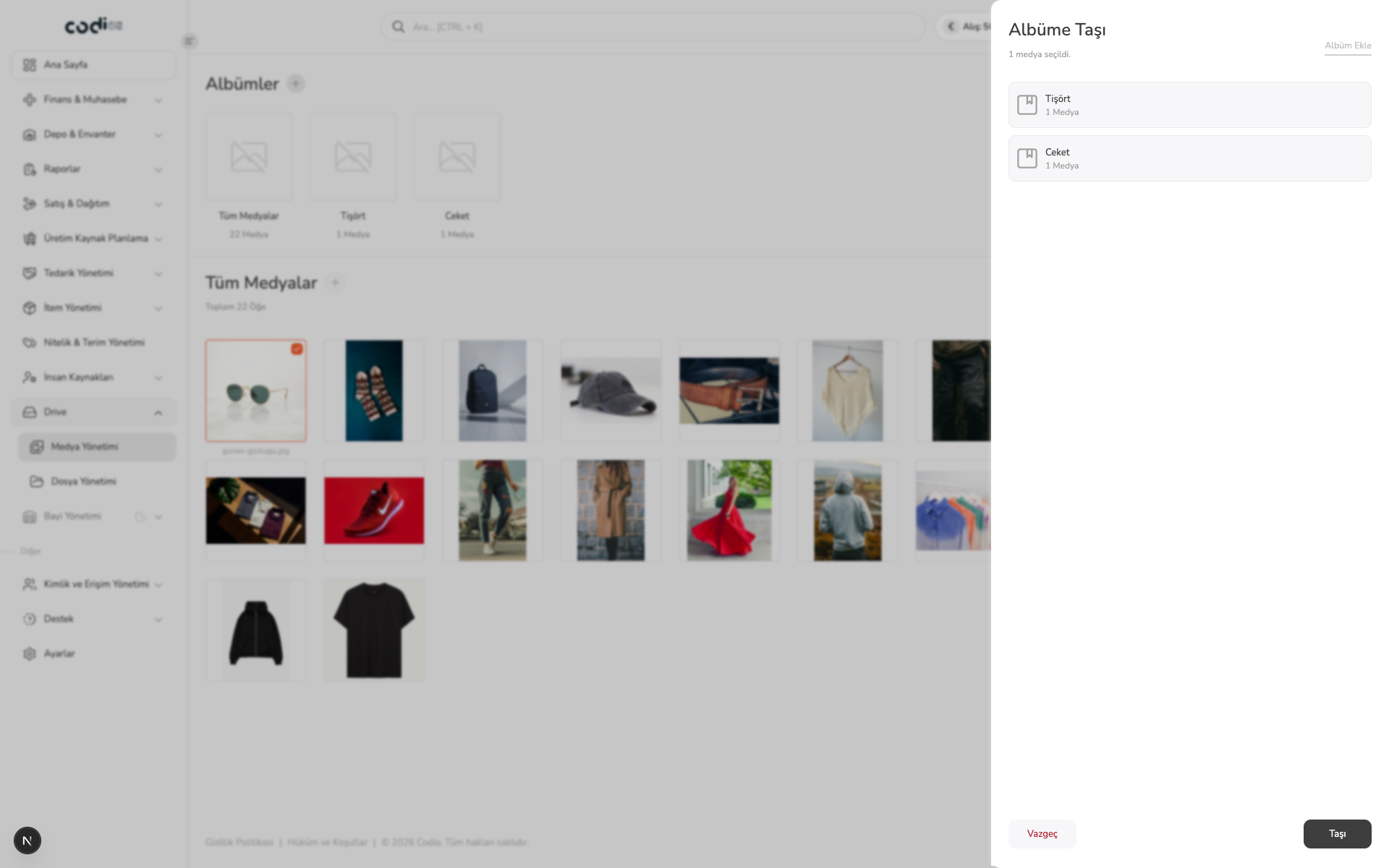 123
- 1. The panel shows the number of selected media items to move.
- 2. Select the destination album from the cards.
- 3. Use Taşı to confirm the selection; Vazgeç cancels the action.
Create an album
Use the add button beside the Albümler heading. Enter an album name, then create it with Ekle.
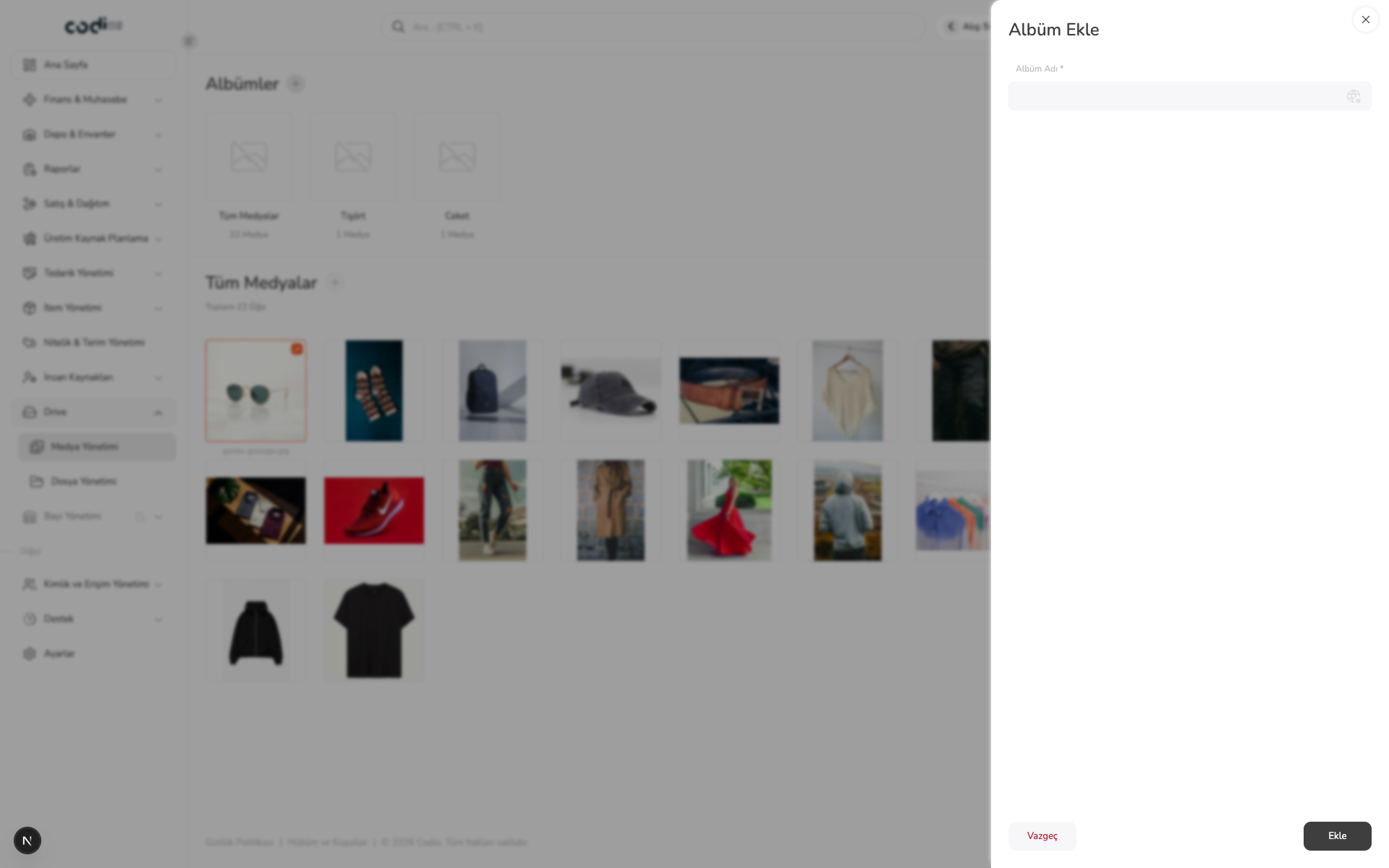 123
- 1. The Albüm Ekle panel opens a new album record.
- 2. Albüm Adı is required.
- 3. Use Ekle to create the album or Vazgeç to close without saving.