

Create Request
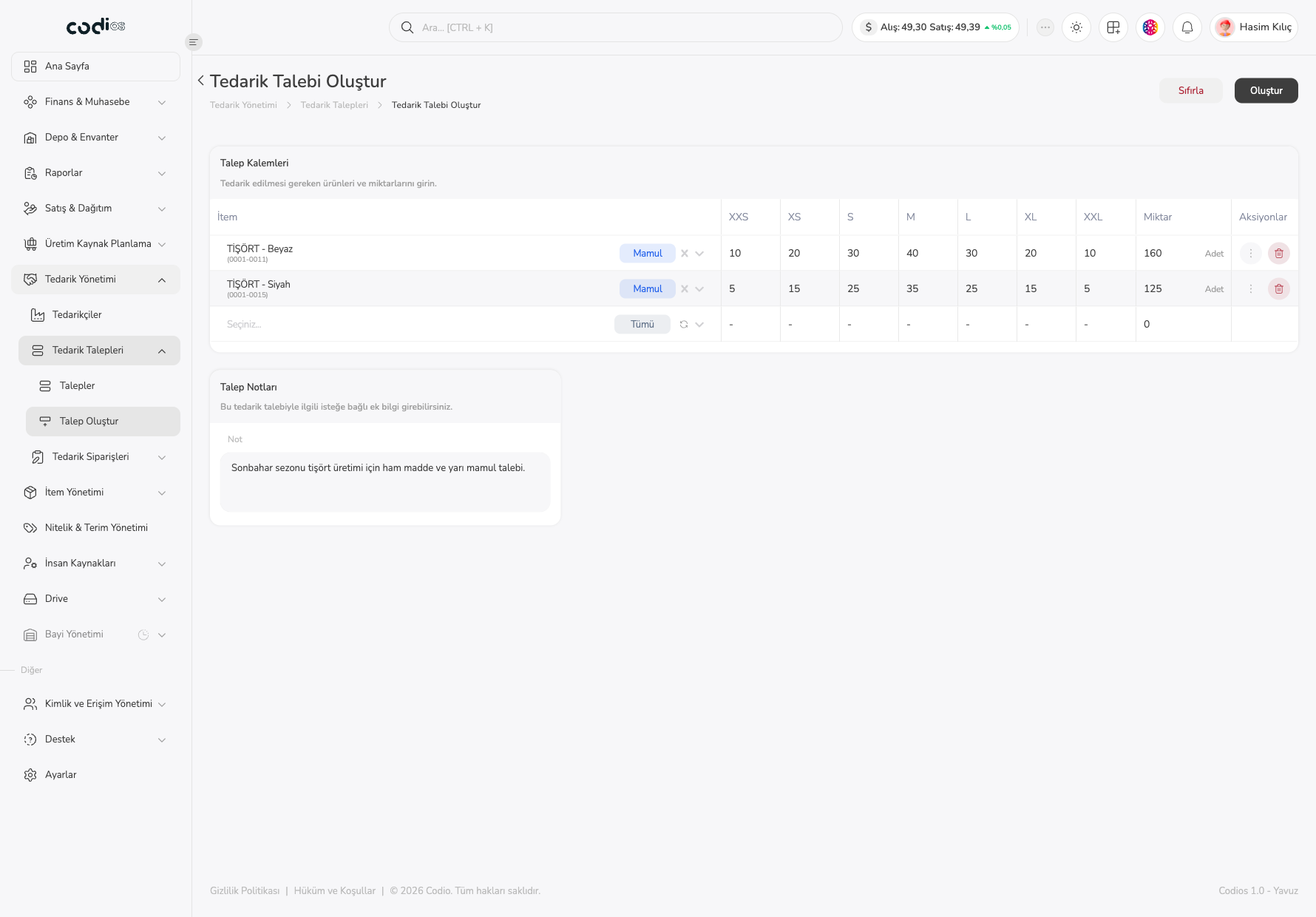
The Tedarik Talebi Oluştur screen lets you record the items to be procured as a request, with quantities per size. The request opens in Taslak status, so you can edit it before sending it to the buyer.
Create a request
- Open Tedarik Yönetimi > Tedarik Talepleri > Talep Oluştur from the left menu. You can also use the Tedarik Talebi Oluştur button on the list.
- In the Talep Kalemleri table, select İtem and type at least 3 characters of the item name. Choose the item from the list that opens.
- Enter quantities in the item’s size cells. The Miktar column calculates the total automatically.
- To add another item, choose a new İtem in the empty row of the table.
- If needed, write a description in Talep Notları.
- Use Oluştur to save the request, or Sıfırla to clear the form.
 1234567
- 1. The İtem field lets you search for and choose the item; the item type (for example Mamul) appears next to it.
- 2. The cells from XXS to XXL take the requested quantity for each size.
- 3. The Miktar column shows the row total.
- 4. The trash icon removes the row from the request.
- 5. The empty row at the end of the table is used to add a new item.
- 6. The Not field in Talep Notları takes an optional description.
- 7. Oluştur saves the request; Sıfırla next to it clears the form.
Verify the record
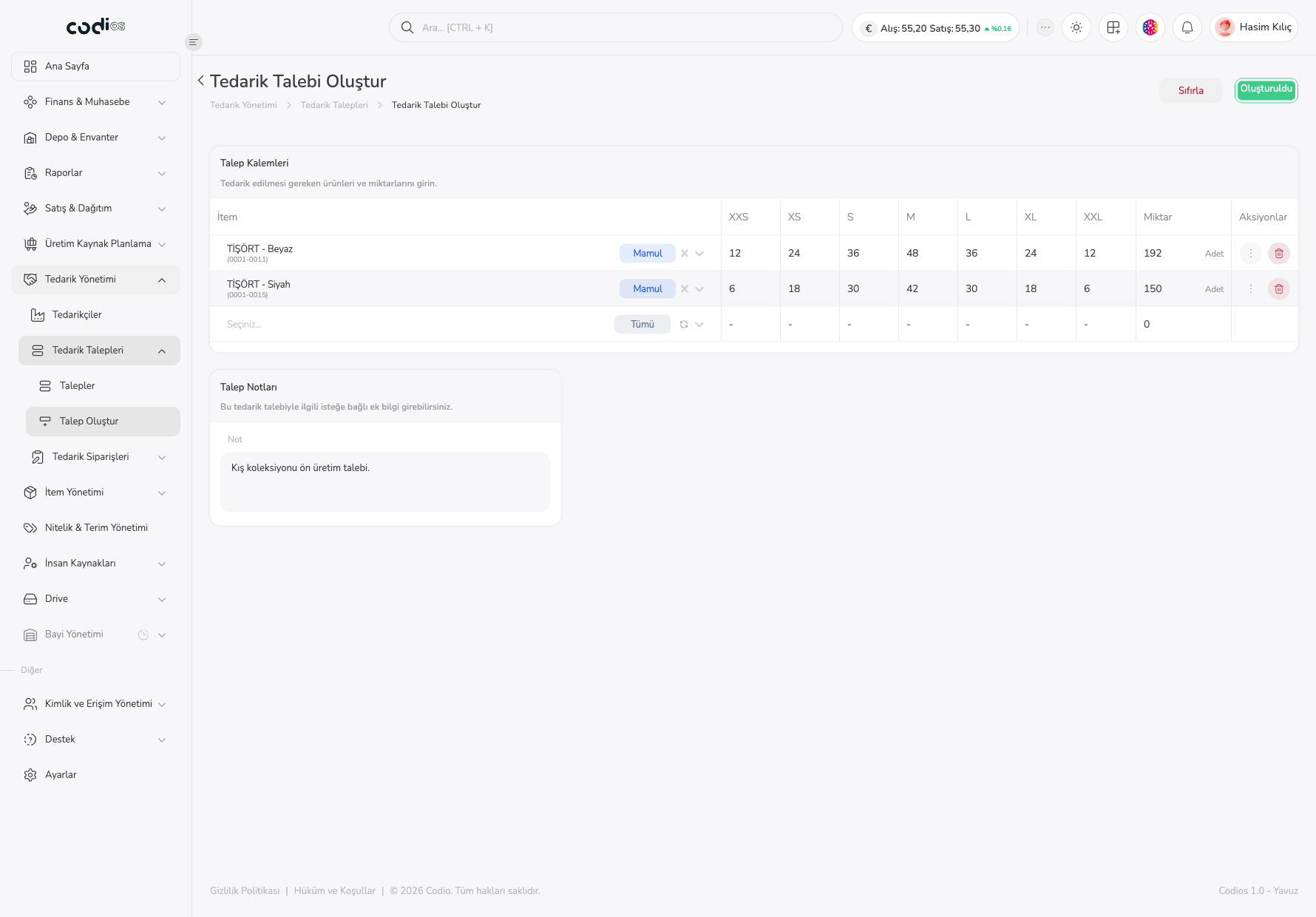
After the request is created, the Oluştur button briefly shows Oluşturuldu and you are taken to the detail of the new request.
 1
- 1. The Oluşturuldu text shows that the request was saved.
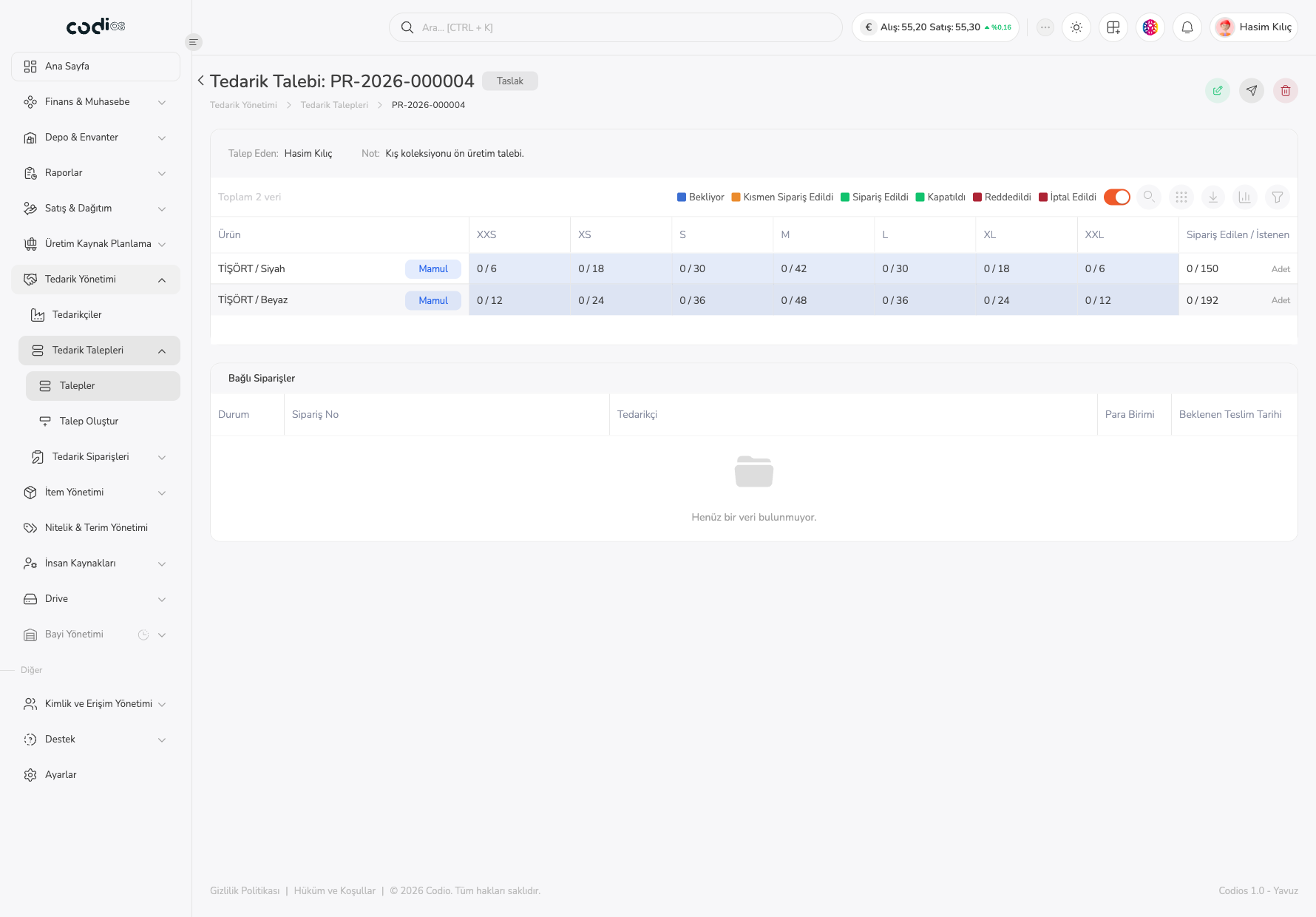
In the detail that opens, the request is in Taslak status with its new PR- number. The items you entered are listed as 0 / quantity (ordered / requested) for each size; Bağlı Siparişler is empty because no order exists yet.
 1234567
- 1. The Taslak badge shows the request has not been sent yet; the PR- number in the title identifies the request.
- 2. The Düzenle icon opens the draft for editing.
- 3. The Tedarik Talebini Gönder icon passes the request to the buyer.
- 4. The İptal Et icon cancels the request.
- 5. Talep Eden and Not show the information you entered in the form.
- 6. The size cells show the ordered and requested quantities for each item (for example
0 / 12). - 7. The Bağlı Siparişler table is empty because the request has not been approved yet.
Send the request to start processing, as described in Procurement Requests. The request also appears in that list.
Points to watch
- A request must contain at least one item.
- The item search returns results only after you type at least 3 characters.
- Before an item is chosen, the size cells show
-; choose an İtem first to enter quantities.