

Items
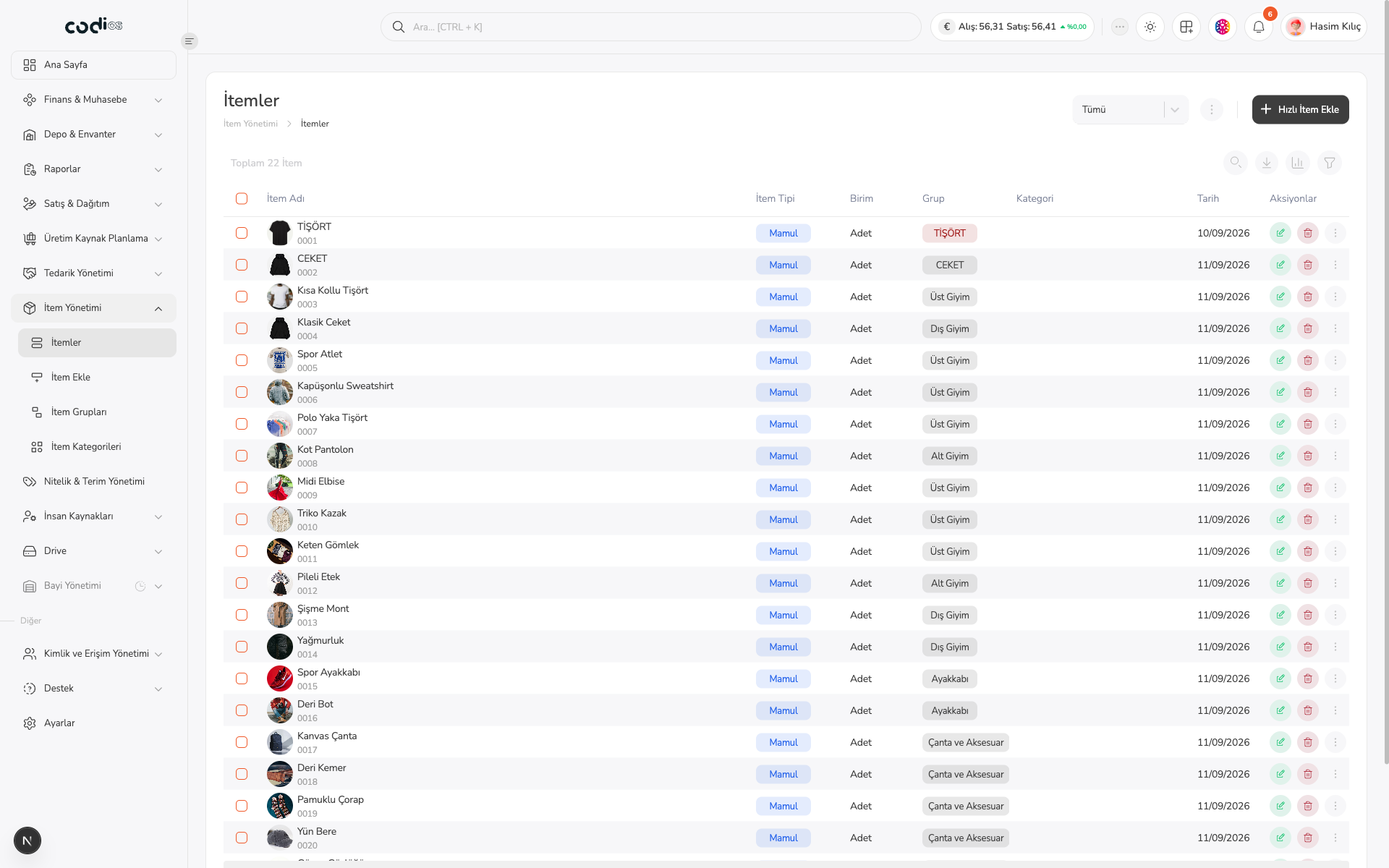
Use the Items screen to review product cards, start a quick entry, and open product details.
Review the list
- Narrow the list with Search… or Filter.
- Compare the item type, unit, group, category, and date columns.
- Open the relevant item’s details from its row.
 123
- 1. Review the list with search and toolbar controls.
- 2. Start a new card with Hızlı İtem Ekle.
- 3. The table shows item type, unit, group, category, and date together.
Add an item quickly
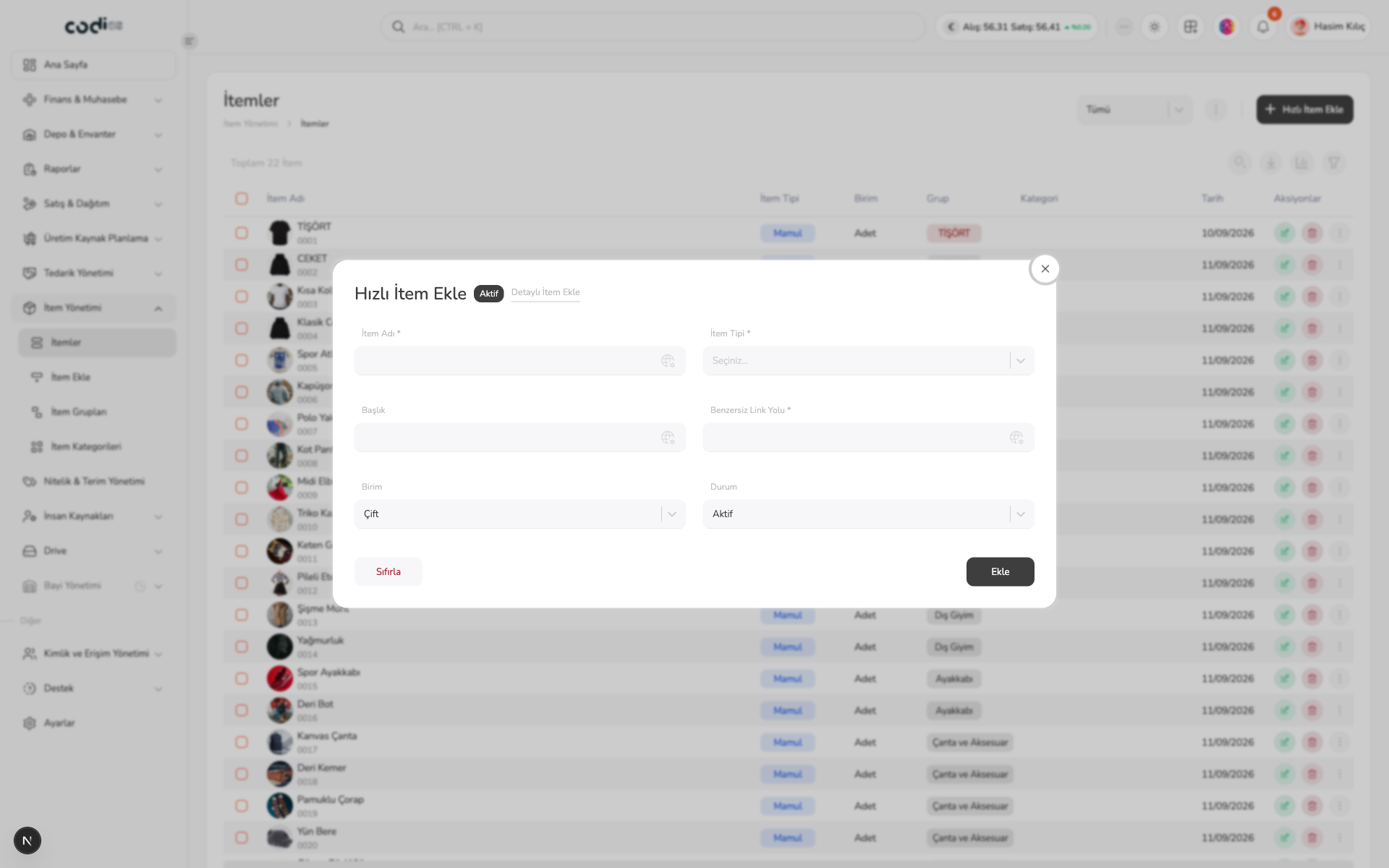
- Open Hızlı İtem Ekle.
- Complete the required İtem Adı, İtem Tipi, and Benzersiz Link Yolu fields.
- Check the unit and status.
- Save with Ekle, or clear entered values with Sıfırla.
- Open Detaylı İtem Ekle for more fields.
 123
- 1. Enter the item name.
- 2. Select the item type.
- 3. Use Ekle to complete the entry.
Review the item detail page
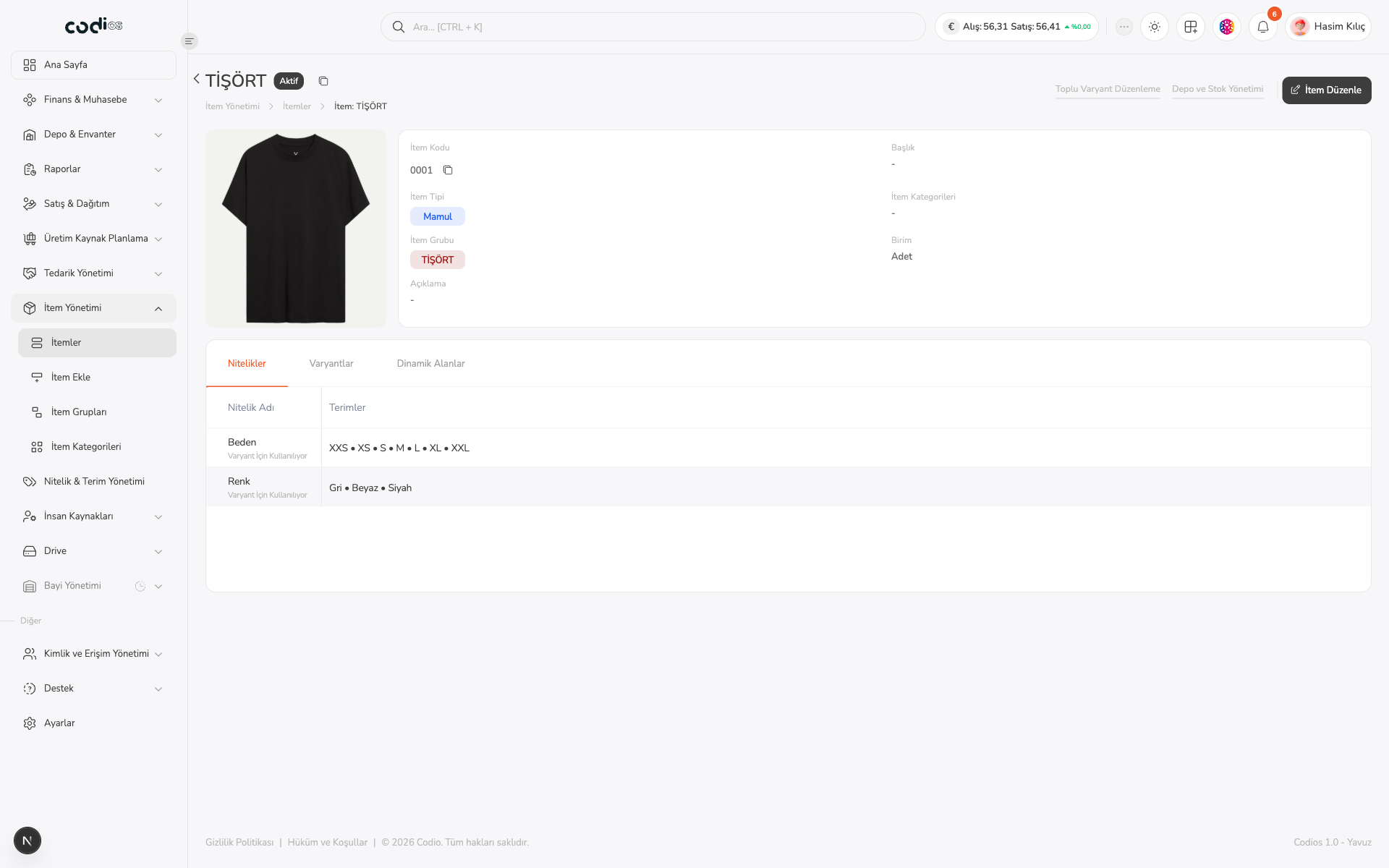
When you open an item from the list, you can review its core information, main image, and variant structure in one view.
- Check the item name, active status, and main image in the top section.
- Review İtem Kodu, İtem Tipi, İtem Grubu, İtem Kategorileri, Birim, and Açıklama.
- Open İtem Düzenle in the upper right to update item information.
- Use Toplu Varyant Düzenleme to manage variants in bulk.
 1234
- 1. Open İtem Düzenle to update the item.
- 2. Open Toplu Varyant Düzenleme to manage variants in bulk.
- 3. Review the item’s core information and main image.
- 4. Check the item’s attributes and the terms used for variants.
Detail page tabs
Use the tabs in the detail area to review the item structure:
- Nitelikler: Shows the attribute names and their terms. Attributes used to create variants are marked separately.
- Varyantlar: Shows combinations such as size and color with their stock codes, barcodes, and actions.
- Dinamik Alanlar: Use this tab to review additional fields connected to the item.
Switching tabs only changes the view and does not save data. Use the relevant edit screen when you need to make a change.
Edit variant information in bulk
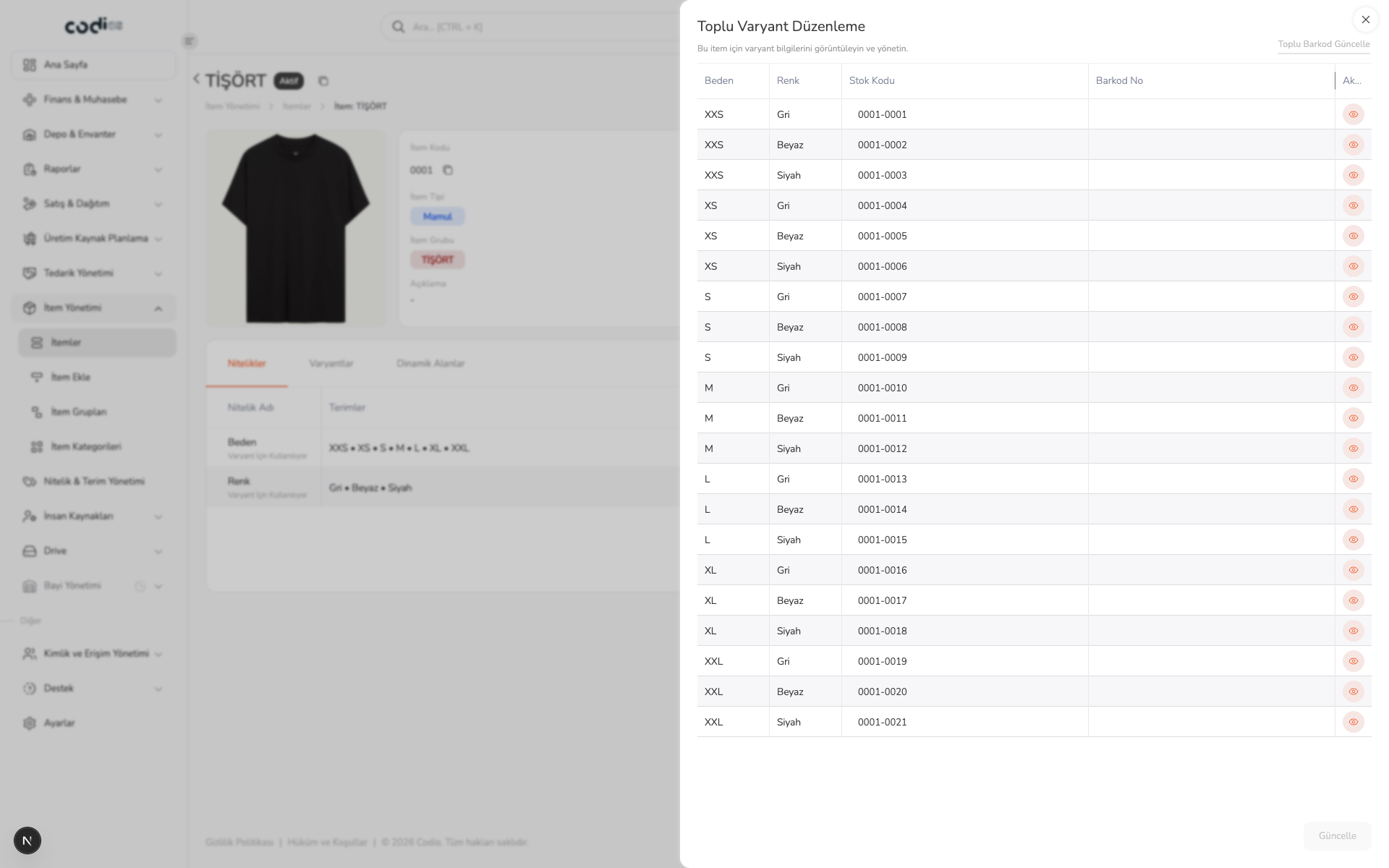
Open Toplu Varyant Düzenleme from the upper right of the item detail page. This view lets you compare every size-color combination in one table and manage stock code and barcode fields.
 123
- 1. Open Toplu Barkod Güncelle to fill variants from a starting barcode.
- 2. Compare the size, color, stock code, and barcode columns.
- 3. Save completed changes with Güncelle.
Update barcodes in bulk
The Toplu Barkod Güncelle panel lets you enter a starting barcode and automatically generate values for the other variants.
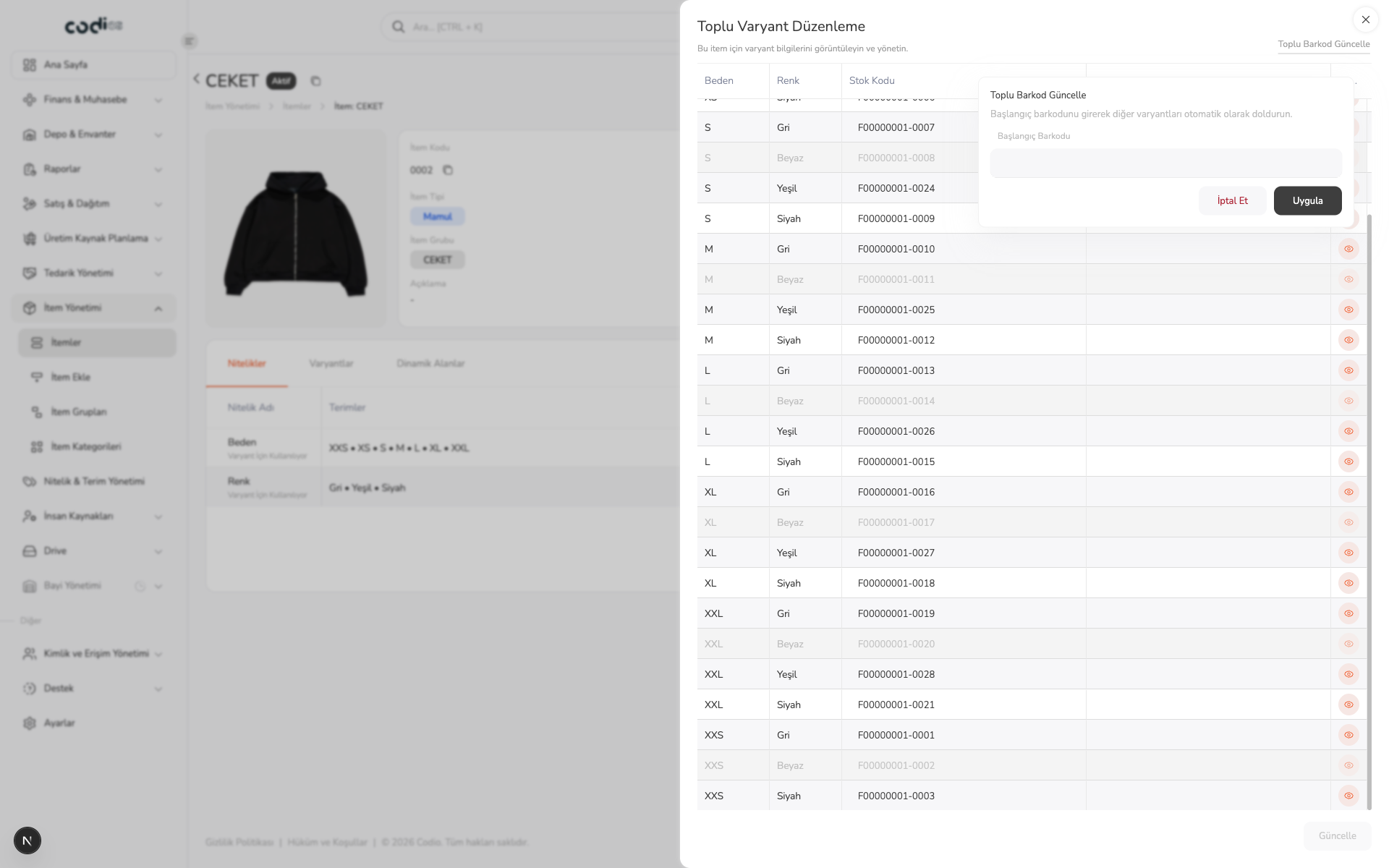 123
- 1. Open Toplu Barkod Güncelle above the bulk edit table.
- 2. Enter the starting value in Başlangıç Barkodu.
- 3. Select Uygula to generate barcode values, or İptal Et to leave without applying.
Update the item and select gallery media
- Open İtem Düzenle from item details.
- Review the item type, status, group, and category.
- Open the media picker using the add control in İtem Galerisi.
- Select an image and associate it with Ekle; use Vazgeç to leave the operation.
- Save the main form with Güncelle.
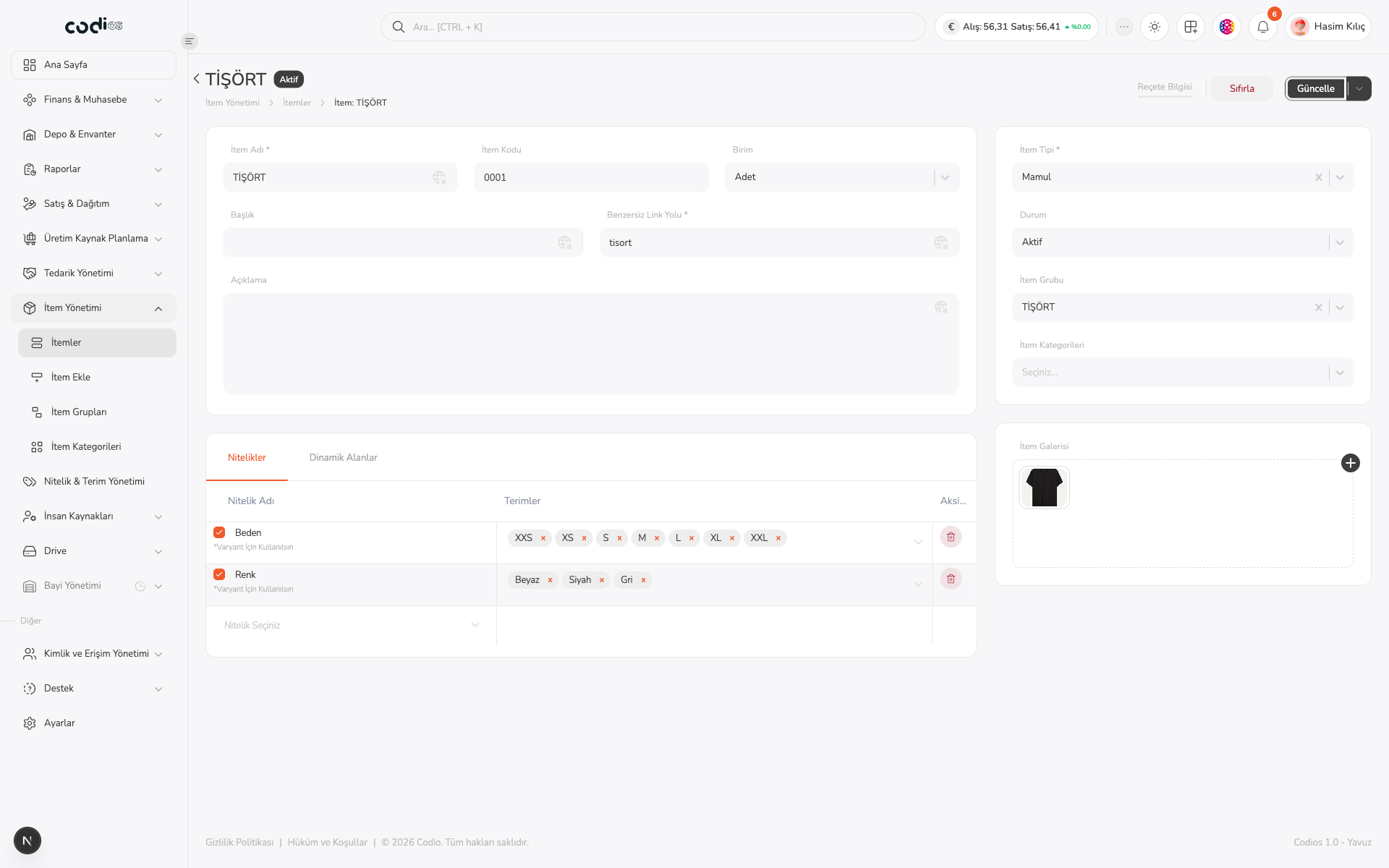 123
- 1. Manage the item type, status, group, and category.
- 2. Open the media picker for the item gallery.
- 3. Save form changes with Güncelle.
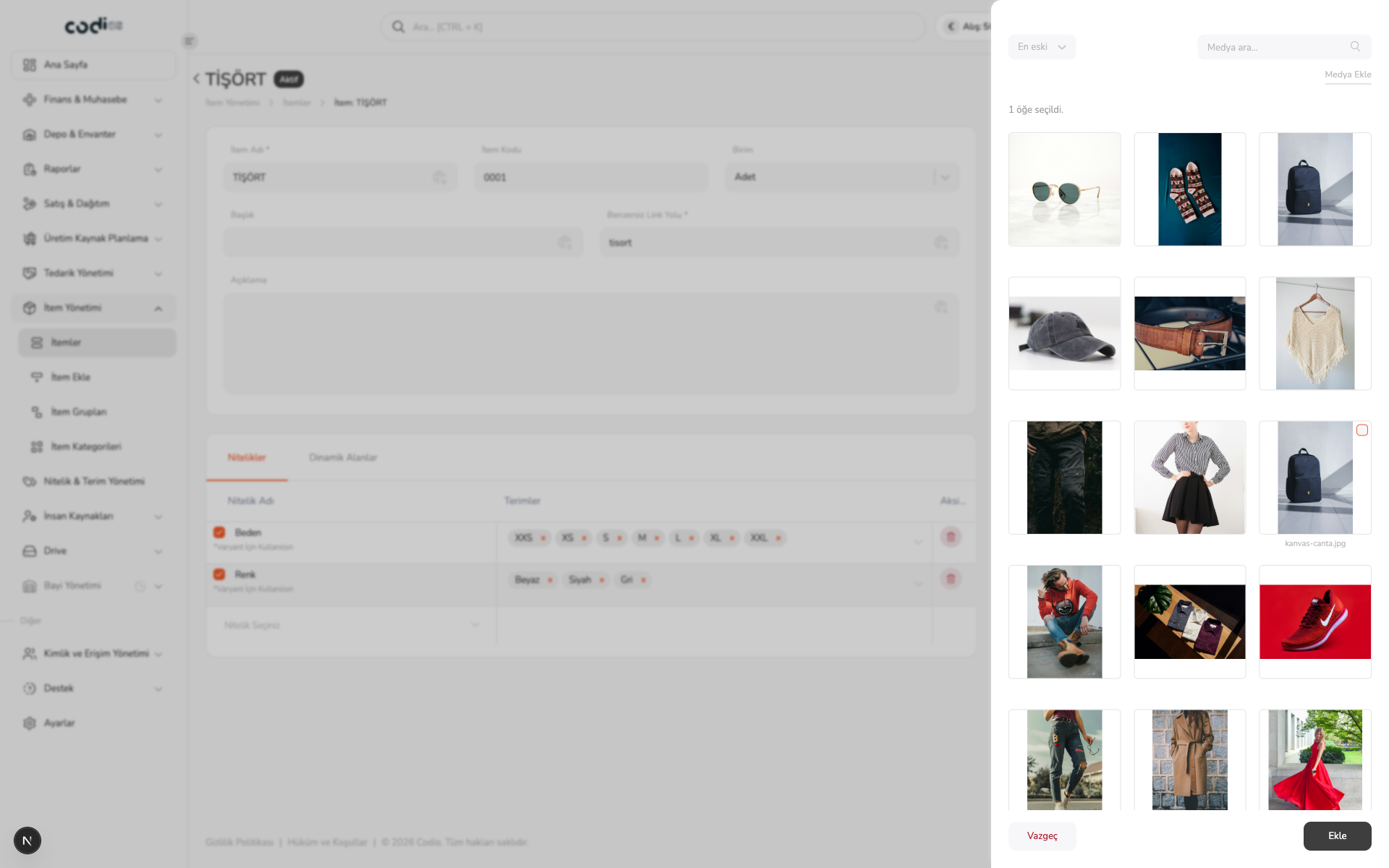 123
- 1. Search media by name.
- 2. Open the new-media entry point.
- 3. Add the selection to the item or cancel.
Variants
For an item with variants, you can bulk-edit the stock code and barcode for size/color combinations. The view action on a variant row opens the single-variant detail panel.
123- 1. Open the entry point to update barcodes in bulk.
- 2. Check the stock code and barcode of each combination.
- 3. Save changes with Güncelle.
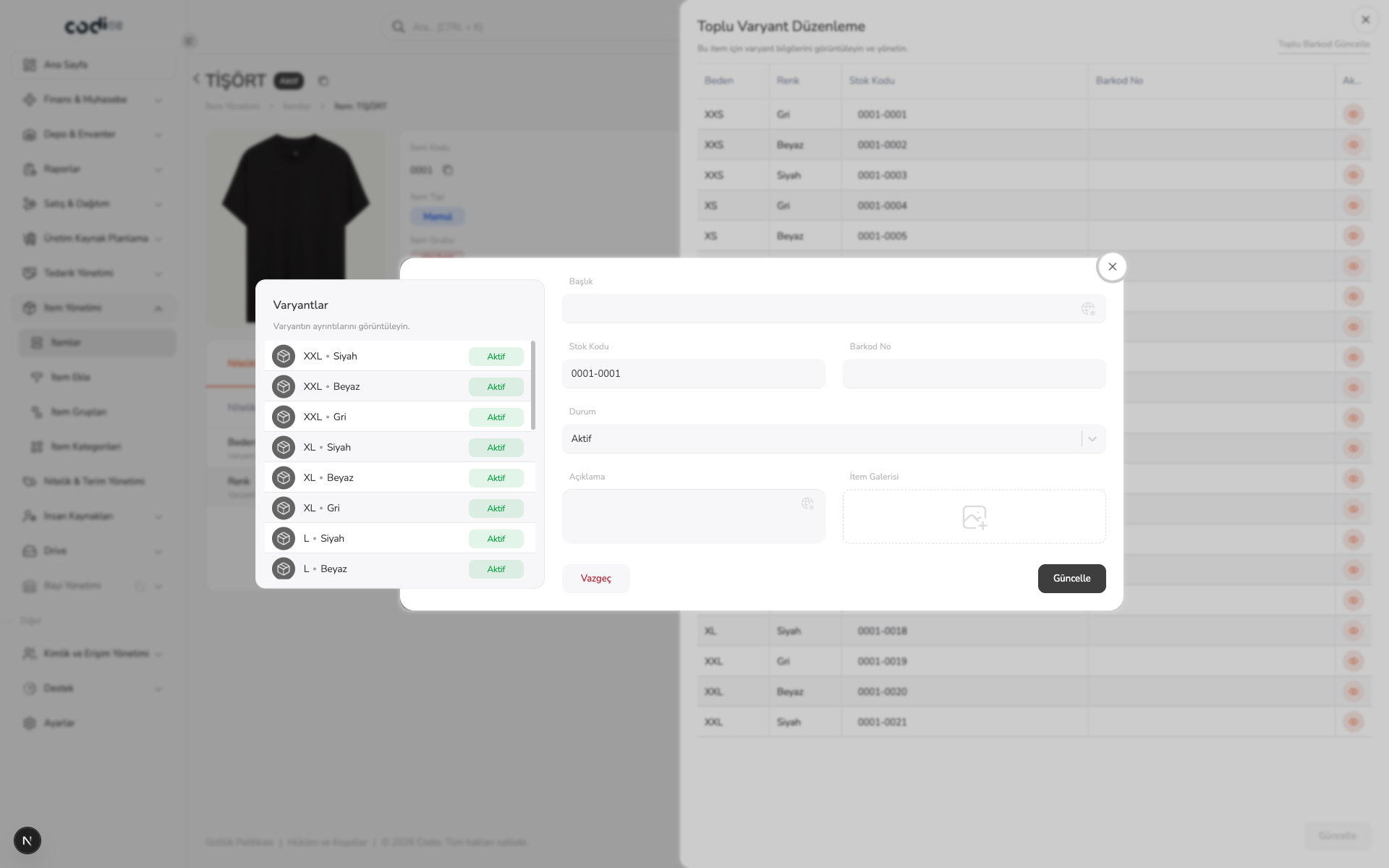 123
- 1. Select the variant to edit from the list on the left.
- 2. Associate an image by opening the variant gallery.
- 3. Save variant changes or cancel.
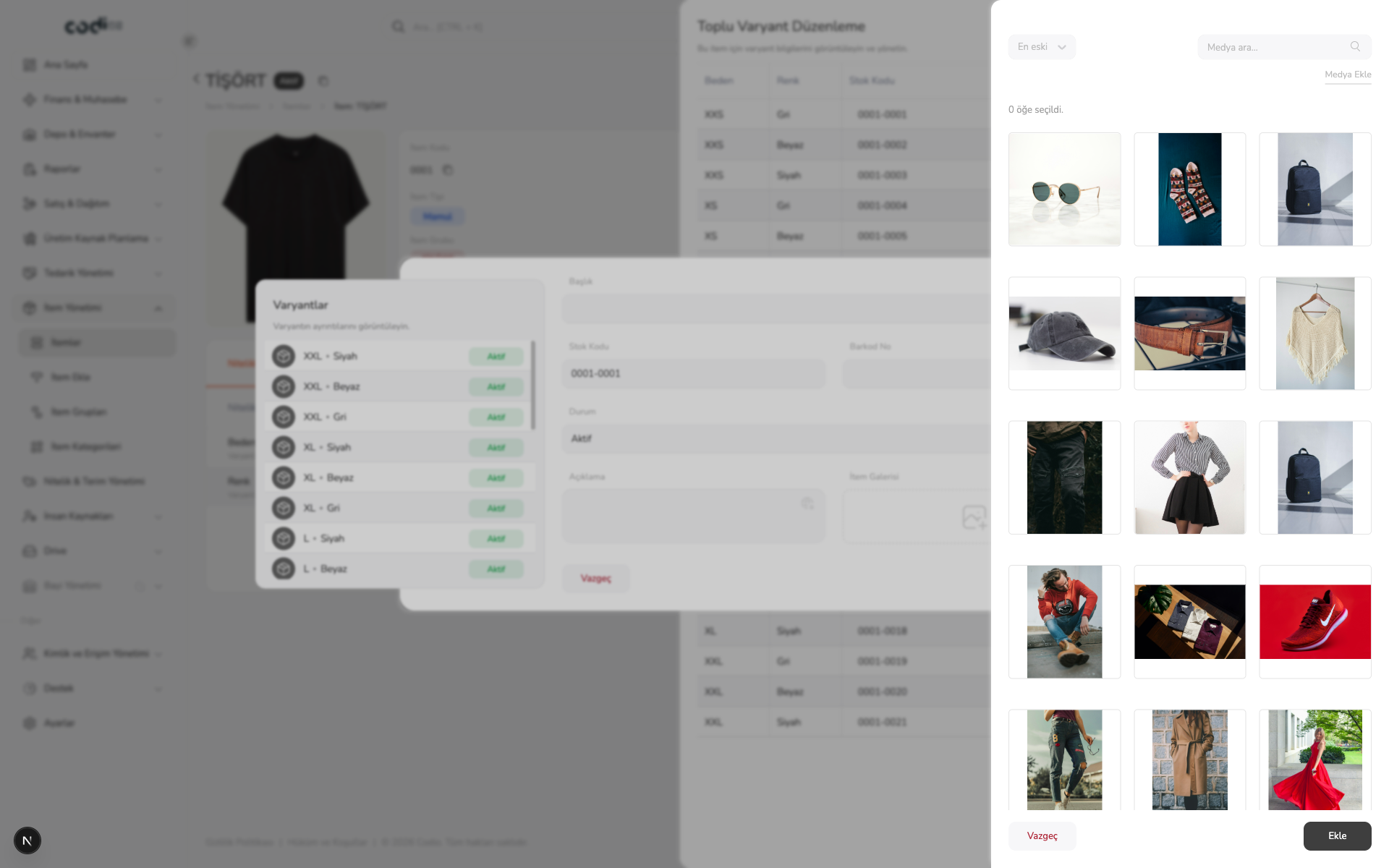 123
- 1. Search for the media used by the variant.
- 2. Open the new-media entry point.
- 3. Add the selected media to the variant or cancel.