

My Exports
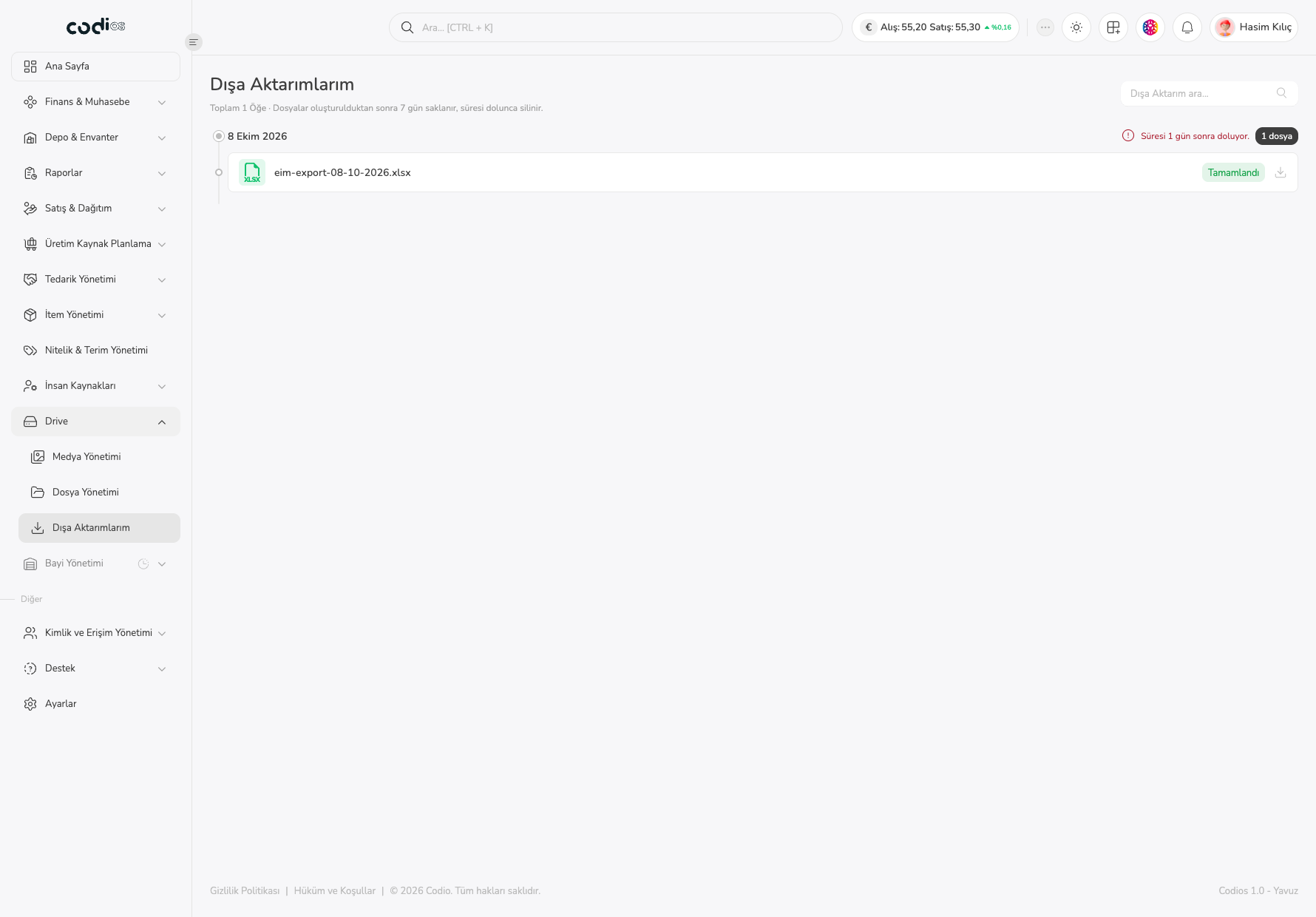
The Dışa Aktarımlarım screen lists the files created by the exports you started in the ERP, grouped by date, and lets you download the files that are ready. For example, an export you start from Item Management appears here as a file named eim-export-...xlsx.
Review your exports
- Open Drive > Dışa Aktarımlarım from the left menu.
- Check Toplam … Öğe under the title to see how many exports you have.
- See that the files are grouped by creation date; each group shows the number of files for that day.
- In a file row, check the file name and the status (for example Tamamlandı).
- Use the download icon at the right of the row to get the file.
 1234567
- 1. The Dışa Aktarım ara… field is provided for searching among your exports.
- 2. The information line under the title shows the total item count and states that files are kept for 7 days after creation and deleted when they expire.
- 3. The date heading (for example 8 Ekim 2026) shows the day the files were created.
- 4. The Süresi … gün sonra doluyor. warning shows the time left before the file is deleted, and the 1 dosya label shows the number of files for that day.
- 5. The file name includes the export type and date; a file type icon (for example XLSX) appears next to it.
- 6. The status label (for example Tamamlandı) shows whether the file is ready.
- 7. The download icon is for downloading the ready file to your computer.
Points to watch
- Files are kept for 7 days after they are created and are deleted when they expire. Download the file you need before the warning runs out.
- If you have no exports, the list shows the Henüz bir dışa aktarımınız bulunmuyor. message.
- This screen does not start exports; files are created by the export actions in the related modules. Downloading was not tried while writing this page.