

Price List Management
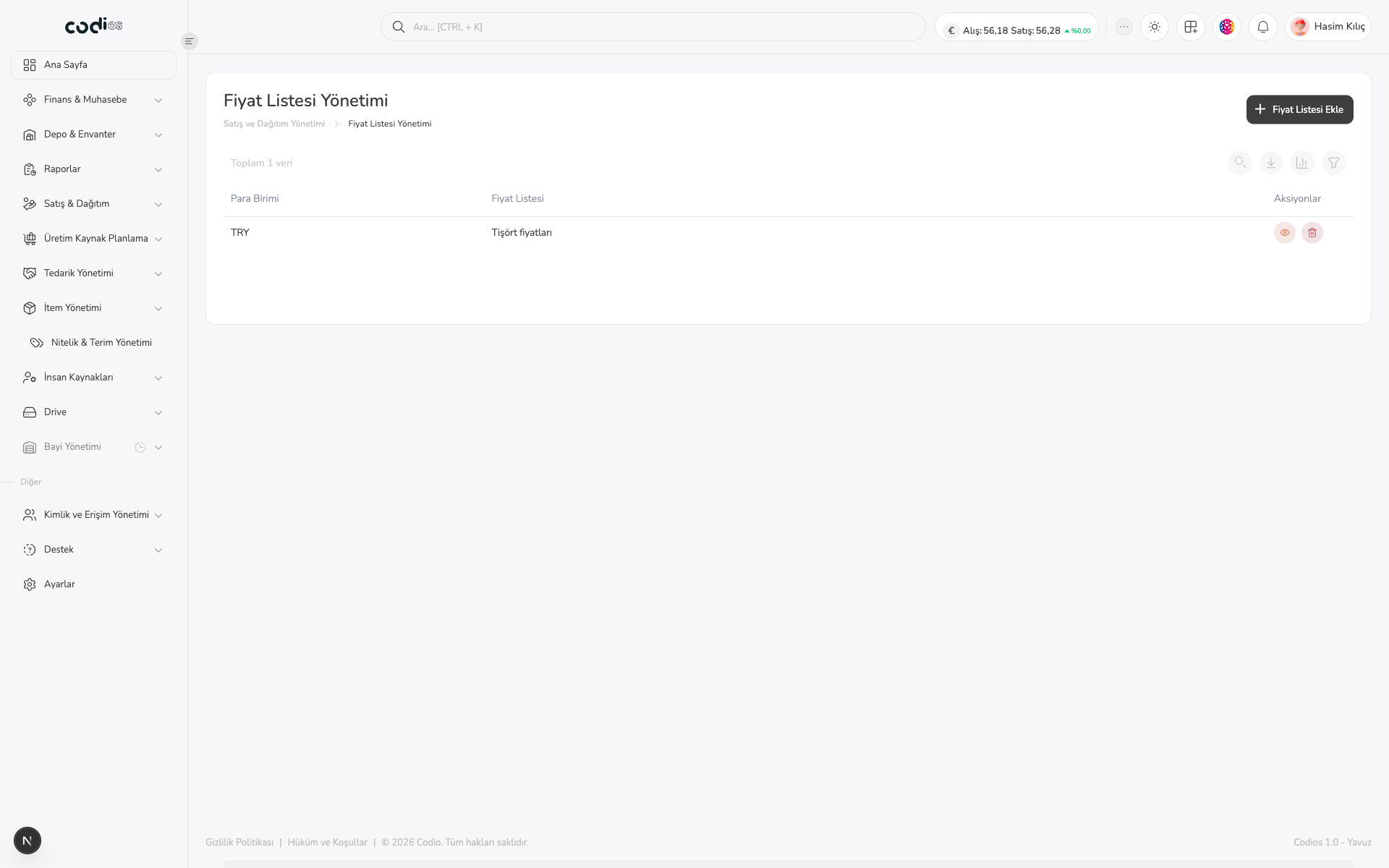
Price List Management lets you define sales price lists with a currency and update existing lists.
Review price lists
 123
- 1. Use Add Price List to define a new list.
- 2. Check the currency and name of each price list row.
- 3. Use the row actions to view a list or start deletion. Delete a list only when you are certain it is no longer used.
View price list details
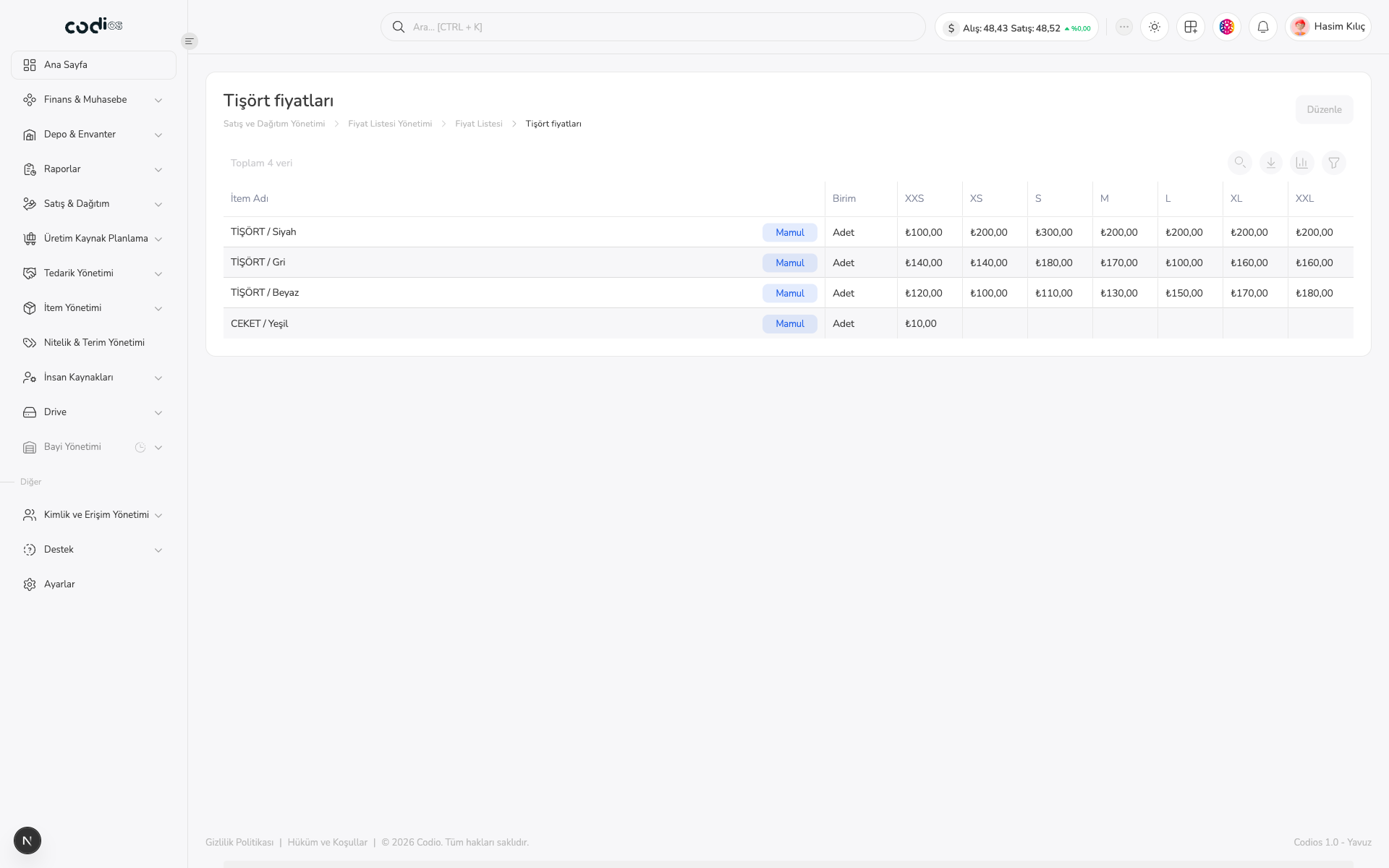
Select the eye action in a list row to open the price list detail page. The detail screen lets you compare products, units, and prices for the XXS, XS, S, M, L, XL, and XXL sizes.
 1234
- 1. Confirm the name of the price list in the detail heading.
- 2. Select Edit to change price cells and rows.
- 3. Check the product and unit information.
- 4. Compare the saved prices in the size columns.
The read-only table contains these fields:
| Field | Description |
|---|---|
| Item Name | The product or product variant that uses the price |
| Unit | The unit used for the price |
| XXS, XS, S, M, L, XL, XXL | The saved price for the selected size |
Use this view to review saved values only. Select Edit to change prices or add a new row.
Add a price list
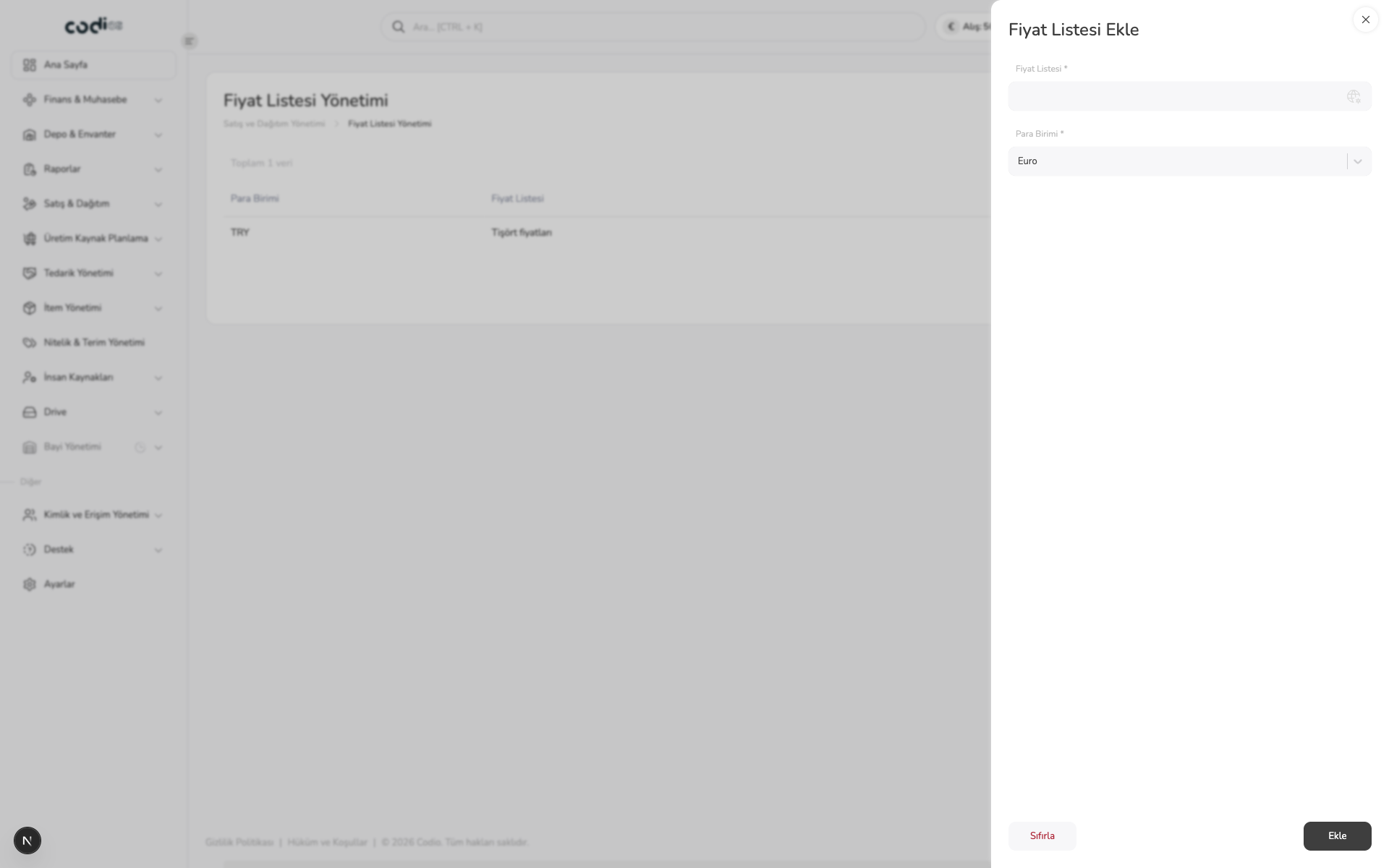
- Select Add Price List.
- Enter a distinct list name in the required Price List * field.
- Select the currency in Currency *.
- Save with Add. Use Reset to clear the fields.
 1234
- 1. Confirm that the panel title is Add Price List.
- 2. Enter the list name in Price List *.
- 3. Select the currency used by the prices in Currency *.
- 4. When the data is complete, create the list with Add.
Edit prices from the detail page
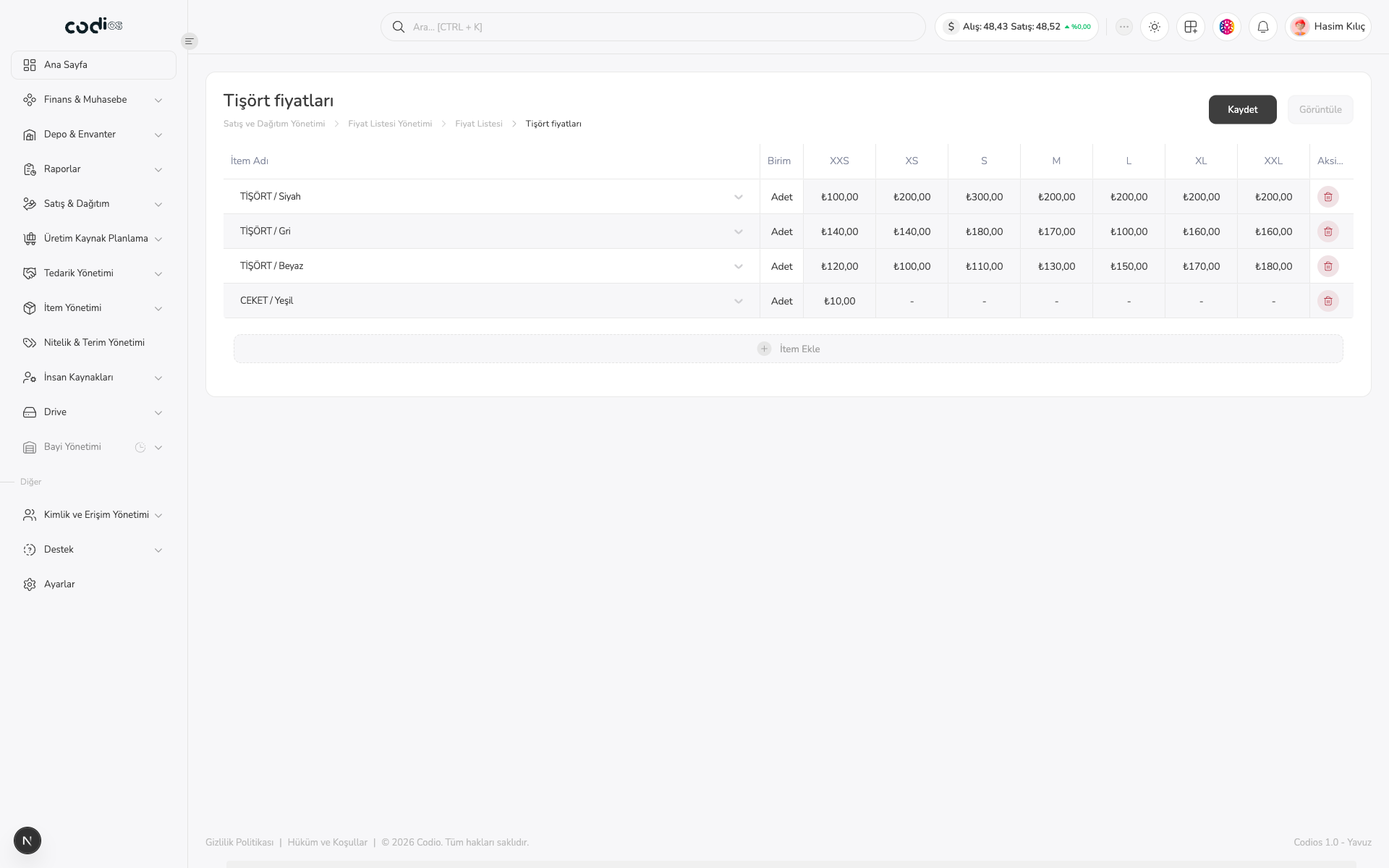
Select Edit on the detail page. In edit mode, update size prices by row and add a new product row with Add Item. Select Save when finished; return to View to leave edit mode without making further changes.
 1234
- 1. Update price cells in edit mode.
- 2. Return to the read-only view with View.
- 3. Use row actions when needed.
- 4. Use Add Item for a new product row and Save to persist changes.
Edit list information
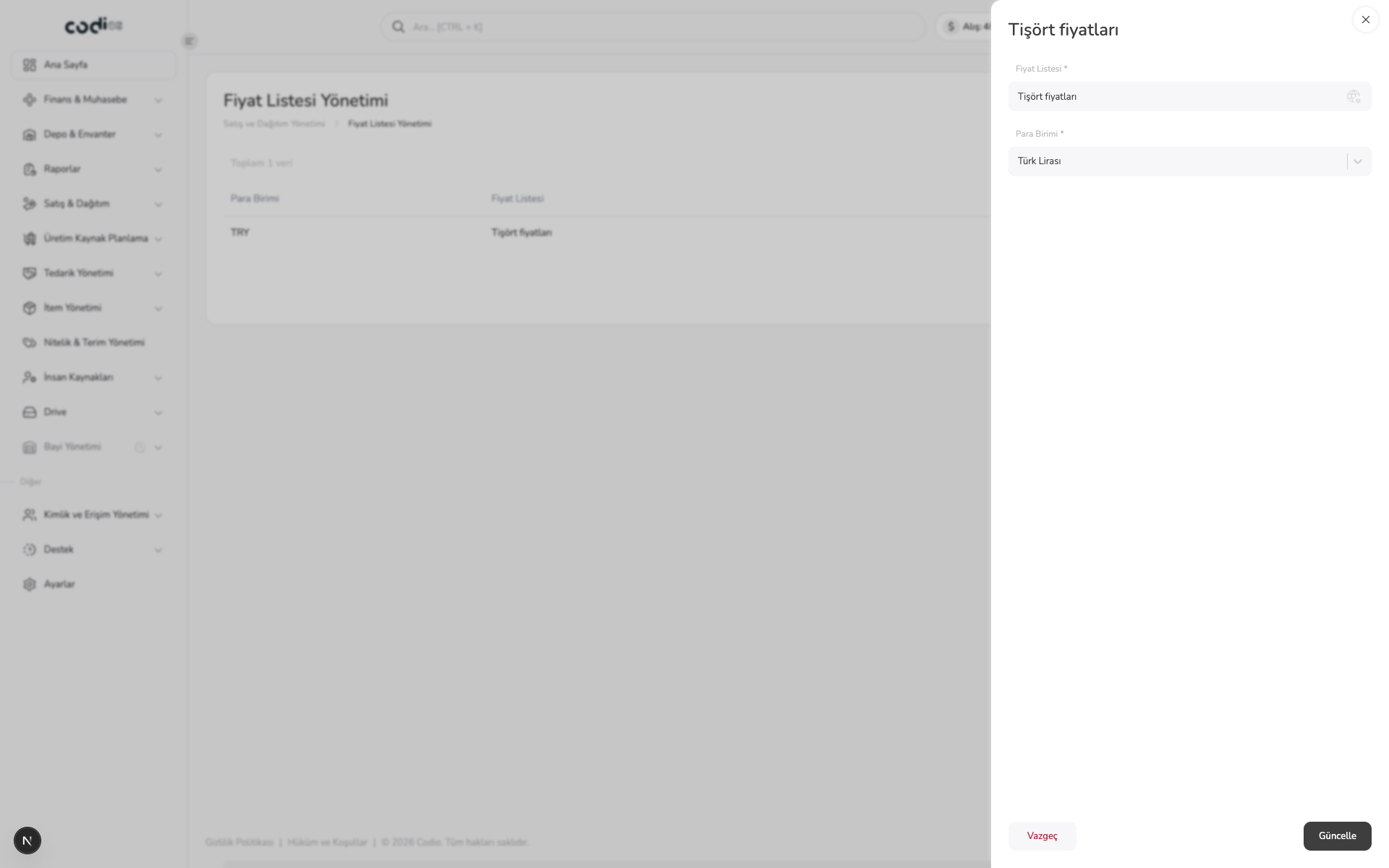
Select the price list name in the table to open its edit panel. Update the name or currency, then select Update. Use Cancel to leave the panel without saving.
 1234
- 1. Check the name of the list you are editing in the panel title.
- 2. Change Price List * when needed.
- 3. Check or update the currency.
- 4. Select Update to save or Cancel to discard the edit.
Completion check
After adding or updating a list, confirm that the correct name and currency appear in the price list table.
Back to top